Parent Group Chat Overload: Turn School Notices Into an AI To-Do List
Published 2026-10-05 · Updated 2026-10-13 · 7 min read · ShooWork (FREECO CO., LTD.)
Hundreds of unread parent-chat messages and crumpled flyers? Turn them into one dated, checkable AI to-do list in three minutes, privacy-safe.
It's day three of the school year and the parent group chat says 247 unread. Somewhere in there: label the water bottle, gym clothes on Thursday, pay the class fund, return the signed permission slip by tomorrow. None of those is hard on its own. Buried among 247 messages, you'll miss some of them.
Here's the short answer. Photograph the paper notices and screenshot the chat announcements. Blur everyone else's names, then upload it all to an AI assistant and ask for one table sorted by due date, with four columns: the date, the task, what to bring or pay, and whether a parent has to sign. Add the three sentences in the prompt section below and you'll have a one-page to-do list you can tick off in about three minutes. You don't have to retype anything.
This isn't about paying more attention. The real problem is the format the information comes in. You get a photo of a flyer, a chat bubble, and a scribbled note from the teacher. You can't sort them, set reminders on them, or tick them off. So your brain has to be the scanner, the translator and the calendar all at once. The fix is to change the format, and AI is now good enough to do most of that for you.
Why Parent Group Chats Always Make You Miss Something
Group chats have three traits that, combined, make it almost certain you'll miss something:
- No structure. “Permission slip due tomorrow” and “Thanks so much, teacher! 🙏” look exactly the same: one line, same font, same weight. Nothing stands out.
- Messages are ordered by when someone posted, not when something is due. A sports-day announcement three weeks away can sit above the slip that's due tomorrow. Whoever happened to post last ends up setting your priorities.
- Important messages get buried. One real notice gets followed by twenty “got it” replies. Scrolling back up to find it is enough of a chore that most people just give up.
Paper notices are even worse. You can't search them at all. They sit crumpled in a backpack pocket, and the only way to find them is to remember they exist. During the first week of school, memory is about the least reliable tool you have.
So reading the chat more carefully won't fix this. What works is moving the information somewhere it can be sorted. That used to mean copying everything out by hand. Now a multimodal AI model can do it in a few minutes. It reads printed text in photos and understands phrases like “this Friday” or “next Wednesday”. It can also reorder everything by deadline instead of by posting time.
The 3-Step Method: From Scattered Notices to One Page
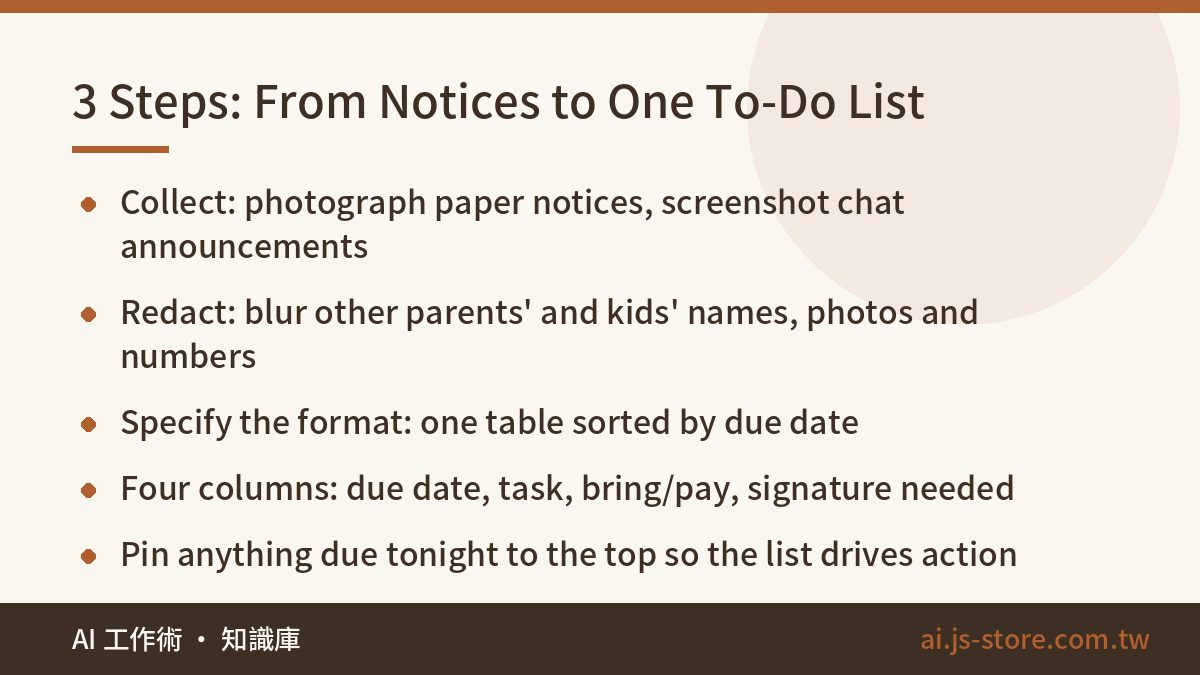
There are only three steps. The first run takes about five minutes. After that it's two or three.
- Collect. Lay the paper notices flat and photograph them in even light, roughly straight on. A slight angle is fine. Screenshot the chat announcements directly, and take as many as you need.
- Redact. After taking the screenshots and before uploading anything, scribble over other parents' and kids' names, profile photos and phone numbers. The markup pen built into your phone's photo editor is enough, so you don't need another app. Don't skip this step. The privacy section below explains why.
- Upload and specify the output format. Upload all the photos and screenshots in one go, then ask for a table sorted by due date. Spelling out the format is what makes this work. If you don't, you'll get a friendly paragraph summarizing the notices, which is just as hard to act on as the chat.
Ask for four columns: due date, what to do, what to bring or how much to pay, and whether a parent signature is needed. Then ask for anything that needs handling tonight to be pulled out and listed separately at the top. That one request is what turns a summary into a list you can act on.
Don't upload thirty images at once and hope for the best. Batches of five to ten work much better. When you upload too many, models tend to quietly skip content from some of them, and you won't know which ones.
The Prompt: Three Sentences That Stop the AI From Guessing
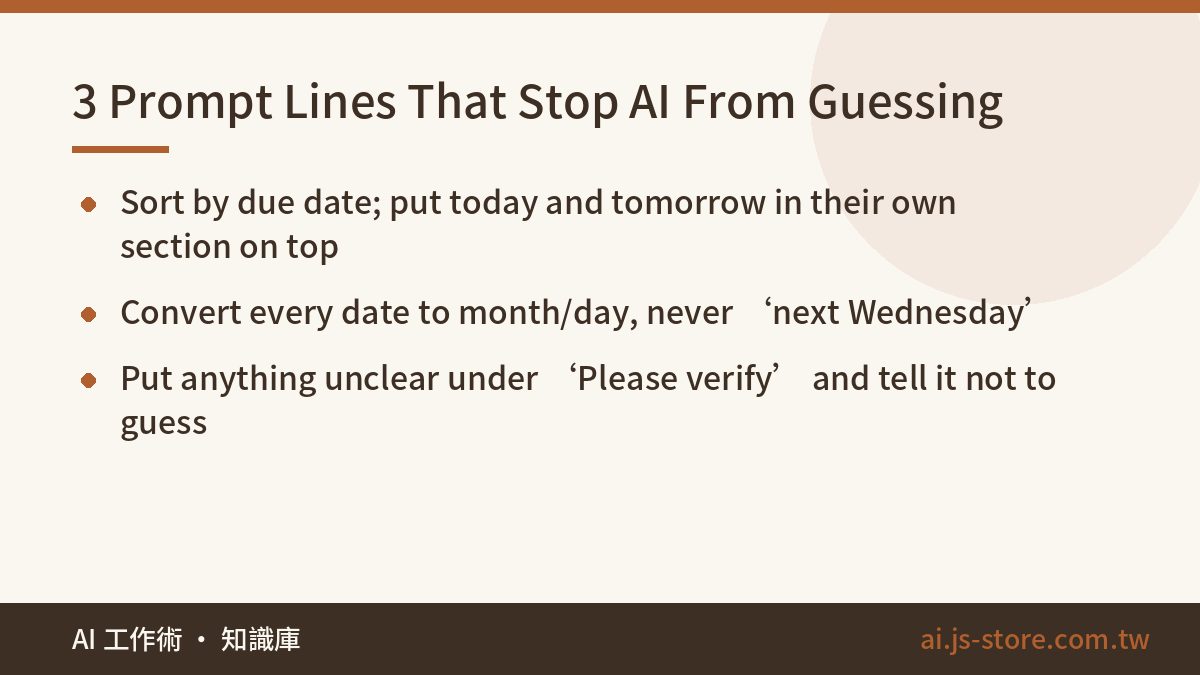
You don't need a long prompt, but these three sentences make a big difference. Each one targets a place where AI usually goes wrong with this kind of task:
| Add this sentence | What it fixes |
|---|---|
| “Sort by due date, soonest first, and put anything due today or tomorrow in a separate section at the top.” | Otherwise the AI outputs items in the order you uploaded them, and that order means nothing. |
| “Convert every date to an explicit month/day. Never write ‘next Wednesday’.” | Notices say things like “this Friday”, and the AI will copy that word for word. You can't put “this Friday” in a calendar. |
| “If anything is unclear or unreadable, list it in a separate ‘Please verify’ section. Do not guess.” | This is the most important one. Without it, the AI will turn a smudged handwritten note into an answer that sounds plausible but is wrong. |
A full prompt can be as short as this: “These are school notices and chat screenshots. Make one table with columns: due date, task, what to bring or pay, signature needed (yes/no). Sort by due date, soonest first, with today and tomorrow in a separate section at the top. Convert all dates to month/day. Anything unclear goes in a ‘Please verify’ section. Don't guess.”
The last sentence matters most. On our own AI products, including the pipelines behind ShooWork Write, the standard fix when a model states wrong things confidently is to give it an honest way out. If you tell it plainly that saying “I'm not sure” is allowed, it stops making things up. That works far better than telling it to “be accurate.” The same trick works for almost any prompt. Treat the output the way you'd treat any confident claim: check it before you act on it, as we describe in how to spot BS with AI.
Privacy First: What to Blur Before You Screenshot
A typical parent-chat screenshot contains other children's full names, other parents' names and photos, and sometimes phone numbers or home addresses. That isn't your data, and you don't get to upload it anywhere, AI tool or not.
Do these three things before you upload:
- Blur names and profile photos. You need to know what has to be done, not who posted it. Who posted a message adds nothing to your to-do list.
- Blur phone numbers, addresses and group invite links. Once that kind of information leaks, you can't take it back.
- Consider blurring your own child's name too. Write “my kid” instead. The AI doesn't need a name to build a checklist.
Here's one more point that people often miss: don't post your finished to-do list back into the group chat. It feels helpful, but the list was built from other people's messages. If even one row is wrong, you've just sent a confident-looking mistake to thirty families, and some of them will trust your table over the original notice. Keep the list for yourself.
It's also worth turning off the “use my conversations to improve the model” setting in whatever AI tool you use. Most major tools let you do this.
Make It a Sunday-Night Habit, Not a First-Week Rescue
The first week of school is when this pays off most visibly. The real time savings come from doing it every week. The rhythm that works best is five minutes on Sunday evening:
- Screenshot every message from the past week that mentions a date, an amount of money or something to bring. Don't filter. Take too many rather than too few.
- Add photos of this week's paper notices and ask for the same table format.
- Put this week's items straight into your phone calendar with reminders, while the list is in front of you.
The real payoff is that you no longer have to stay on alert in the group chat all week. You know everything gets processed on Sunday, so you can ignore the chat the rest of the time. What causes the anxiety isn't the messages. It's the constant worry that you've missed something, and the weekly routine takes care of that.
The same approach works for any digital clutter that piles up, like browser tabs, your downloads folder or a Watch Later list. Dump everything out at once, let AI sort it, and make only the final decisions yourself. We cover that in detail in Digital Declutter With AI. If you'd rather start with ready-made utilities, browse our AI tools.
FAQ
Q: Can AI read a teacher's handwritten notes?
Printed text and neat handwriting usually come through fine. Messy handwriting is hit-or-miss. That's why the “list anything unclear separately, don't guess” instruction matters. The AI flags the few rows it couldn't read, and you check only those instead of rereading everything.
Q: How many photos can I upload at once?
Upload limits and file-size caps vary by tool and plan, so check your tool's current documentation. Whatever the limit, we suggest 5 to 10 images per batch. Larger batches make it more likely that content from a few images quietly gets left out. Two smaller batches are more reliable than one big one.
Q: Will this leak my child's information?
If you follow the redaction step, all that's left in your uploads is the logistics: dates, items to bring and amounts to pay. Also turn off training on your conversations in your AI tool's settings, and never post the finished list back into the group.
Q: Is a free AI plan good enough for this?
For sorting school notices, a free tier usually works. Paid plans mostly change how many files you can upload at once and how fast you get a response. Run it once for free first. Only consider upgrading if it becomes a weekly habit and the limits start to annoy you. For current tiers, check each tool's official pricing page.
Q: What if the AI gets something wrong?
Treat the table as a draft, not a final answer. Spend thirty seconds checking the dates and amounts against the originals. If something doesn't match, tell it directly, for example: “Row 3 has the wrong date. The notice says…” Thirty seconds of checking instead of thirty minutes of copying by hand is easily worth it.