Digital Declutter With AI: Batch-Clean Tabs, Downloads & Watch Later
Published 2026-10-03 · Updated 2026-10-13 · 8 min read · ShooWork (FREECO CO., LTD.)
Digital hoarding is a decision-cost problem, not a willpower one. Here's how to use AI to sort 200 tabs, Downloads and Watch Later in one evening.
Here's the short answer: digital hoarding isn't a willpower problem. It's a decision-cost problem. You're not attached to those 187 open tabs. The trouble is that closing each one means asking “will I need this later?”, and asking that 187 times in a row is more than any brain wants to do on a Tuesday night. So you hit “keep everything,” open a fresh window and push the problem into next year.
This is where AI pays off, because it makes judgment cheap. Paste your tab titles and URLs into a chatbot and have it sort them into a few piles. Now you're reviewing four piles instead of making 187 separate decisions. We've done this on our own team more than once. One cleanup of just over 200 tabs used to drag across two weekends and never get finished. With this method it took about 40 minutes, and afterward we trusted the result enough to close the window.
Below is the full playbook for three kinds of digital clutter: browser tabs, your Downloads folder and your Watch Later list. You can finish all of it tonight. You don't need to buy a new app or write any code.
Why You Can't Close Those 187 Tabs
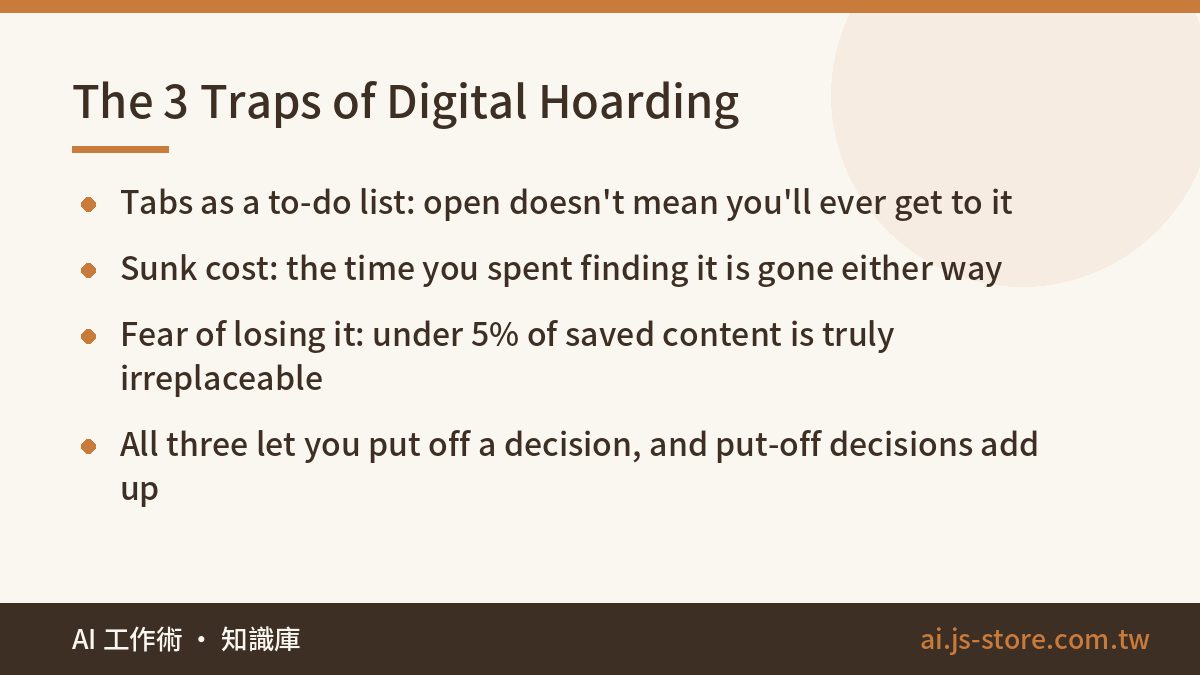
Know your enemy first. Digital clutter is unusually sticky because it sets off three traps at once:
- Tabs turn into a to-do list. “If it's open, I'll get to it” is an illusion. A tab never reminds you of anything. It just makes you feel guilty when you quit the browser. Very few “read this later” tabs ever get read.
- Sunk cost. “I spent twenty minutes finding this” makes closing it feel like a loss. But that time is already spent. Keeping the tab doesn't give it back.
- Fear of never finding it again. This trap is the easiest to break. Almost any page you close is one search away from coming back. In our experience, truly irreplaceable content makes up well under 5% of any tab pile.
All three traps let you put off a decision, and put-off decisions build up like debt. AI can't decide what deserves your attention. What it can do is pre-sort everything, so you face three or four decisions instead of 187.
Step One: Export Your Clutter as Plain Text
This is the only part of the process that takes real effort. It's also the step most people skip, and then they wonder why the whole thing fell apart. AI can't see your browser, so you have to dump everything into one plain-text list first. We give companies adopting AI the same rule: audit the process before you buy a tool.
| Clutter | How to get plain text out | What you get |
|---|---|---|
| Browser tabs | Right-click the tab bar and bookmark all tabs into one folder, then export bookmarks as HTML from the bookmark manager. Or use a tab-session extension like OneTab or Session Buddy to turn every tab into a list in one click. | Title + URL |
| Downloads folder | On macOS, run ls -lhT ~/Downloads in Terminal. On Windows, switch File Explorer to Details view, select all and copy. | File name + date + size |
| Watch Later / read-later | YouTube playlist data can be exported through Google Takeout (check Google's help page for what's currently included). Most read-later apps export to CSV or HTML. | Title + link + date added |
Scan the list before you paste it anywhere. URLs often contain things you shouldn't hand to a third party: share links with access tokens built in, internal admin dashboards, query strings with your email address. Here's my routine. Open the list in a text editor and search for token, key, @ and your company's domain. Delete every line that matches. Cleaning up digital junk shouldn't open a security hole.
Batch-Sort Your Tabs: A Prompt You Can Copy
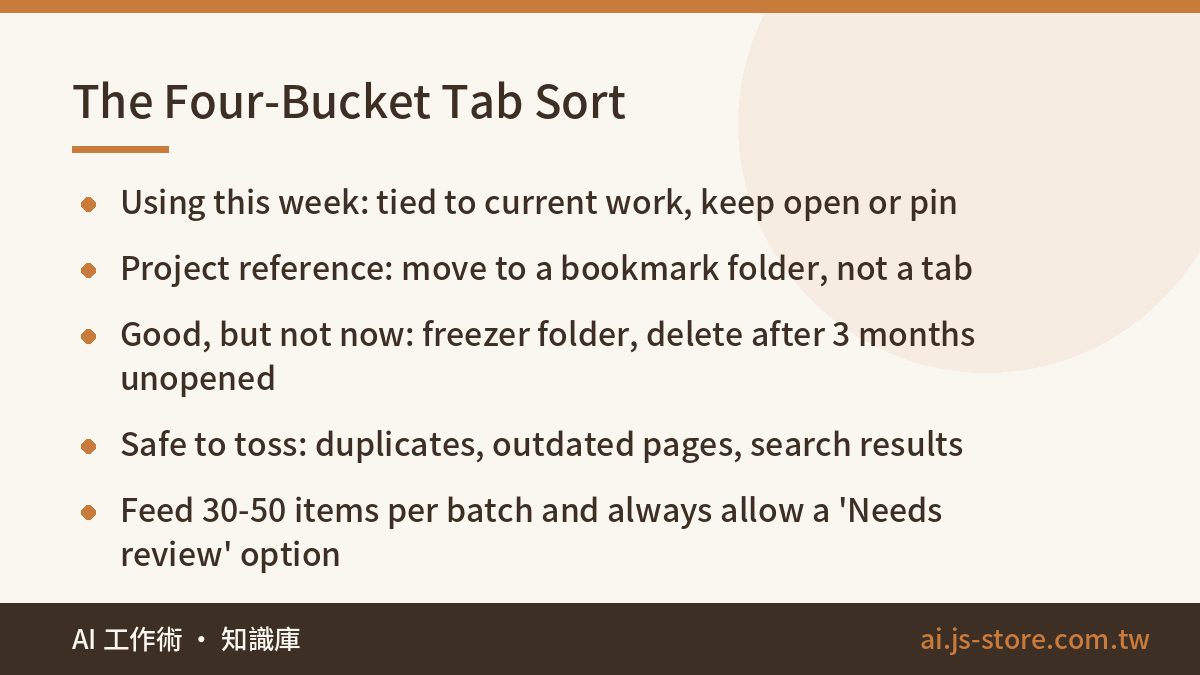
Use four buckets, not two. A keep-or-delete choice makes you agonize over every borderline tab. Four buckets give those tabs somewhere to go.
- Using this week: tied directly to something you're working on now. Keep it open or pin it.
- Project reference: useful for a specific topic. Move it to a matching bookmark folder or note. It doesn't need to stay open as a tab.
- Good, but not now: great articles, tool reviews, “someday” reads. All of these go into one “freezer” folder. If three months pass and you haven't opened anything in it, delete the whole folder.
- Safe to toss: duplicates, outdated pages, search result pages, things you've already finished.
Here's the prompt. Paste your list at the end:
“You are my digital decluttering assistant. Below is a list of browser tab titles and URLs. Judge each item ONLY from its title and URL. Do not guess at page content you can't see. If you can't tell, label it ‘Needs review’ instead of forcing a category. Put each item into exactly one of four categories: Using this week / Project reference / Good, but not now / Safe to toss. Output a table with these columns: number, original title (first 8 words), category, one-line reason, suggested action. After the table, list any groups you think are duplicates or near-duplicates.”
Three practical details matter here. Skip any one of them and the output gets worse fast:
- Feed it 30–50 items per batch, not the whole list. With long lists, models tend to be careful at the top and sloppy at the bottom, or quietly skip items in the middle. Smaller batches are faster overall.
- Always include the “Needs review” option. Without it, the model will make up a reason and force a category. After a few of those made-up calls you'll stop trusting the whole table, and then the exercise is pointless.
- Ask for the one-line reason. The reason is what lets you skim and approve in seconds. A category without a reason means judging the item again yourself, and that's the work you were trying to avoid.
If the output keeps going off track, the problem is usually your instructions, not the model. Two constraints fix most of it: limit what the model can base its judgment on, and spell out the exact output format.
Downloads vs. Watch Later: Two Different Problems
People assume these work like tabs and then get stuck. They're actually different problems, and they need different approaches.
Your Downloads folder is a rules problem, not an AI problem. Simple rules clear out about 80% of it. AI only gets the unclear leftovers. Work in this order:
- Delete every installer:
.dmg,.exe,.pkg. If you installed it, you don't need the file. If you didn't, you never will. - Delete duplicate downloads with
(1),(2)orcopyin the name. - Move all screenshots into their own folder and delete anything older than 90 days.
- Only then paste the mystery files, the
document_final_v3.pdfkind, into an AI chat. Ask it to guess what each one is, suggest a clearer filename and propose where it should go.
One exception: keep invoices, contracts and tax documents out of the bulk rules. You may be legally required to keep them for years. Give them their own archive folder and handle them by hand.
Watch Later is a question of value. Say you've saved 60 videos. That can easily add up to more than 20 hours. Neat categories won't help, because you don't have 20 spare hours. The right question isn't “which bucket?” It's “is this worth 20 minutes of my time?” Paste in the titles and descriptions, plus transcripts if you can get them. Ask for a three-line summary and one sentence on the video's core claim. Read the three lines, then decide.
This one hits close to home for us. We build the video-analysis engine behind ShooWork Clip, our AI video editor, and its daily job is answering “which part of this long video actually matters?” We've run a lot of footage through it, and the same pattern keeps showing up. In a 40-minute interview or tutorial, the part that's packed with information is often just 3 to 5 minutes. The rest is warm-up, repetition and small talk. Once you accept that, deleting 80% of your Watch Later list stops hurting. And if you really want to learn from someone's work, a structured teardown works better than watching everything start to finish.
Keep It From Growing Back: A 15-Minute Weekly Routine
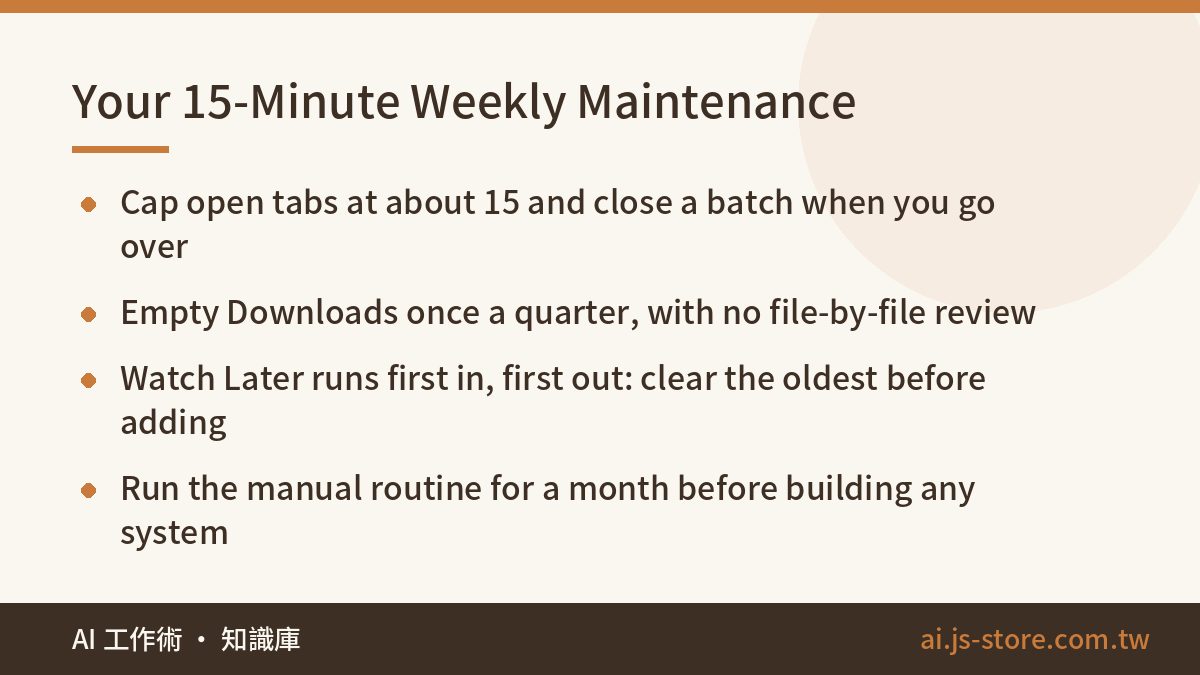
The good feeling from a big cleanup lasts about three weeks. Then the clutter creeps back. What keeps it away is a routine, not willpower. I've followed three rules for a long time:
- Cap your tabs. Pick a number you can live with (15 or fewer is a good start). When you go over it, close a batch. Vertical tabs or tab groups make it obvious when you're over the limit, and it's hard to manage what you can't see.
- Empty Downloads every quarter. Pick one day each quarter. Move what matters and delete the rest in bulk. Don't review file by file, because that's the same decision trap all over again.
- Run Watch Later first in, first out. Before you add a new video, deal with the oldest one: watch it or delete it. A list with a limit can't get out of hand.
Once a week, set aside 15 minutes. Export the week's tabs, paste them into the AI, review the buckets and close the window. After a few rounds it takes under 10 minutes.
And here's one thing not to do: don't start by building automation scripts, a personal knowledge base or a system that indexes everything. I've watched plenty of people (me included) spend two weekends building a beautiful system that turned into the newest pile of clutter: three thousand entries nobody ever opens. Run the manual process for a full month first. If you're still doing it after that, then think about automating. The tool should be your last step, not your first.
FAQ
Q: Is it a privacy risk to paste my tab list into an AI chat?
Yes, and most of the risk is in the URLs, not the titles. Share links, admin dashboards and URLs with query strings can all carry sensitive data. Before you paste, search for token, key, @ and your company domain, and delete those lines. If your work is very sensitive, paste titles only. Sorting gets a little less accurate, but it still works.
Q: Which AI model should I use for this?
Sorting doesn't take much model power. The free or entry tier of any major chatbot will do, and you don't need to upgrade for this. Batch size and how you word the prompt matter far more than the model tier. If you're running huge lists through an API and watching costs, our guide to how AI tokens are billed explains how to estimate the cost first.
Q: What if I can't find something after I clean up?
Most pages come right back with a quick search. As a safety net, save the full list (titles and URLs) to a text file before you start cleaning. It works as an index and takes up only a few KB. If you never open that file in three months, you didn't need any of it.
Q: Can I make this fully automatic and skip the review?
You can, but I wouldn't. When titles are vague, the error rate goes up noticeably, and auto-deleting means you're trusting the model completely with what gets lost. A safer middle ground: send the “Safe to toss” pile to a holding folder instead of deleting it right away. If you haven't pulled anything out after a week, empty it.
Q: I already have thousands of old bookmarks. Do I have to go through them one by one?
No. Archive them all in one folder named something like “Archive, pre-cleanup,” and apply the new rules from today on. You'll almost never use old clutter, so preventing new clutter is a much better use of your time than sorting the old pile. When you do need something from it, the bookmark manager's search is enough.