AI Presentation Tools Tested: What Saves Time and What Doesn't
Published 2026-10-12 · Updated 2026-10-13 · 8 min read · ShooWork (FREECO CO., LTD.)
We build 4-6 decks a month with AI. Outlines and layouts take minutes; data and case studies still need you. Here's our tool comparison and 1-hour workflow.
Short answer: AI is fast at three parts of building a presentation: the outline, the speaker notes and the first-draft layout. It is slow at the three parts that actually win the room: your data, your examples and your argument. Give AI the first three and you'll be about 70% done in 10 to 20 minutes. Give it the last three and you'll get a deck that looks polished, says nothing, and has your audience on their phones by slide four.
We run ShooWork, our own AI tools platform, and we build four to six decks a month: client proposals, quarterly reviews, product walkthroughs for partners. A 20-slide proposal used to take us three to four hours. With an AI-assisted workflow, we now finish one in 40 to 60 minutes, every time. AI didn't save that time by coming up with content for us. It saved it by taking over the mechanical work (layout, color choices, transition copy) that used to quietly eat an afternoon.
Below, we break the process into four stages. For each one we cover which tool to use, how to prompt it and where you absolutely have to do the work yourself. At the end you'll get the exact workflow our team uses, ready to copy.
The Big Picture: How Much of Each Stage AI Can Actually Handle
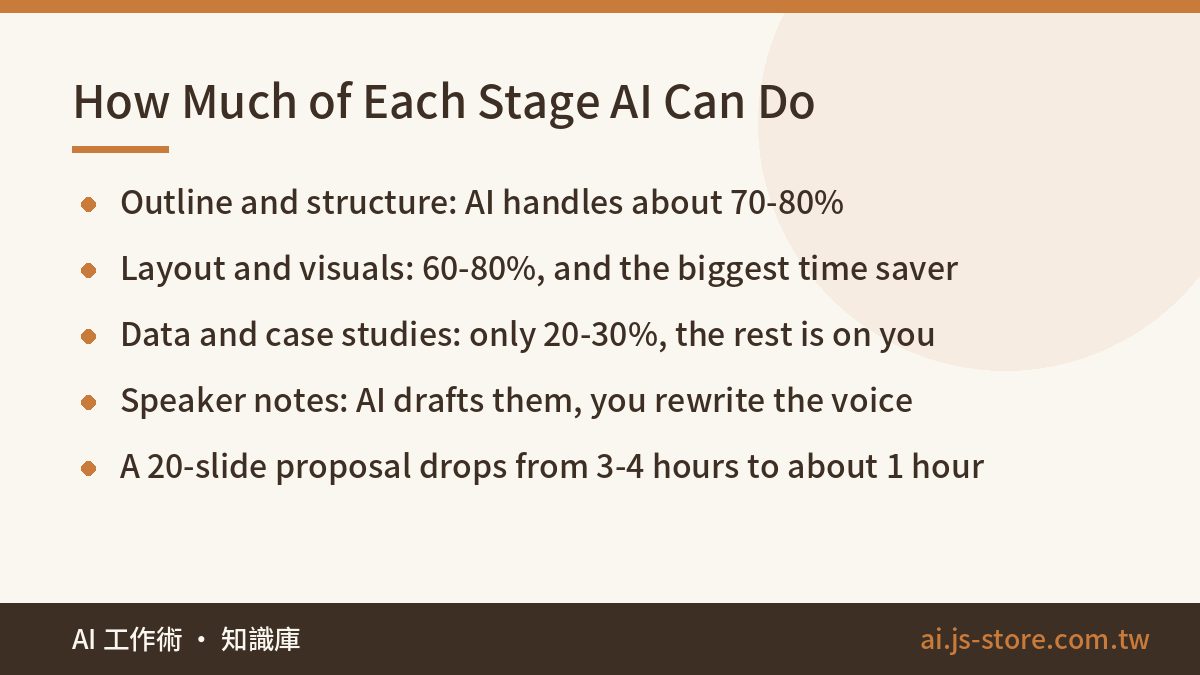
When people ask whether AI presentation makers are any good, the honest answer is “which part are you asking about?” We split deck-building into four stages and scored each one against our own real projects:
| Stage | How much AI can do | Where you step in | Time saved (20-slide proposal) |
|---|---|---|---|
| Outline and narrative | About 70-80% | Reorder sections, cut filler | 30-40 minutes |
| Layout and visuals | About 60-80% | Replace off-target images, unify the style | 60-90 minutes |
| Data, charts, examples | About 20-30% | Sources, chart types and real case studies are all on you | Almost none |
| Speaker notes | About 60-70% | Rewrite in your own voice, add audience moments | 20-30 minutes |
Laid out like this, the pattern is clear: AI saves you time on form, not on substance. If your deck was already thin content held up by nice design, AI will make it prettier. It won't make it more persuasive.
Outlines and Speaker Notes: The Fastest Win, If You Give Enough Context
We've tested this stage with both ChatGPT and Claude, and the model matters far less than your prompt. Most people type something like “make me a pitch deck outline for an AI marketing tool” and get ten slides of generic filler: What Is AI, AI Trends, Market Size, Our Advantages, Contact Us. You didn't need AI for that.
What works for us is spelling out five things in a single prompt:
- Who's in the room. “The audience is the marketing director of a restaurant chain. They control the budget but don't care about technical details.”
- What decision you want. “By the end, I want them to agree to a one-month paid pilot.”
- Your time limit. “15 minutes of presenting plus 10 minutes of Q&A, so no more than 12 content slides.”
- The material you already have. Paste in your product highlights, existing customer numbers and pricing tiers.
- What you don't want. “No market-size section, no AI-trends intro. They know this better than I do.”
With all five in the prompt, about 70% of the outline is usable as it comes out, and the rest is reordering. One trick works better than asking for “the best version”: ask for three outlines with different narrative structures (problem-led, case-study-led and comparison-led), then pick one and expand it. If you want ready-made starting points, our prompt templates for work include several you can adapt.
Speaker notes work the same way. Paste the final outline back in and ask for “60 to 90 seconds of spoken notes per slide, conversational, the way a person actually talks, not written prose.” Then read the result out loud and fix the voice. AI-written scripts tend to sound too smooth. Every sentence lands perfectly, which is exactly why they don't sound like a real person.
Layout and Visuals: Four One-Click Tools Compared
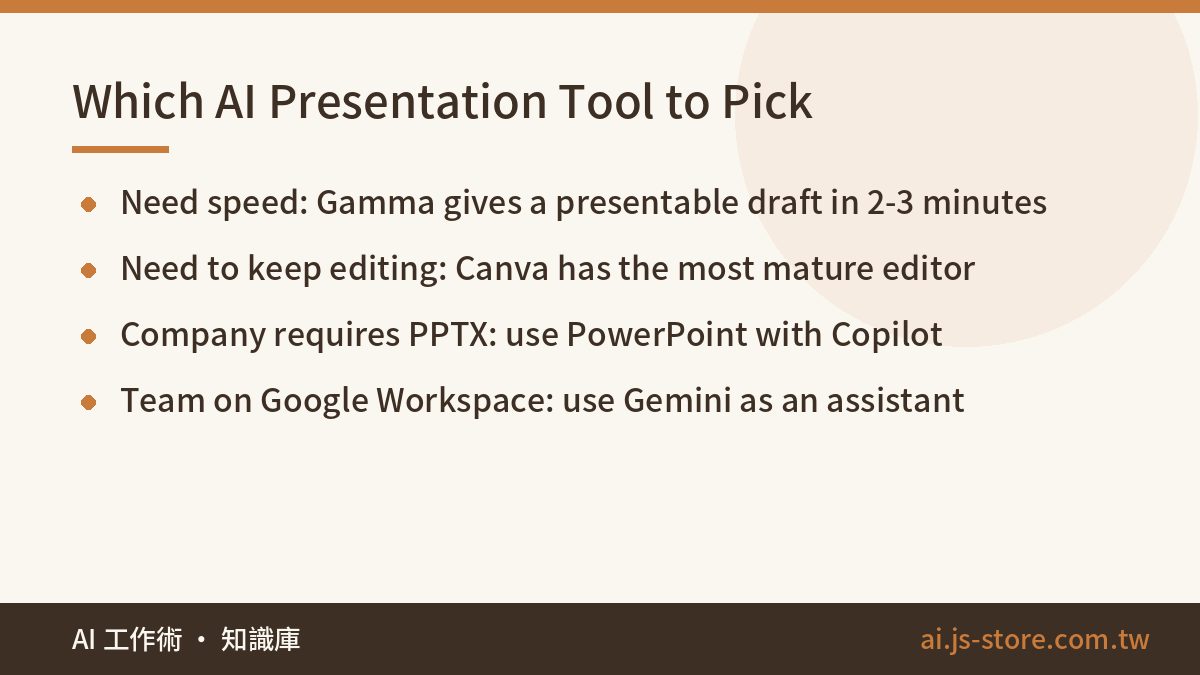
AI presentation tools advertise this stage harder than any other, so we fed the same 12-slide outline into four of them and compared draft quality, editing flexibility and export formats. Pricing changes often, so we only compare what each tool is good at. Check each vendor's official pricing page for current plans.
| Tool | First-draft quality | Editing flexibility | Export | Best for |
|---|---|---|---|---|
| Gamma | High: modern layouts, images added automatically | Medium: easy to swap layouts, fiddly for details | PDF, PPTX (PPTX layouts can break) | Fast pitches, sharing online |
| Canva AI presentation features | Medium-high: lots of templates, consistent style | High: mature editor | PDF, PPTX, present directly | Heavy visual customization |
| PowerPoint with Copilot | Medium: conservative corporate look | High: it's PowerPoint | Native PPTX | Teams required to use Office |
| Google Slides with Gemini | Medium: mainly images and single-slide generation | High: it's Google Slides | Native format, PPTX | Teams already on Google Workspace |
Our takeaways, bluntly:
- Pick Gamma for speed. Paste in an outline and you'll have a presentable draft in two or three minutes, images included. For a quick external pitch, nothing takes less effort. The catch is that the layout often breaks when you export to PPTX. If the client insists on a PowerPoint file, set aside time to fix it.
- Pick Canva if you'll keep editing. Its AI first draft is a notch below Gamma's, but you get far more control afterward. Brand colors, fonts and elements stay consistent, which matters if your team reuses the same visual system every month.
- Treat Copilot and Gemini as assistants, not contractors. They're handy for reworking one slide in an existing file, drafting a paragraph or generating a quick illustration. When you build a full deck from scratch, their output is more conservative than the other two, and the full features require paid plans.
One trap catches almost everyone: auto-picked images that look relevant but aren't. You talk about customer churn and it drops in a handshake. You talk about workflow automation and it gives you a shiny robot. Filler images like these make the audience feel they're being sold to. We generate key-slide images ourselves, with a prompt that names the exact concept. Our AI image generation guide shows how. Read its commercial-use section before any image goes into a client-facing deck.
Data, Charts and Case Studies: Handing These to AI Is a Gamble
If you remember one section, make it this one. When AI tools generate content, they do three dangerous things:
- They invent numbers. Ask for “a slide of market data” and you'll get something confident like “37% of small businesses have adopted AI,” with no source and no year. The first person in the room who knows the field asks where it came from, and your credibility is gone. Every number on a slide needs a source you found and checked yourself.
- They pick the wrong chart. AI loves pie charts, but a pie with five or more slices is unreadable. Trends need line or bar charts, parts of a whole need stacked bars and comparisons need bars side by side. You'll still make that call better than the tool. We clean the data in a spreadsheet first, build the chart ourselves (or with the presentation app's built-in charts) and then drop it into the AI-generated layout.
- They make up case studies. Ask for “a success story” and you'll get “a leading retail chain grew revenue 42% after adopting the solution.” In a client proposal, that's fatal. One follow-up question and you're exposed. Only use cases you actually delivered. At most, AI can help you tell them better.
Our house rule: you must be able to name the source of every number on every slide. If you can't, take the number out. No exceptions. The right way to use AI here is to help you present data you've already verified. Paste in three months of revenue figures and ask which number deserves its own slide and what sentence should introduce it. That's genuinely useful, and the AI can't invent anything because the numbers come from you.
Our Workflow: A Client Proposal in 40 to 60 Minutes
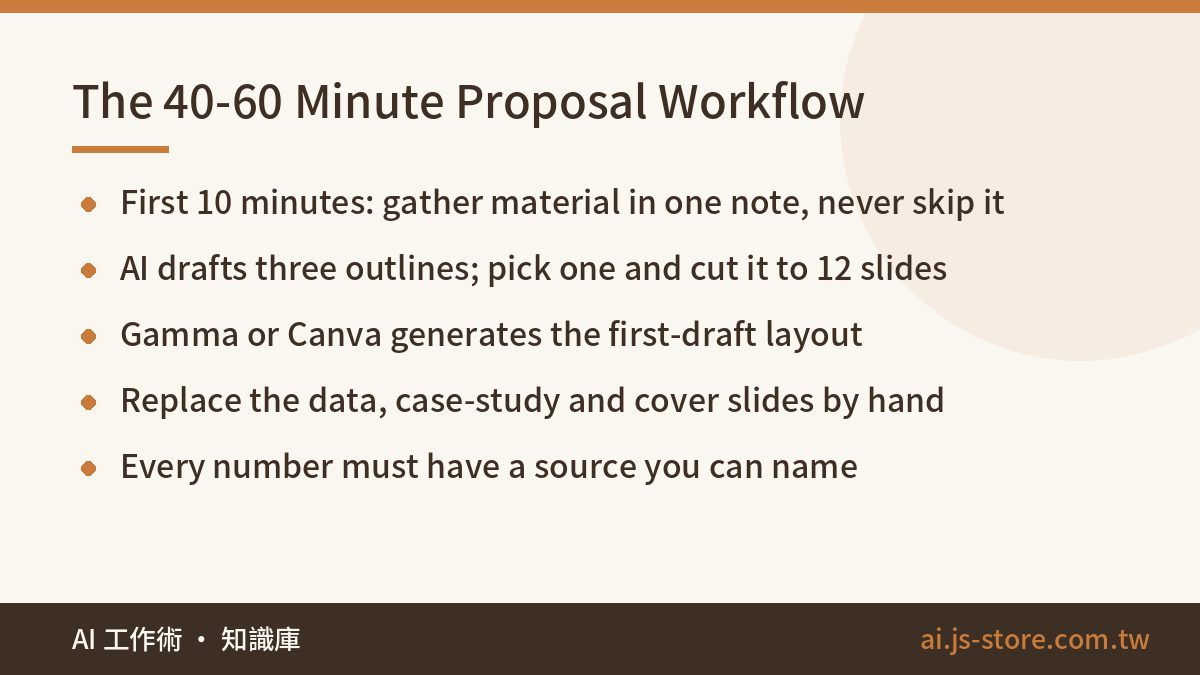
Put the four stages together and you get the fixed process our team uses for every external proposal. Feel free to copy it:
- Minutes 0-10: Gather your material. Put product highlights, pricing, real numbers from real case studies and background on the client into one plain-text note. Don't skip this. The more complete it is, the faster every later step goes.
- Minutes 10-20: AI drafts the outline. Use the five-part prompt above and ask ChatGPT or Claude for three narrative versions. Pick one, reorder it and cut it to 12 slides or fewer.
- Minutes 20-30: AI drafts the layout. Paste the final outline into Gamma or Canva, choose a theme close to your brand colors and let it generate.
- Minutes 30-45: Replace the key slides by hand. Build the data charts yourself, put real screenshots on the case-study slides and generate your own cover image. These slides are what make the deck persuasive, so this is the best place to spend your time.
- Minutes 45-55: AI writes speaker notes and you fix the voice. Paste the final deck back in and get notes for each slide. Read them aloud and rewrite anything you wouldn't say. While you're at it, confirm you can name a source for every number.
- Last 5 minutes: Export and test. If the client wants PPTX, open the file and check every slide. We learned this the hard way: finding out in front of a client that every font has been swapped is a bad way to start a meeting.
If you present often, turn the step-one note into a reusable template and only change the contents each time. That shortens even the first ten minutes. Tools in this category change fast, so before you commit to one, look at our AI tools directory. We update it as plans and features change.
FAQ
Q: Are the free versions of AI presentation tools good enough?
For internal reports or practice, most free tiers will cover a deck or two. For client work you'll usually hit a limit: watermarks on export, a cap on slides or no PPTX export at all. Use the free tier to see whether you like the output style, and pay only once you know you'll use it regularly. Check the official pricing page for current limits.
Q: Can I pitch a client with a deck straight out of an AI tool?
Don't. The layout draft is fine to keep, but you must replace the data slides, case-study slides and cover with real material. Auto-picked images and possibly invented numbers are the most common reasons clients start doubting you.
Q: Should I choose Gamma or Canva?
Choose Gamma if you want a presentable online deck as fast as possible. Choose Canva if you reuse one brand system and need to fine-tune details. If your company requires PPTX files, both can break on export, so PowerPoint with Copilot may save you the most cleanup time.
Q: What data-security issues should I watch for when making slides with AI?
Before you paste pricing, client lists or unpublished revenue into an online AI tool, check the service's data-use policy. Business plans often promise not to use your data for training. The safest approach is to replace sensitive figures with placeholders and fill in the real ones after generation.
Q: AI-written speaker notes sound unnatural. How do I fix that?
Ask for the tone you'd use explaining something to a friend, and ask for short sentences. Then record yourself reading the notes and rewrite anything you wouldn't naturally say. Notes help you remember the structure. They aren't meant to be read word for word.