Prompt Templates for Work: 20 Copy-Paste Prompts by Situation
Published 2026-10-06 · Updated 2026-10-13 · 9 min read · ShooWork (FREECO CO., LTD.)
20 copy-paste prompt templates for work: emails, meetings, numbers and decks. Plus the four fields that make AI output come back the same way every time.
If AI keeps giving you work drafts that are worse than what you'd write yourself, the model usually isn't the problem. Your prompt is. “Write an email to the supplier” gives the model nothing to go on, so it guesses, and the guesses read like boilerplate.
Below are 20 prompt templates for work that you can copy, fill in and run today. They're grouped by the situations that eat your week: emails and hard conversations, meetings and documents, numbers and decisions, and outward-facing content like decks and ads. Replace the [brackets] with your details, paste your raw material underneath, and run it.
First, what a template does and doesn't do. It won't make the AI a better writer. It makes the output come back in the same shape every time, so you can drop it straight into your work. The time you save isn't typing time. It's the re-asking and re-editing, which is what really eats an afternoon.
Why Your Prompts Fall Flat: The Four Fields Every Work Prompt Needs
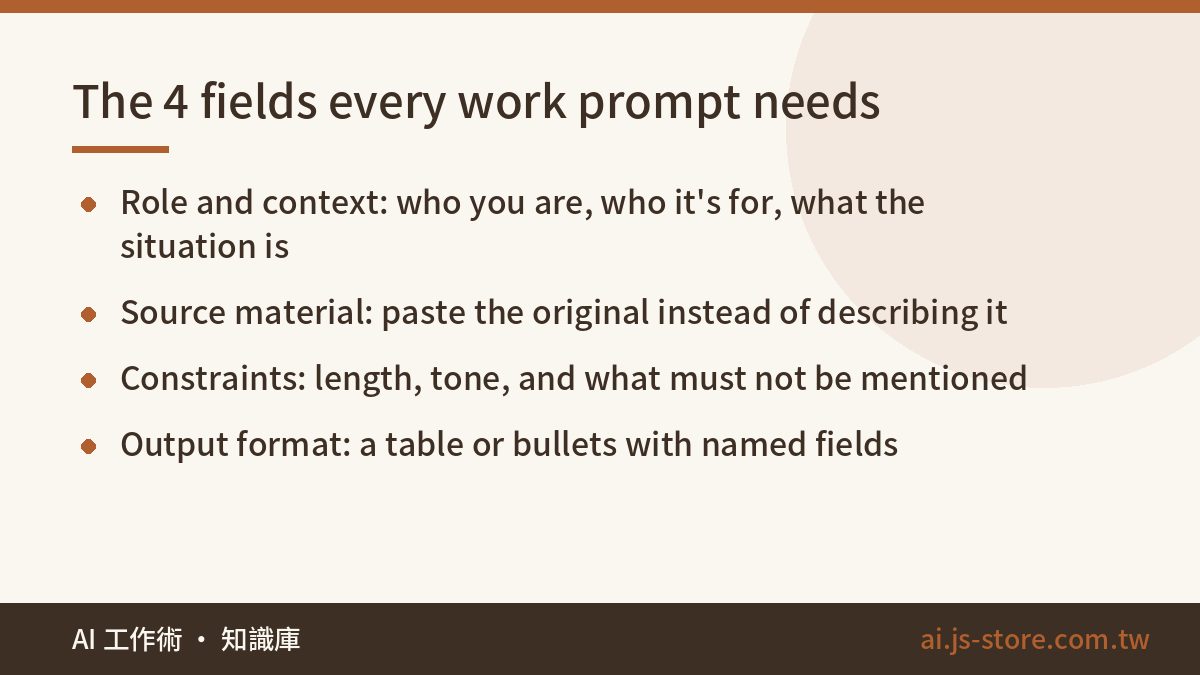
At ShooWork, prompts run inside everything we build: our tool platform, our video-editing engine and our ads tooling. The lesson we keep relearning is simple. A prompt that gives consistent results always fills in four fields. Leave one blank and the model fills the gap with its own guess, which rarely matches what you wanted.
| Field | Skip it and… | What to write |
|---|---|---|
| Role and context | The tone drifts: a support agent in one line, a consultant in the next | “You're my communications advisor. I'm writing to a supplier contact I've worked with for three years.” |
| Source material | You get correct-sounding filler | Paste the original email, transcript or numbers in full |
| Task and constraints | Too long, or it mentions things it shouldn't | “Under 200 words, no specific dates, don't mention the reorg” |
| Output format | A different structure every time | “Return a table with columns: Decision / To-do / Owner” |
One ordering trick helps more than you'd expect: put your instructions first and your material second. When the material is long, put the instructions at the top, or at both the top and the bottom. The model follows them far more reliably than when they sit under 3,000 words of transcript.
Emails and Hard Conversations (Templates 1–5)
This group saves the most time. Typing the email is quick. Worrying about whether a sentence sounds too sharp is what takes twenty minutes.
1. Say no without burning the bridge
You're my workplace communication advisor. I need to decline the request below and keep the relationship. Write a reply under 200 words. Open by acknowledging one specific point they made. Then give the real reason I can't do it (not “we're busy”), and offer one alternative. Keep it professional, not apologetic. Their message: [paste]
2. Follow up on a deadline without nagging
Write a follow-up to [their role]. Facts: [original due date, current status]. Under 80 words, casual, no blame. End with two specific time options so they can reply in one line. Give me three versions: gentle, firm and direct.
3. Deliver bad news (delay, price increase, reduced scope)
You're a crisis-communications advisor. Tell a client about [the issue] in four parts: the bottom line, the reason (don't blame anyone else), what we've already done to fix it, and what they need to decide. Under 250 words. No “we apologize for any inconvenience.” Be specific about the fix.
4. Ask another team for resources
Write a 150-word internal pitch to [team/manager] asking for [resource]. Frame the benefit around their goals and metrics, list what my side will take on, and state the concrete risk if we don't do it. Use numbers, not adjectives. Context: [paste]
5. One message, three tones
Rewrite the text below three ways: (A) formal, (B) casual, for a colleague, (C) bullet points for a busy executive. No version may change the facts or what we've committed to. Original: [paste]
Meetings, Documents and Scattered Messages (Templates 6–10)
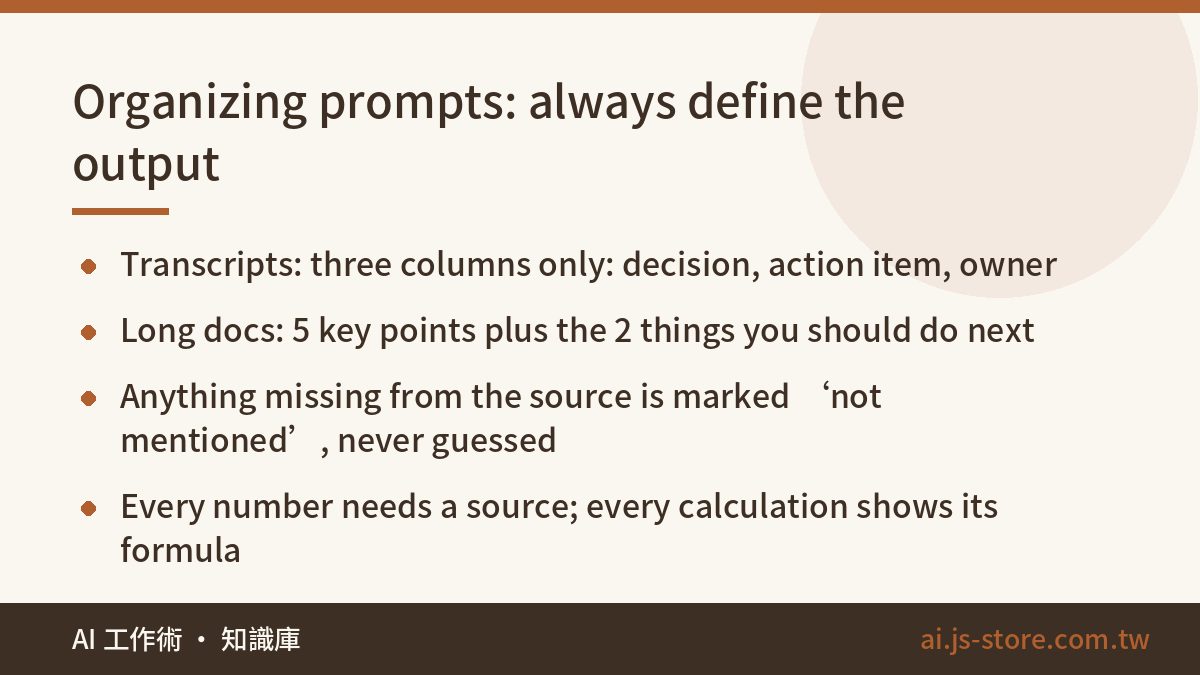
Prompts that organize information have one hard rule: name the output fields, and tell the model to write “not mentioned” for anything the source doesn't say. Leave that instruction out and you'll get believable owners and deadlines that nobody agreed to.
6. Transcript to decisions and action items
Below is a meeting transcript. Return three blocks: (1) decisions made, as bullets; (2) an action-item table with columns Task / Owner / Due date / Supporting quote; (3) open questions with no conclusion. If no owner or date is named, write “unassigned.” Don't guess. Transcript: [paste]
7. Long document to one page
Read the document below. Return 5 key points (under 25 words each), 3 risks I should watch as [your role], and the 2 things I should do next. End with a 75-word summary for my manager. Document: [paste]
8. Scattered messages to one to-do list
These messages are from a group chat. Remove greetings and duplicates, merge items about the same thing, and return a table: Item / Date / What to prepare / Owner. Write every date as a full calendar date. Messages: [paste]
This also works for school and club chats. See turning group notices into an AI to-do list.
9. Practice the meeting before it happens
Tomorrow I'm presenting [topic] to [audience]. Play a tough but fair [their role]. List the 10 questions they're most likely to ask, with the most damaging first, and mark each “covered in my material” or “not covered.” Material: [paste]
10. A fixed format for meeting notes
From now on, whenever I paste meeting notes, reply in this exact format with no sections added or removed: Topic, Date, Attendees, Decisions (numbered), Action items (table), Prep for next meeting. First notes: [paste]
Numbers, Reports and Decisions (Templates 11–14)
Be careful with this group. Models get math wrong on numbers you paste in, and they make up numbers you never gave them. Every template here makes the model show where each figure came from, so you can check it in seconds.
11. Data table to three findings
Below is my [report name] data. Find 3 notable changes. For each, give what changed, a possible cause (labeled as a hypothesis), and how I could check it. Only cite numbers that appear in the data. If you calculate anything, show the formula. Data: [paste]
12. Compare two options
Build a decision table for Option A vs. Option B with columns for cost, timeline, people needed, reversibility and worst case. End with a recommendation, and say under what conditions it would flip. Options: [paste]
13. Red-team my proposal
Your job is to reject this proposal. Find the 5 weakest points, worst first. For each, give me a one-line answer to use if someone raises it. No compliments, no warm-up. Proposal: [paste]
14. Break down and estimate a task
Split [task] into subtasks that can each be signed off on their own. Give each one a range of hours (optimistic / likely / pessimistic) and list what it depends on. Name the 3 things most likely to cause a delay. Put every assumption at the top so I can check them one by one.
Decks, Proposals and Outward-Facing Copy (Templates 15–20)
15. Presentation outline
Plan a 10-slide deck on [topic] for [audience]. The goal is to get them to [decision]. For each slide, give the title, the slide's one message in a single sentence, and the evidence it needs. Slide 1 must state the conclusion.
16. One-page proposal
Condense the content below into a one-pager: problem → current data → recommended approach → resources needed → expected outcome → risk of doing nothing. Under 400 words, no piles of adjectives. Content: [paste]
17. Turn jargon into customer language
Rewrite our product description for customers. Write each feature as “this used to take you X; now you do Y.” Don't exaggerate results or add features that aren't in the original. Original: [paste]
18. Three social posts from one source
Write 3 posts from the material below. Give each a different hook: a pain-point question, a surprising claim, a specific number. Under 100 words each, each with a different call to action. Don't start with an emoji or with “in today's fast-paced world.” Material: [paste]
19. Ad headlines in bulk
For [product] and [audience], write 10 headlines under 30 characters each, with at least 3 for each angle: saves time, saves money, prevents mistakes. No unproven promises, no superlatives. Product details: [paste]
For Google's character limits and how to mix headlines, see RSA ad copy.
20. 60-second talking-head script
Write a 60-second script on [topic] to say to the camera. Structure: a 3-second hook → one real situation → three points → closing call to action. Write it the way people talk, no more than 15 words per line, with approximate timestamps.
Once it's recorded, editing is the slow part. That's why we built ShooWork Clip: removing filler words and adding captions to talking-head video now takes almost no manual work.
How to Make These Templates Stick
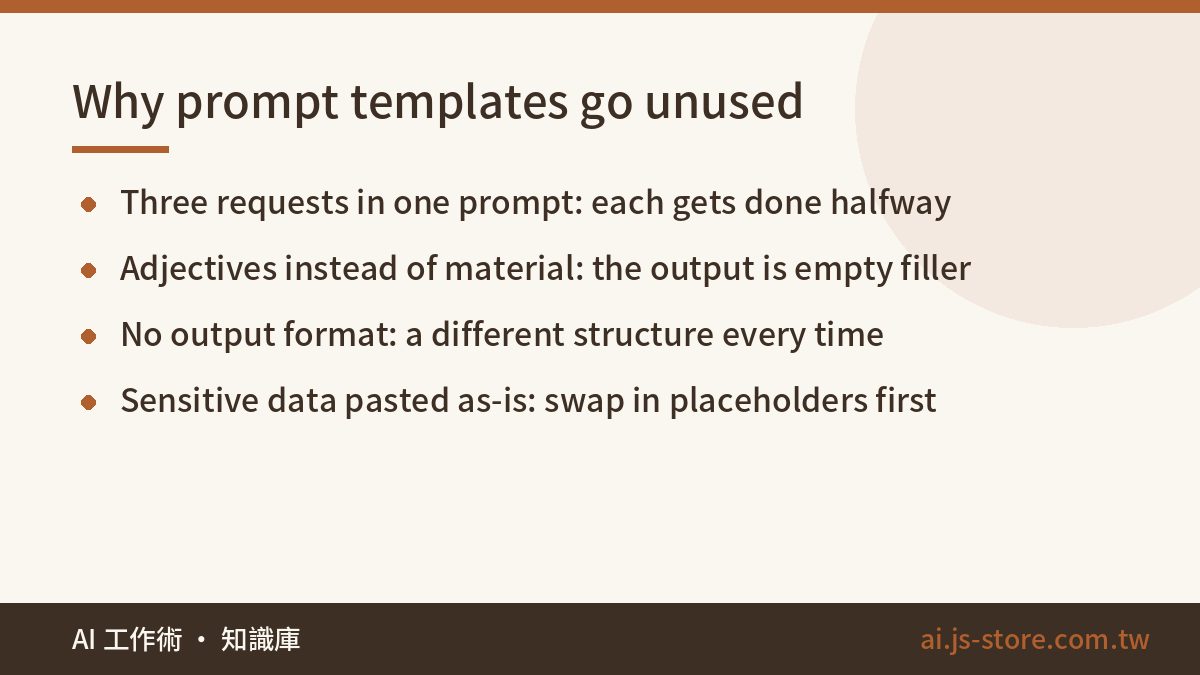
Most prompt libraries end up as a bookmark nobody opens. Here's what works for us:
- Store them where you type. Use text-expansion shortcuts, a browser extension, or a pinned message in your AI chat. Every extra app you have to open is a reason to skip them.
- Give each template one job. Ask for “summarize + analyze + draft the email” in one go and you'll get three half-finished jobs. Three separate prompts are faster overall.
- Save your edits back into the template. You'll adjust the output the first time. Add that adjustment to the template, and after three uses it fits the way you work.
- Remove sensitive details before you paste. Replace client names, ID numbers and contract values with placeholders. Make it a habit, whatever tool you use.
- Watch the cost of long inputs. A full transcript uses more than you'd think. For how usage is counted and how to estimate it, see what an AI token is.
Which model should you run them on? In our testing, models differ most on long documents and on sticking to a fixed output format. For short copy and brainstorming they're close enough that it barely matters. Don't choose from spec sheets. Run your two most-used templates on two tools and compare.
FAQ
Q: Do work prompts really need to be this long?
Not always, but the more the output matters, the more detail it needs. For a quick question, two sentences is fine. Once the output goes to someone else or into your workflow, fill in all four fields. Think of it like briefing a contractor: you wouldn't just say “build me a website.”
Q: Do these templates work in ChatGPT, Claude and Gemini?
Yes. None of them use platform-specific syntax. Where the tools differ is how reliably they follow instructions, especially fixed output fields and not making things up in long documents. Run the same template once on each of your two main tools and compare.
Q: Can I paste company data into these prompts?
Check your company policy first, then the service's data terms. Business and consumer plans often handle data differently, so go by the provider's official documentation. The safest habit is to swap names, clients and amounts for placeholders, then put them back in the result. It takes less than a minute.
Q: The AI got it wrong. Is my template broken?
First work out what kind of wrong it is. If the format drifted or fields are missing, make the output format in your template more specific. If the content is wrong or numbers came from nowhere, the model doesn't have enough material and is guessing. Add: “Mark anything not in the source as ‘not mentioned’; don't speculate.” That one line helps more than most people expect.
Q: How do I reuse one template across many documents?
Do what Template 10 does: send the format rules in your first message, then paste only the new material each time. The output stays consistent through that conversation, and you don't have to paste the rules again. If the documents are very different from each other, use a separate conversation for each.