AI Image Generation Guide: Tools, Prompts & Commercial Use Rules
Published 2026-10-11 · Updated 2026-10-13 · 8 min read · ShooWork (FREECO CO., LTD.)
How to pick the right type of AI image tool, write prompts you can reuse, and avoid the licensing traps of using AI images commercially.
Here's the short answer. When people start with AI image generation, they rarely get stuck on “which tool is best.” They get stuck because they haven't answered three questions: what kind of image do you need, how do you write a prompt you can reuse, and are you allowed to use the result commercially? The tools change every few months. Those three questions will matter for years.
If you need usable images today, take the shortest path. Use the image feature built into the AI assistant you already pay for, and give it a fixed prompt structure. Move to a dedicated image service only when you outgrow that. For about nine out of ten social posts, blog illustrations and slide backgrounds, it's enough. Don't sign up for three platforms on day one.
Here's where this advice comes from. At ShooWork we run our own AI tool platform and video-editing engine. Every month we make more than a hundred thumbnails, ad creatives and video backgrounds. This article covers the workflow we actually use and the mistakes we've already paid for. It isn't a summary of anyone's feature page.
Pick the Category Before You Pick the Brand
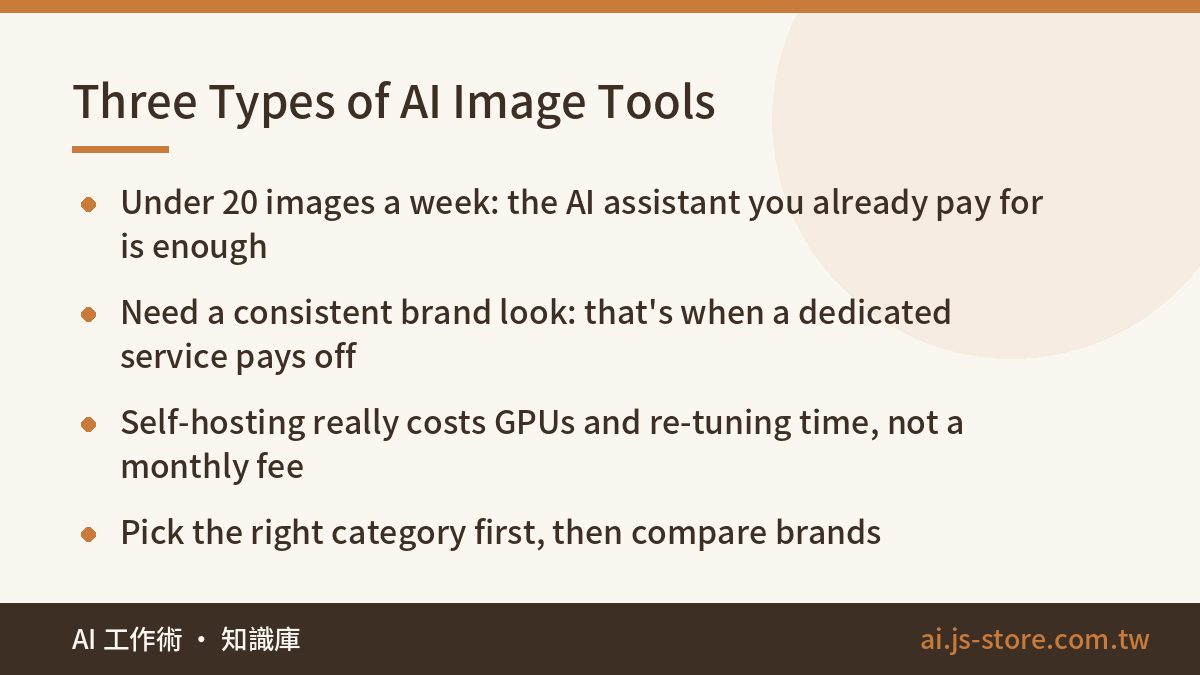
There seem to be dozens of image generators, but they fall into three groups. Picking the wrong group costs you far more than picking the wrong brand within the right one.
| Type | What it's for | Best for | Learning curve | Main limits |
|---|---|---|---|---|
| Image feature inside a general AI assistant | Quick images mid-conversation | Blog illustrations, social posts, slides | Low | Weak style control; hard to recreate the same image |
| Dedicated image service | Image quality and style control | Brand visuals, product lifestyle scenes | Medium | Separate subscription; syntax to learn |
| Self-hosted open-source model | Full control, fine-tuning | High volume, unusual styles | High | Needs GPUs and ongoing maintenance |
How we'd decide:
- Fewer than about 20 images a week: don't add a subscription. Use the assistant you already have. At that volume, the quality you'd gain from another monthly fee never pays for itself.
- You need a consistent brand look: this is when a dedicated service is worth paying for. What matters isn't “prettier pictures.” It's style reference images and character consistency. Those two features decide whether you can make 30 images in a row that look like the same brand.
- You're building images into your own product at volume: only then look at an API or self-hosting. Self-hosting isn't really a subscription cost. You pay for GPUs and for the hours spent re-tuning every time the model updates, and most people forget that second cost when they do the math.
Plans and pricing change constantly, so we won't quote numbers. Check each vendor's official pricing page. If you go the API route, you may be billed per image, per resolution or per compute step. Those bills get out of hand the same way text-model bills do, so set a hard monthly spending cap before you ship anything.
A Six-Part Prompt Structure You Can Reuse
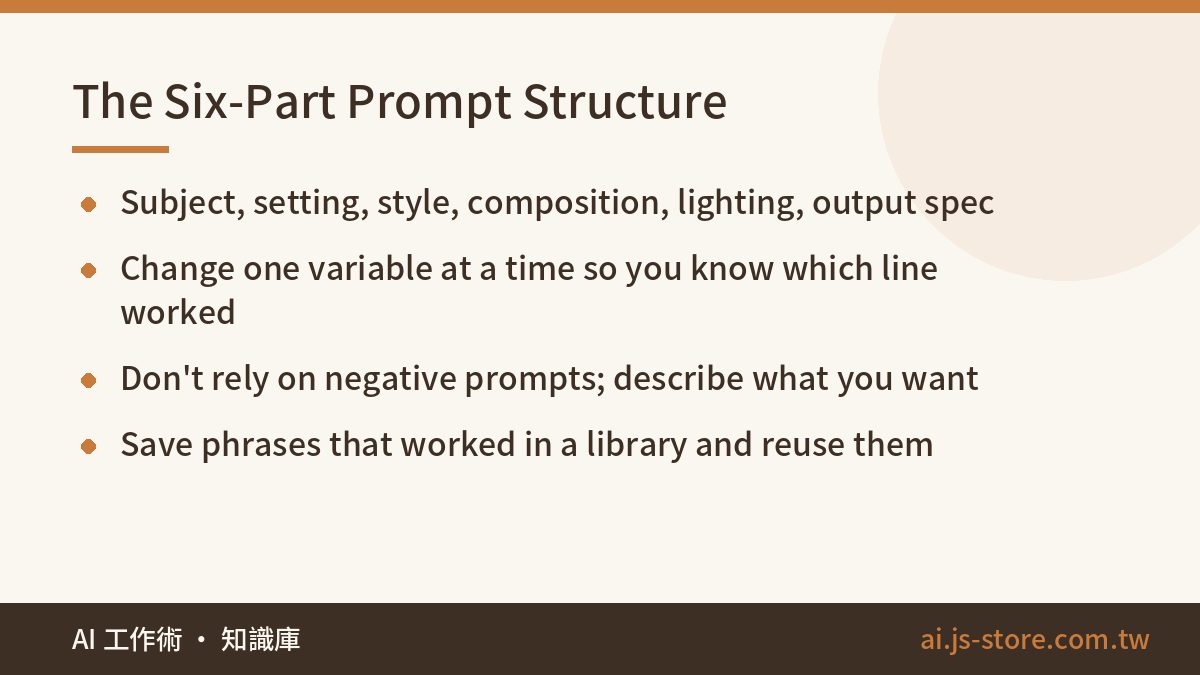
Most first prompts look like “a cute cat in a coffee shop.” Being short isn't the problem. The problem is that there's no structure. You can't tell which word caused which result, so you can't reproduce it next time.
We write every prompt in six parts, in this order:
- Subject: what it is, how many, and what makes it distinctive. “An orange tabby cat” gives you far more control than “a cat.”
- Setting and action: where it is and what it's doing.
- Style and medium: realistic photo, flat illustration, watercolor, 3D render. Don't name living artists. The licensing section explains why.
- Composition and camera: close-up, medium shot, top-down, shallow depth of field. People skip this part most often, yet it's the fastest way to make an image look professional.
- Lighting and color: side backlight, soft overcast light, warm tones.
- Output spec: aspect ratio and purpose, such as a 16:9 banner with empty space on the left for a headline.
Put together, it reads: “An orange tabby cat lying on its side on a wooden bar counter, blurred café interior behind it; realistic photography; medium shot, shallow depth of field; natural side light from a window, warm tones; 16:9, empty space on the left for a headline.” It's the same request as the cute-cat prompt, but a much higher share of the images come out usable.
Three habits that worked in our testing:
- Change one variable at a time. If you change the lighting and the composition together, you'll never know which line made the difference.
- Turn “don't” into “do.” Most tools follow negative instructions unreliably. Instead of “no text,” describe the clean, empty background you want.
- Keep a phrase library. Save the lighting and camera phrases that worked in one note and reuse them. That note is worth more than any subscription.
The fastest way to build that library is to take images you admire and break each one down into the six parts. Our copy-paste prompt templates for work use the same idea for text prompts.
From One Sentence to a Usable Image: A Five-Step Workflow
The most common beginner mistake is giving up because the first batch looked bad. In a real workflow, the first generation is only about 10% of the job.
- Draft. Generate four images from one prompt. You're not choosing a final image yet. You're choosing a composition direction.
- Lock a baseline. Once you have a direction, fix the style with a reference image or fixed settings. That gives every later change something to compare against.
- Fix only what's broken. Use inpainting on the bad part, like a hand, a sign or background clutter. Regenerating the whole image throws away the work you just did.
- Upscale. Do this only once you're sure you'll use the image. Upscaling uses a lot of credits, so doing it while you're still choosing is a waste.
- Finish. Always add text, logos and prices in a design tool, never with the model.
Expect to spend about 10% of your time generating, 60% choosing and fixing, and 30% upscaling and finishing. If you know that going in, a weak first batch won't make you doubt yourself.
Commercial Use: Where It Actually Goes Wrong
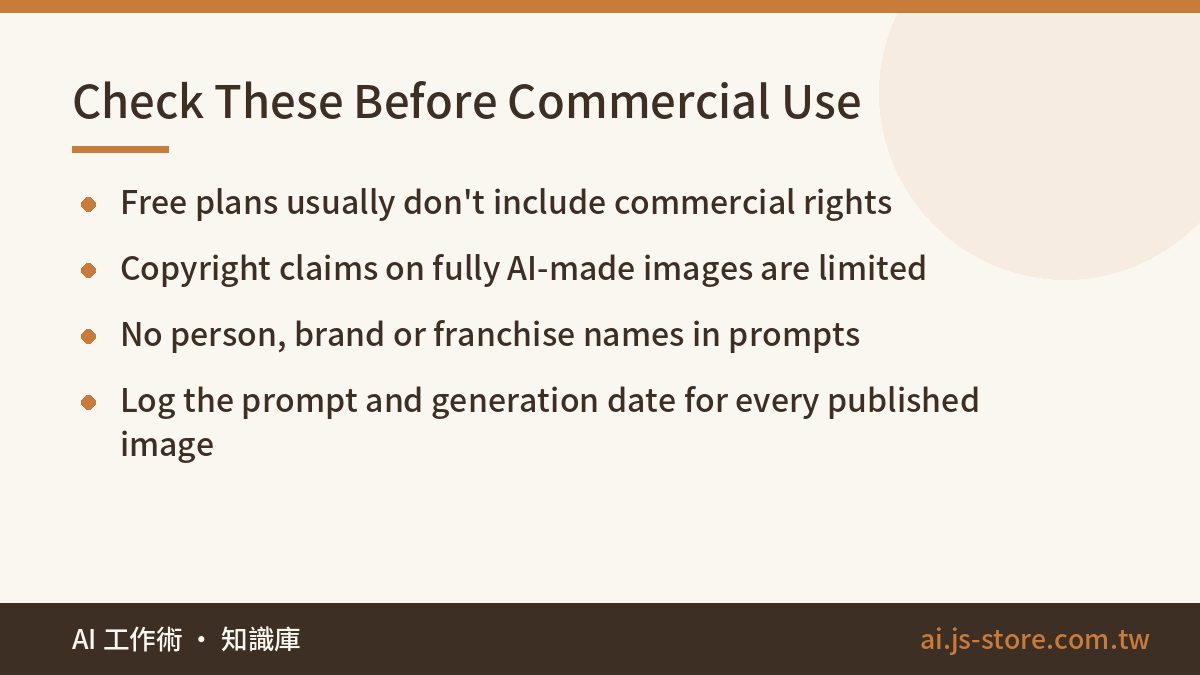
This is the most important section, and the one most people skip. There are three kinds of risk, and each works differently.
- Platform terms: free usually doesn't mean commercial. Free or entry-level plans are often limited to personal, non-commercial use, sometimes with required attribution. Commercial rights usually come with paid plans. Some platforms also decide whether your images can be used for training based on your plan. Terms vary and change often, so read the official terms page and save a copy the day you start using the tool. If anyone questions your use later, the version that applied at the time is the one that counts.
- Copyright: an image made entirely by AI may not be “yours.” In the US and many other places, regulators currently take the view that copyright protects human creative work. If you only typed instructions and didn't add enough creative input yourself, it's hard to claim the result as a protected work. That has two consequences. If someone reuses your image, you may have little legal ground to stop them. And if a client contract says you'll transfer all copyright in the deliverables, you may not be able to honor that clause for an AI image. This is a general overview, not legal advice. Ask a professional about your specific case.
- Infringement: it isn't in the platform's terms, but you can still be sued. There are three red lines: copying a living artist's style or a specific franchise's characters, using brand logos and trademarks, and using real people's faces. A platform letting you generate something doesn't mean you're allowed to use it.
Our own rules are simple. We make commercial assets only on paid plans that clearly include commercial rights. We never put a person's name or a brand name in a prompt. And we log the prompt and generation date for every image we publish. That last rule looks the most boring, but if an image is ever challenged, the log is the only thing that will protect you.
When a tool's website promises “100% commercially safe, zero risk,” check it with our four questions for spotting BS. Which document and which clause defines the license? Where did the training data come from? If you get sued, who actually pays? If they can't answer all three, don't use the tool for client work.
Four Kinds of Images We Never Make With AI
Knowing what not to do matters just as much. We've banned these four outright:
- Product photos. A generated main image on a shopping site can break marketplace rules, and it can also drive up returns and complaints. Customers notice when the real product doesn't match the picture.
- Images with exact text or numbers. Newer models handle text much better, but one wrong digit in a price, date or spec is a real problem. Type the text in a design tool. It's even harder with non-Latin scripts. We covered fixes in AI images with Chinese text.
- Customer photos and testimonials. A generated face next to a real customer quote is the combination most likely to cause trouble, and it destroys trust when people find out.
- Data charts and technical diagrams. An AI-generated chart is decoration that looks like a chart, and the numbers won't be right. Make charts from real data.
On the other hand, AI images pay off best in three places: section illustrations for articles, backgrounds for social posts, and B-roll and transition backgrounds for video. We use that third one directly in our editing pipeline. When we're missing footage, generating an image is much faster than searching for licensed stock every time. If that's what you need, see how ShooWork Clip handles it.
FAQ
Q: I can't draw at all. Can I still learn AI image generation?
Yes. Drawing skill isn't what holds people back. What matters is how well you can describe the picture in your head as a subject, composition, lighting and style, and that can be practiced. The fastest way: pick 10 images you love and, for each one, use the six-part structure to write down why it works.
Q: Are free AI image tools good enough? When should I pay?
For personal use or a personal social account, free limits are usually enough. Pay when you need commercial rights, when you need a consistent style, or when you make more images each month than the free plan allows. Watch the first one closely. Many people use a free plan for months and put the images on their company website before they find out it never allowed commercial use.
Q: Can I sell AI-generated images or use them in ads?
Check two things: whether your plan includes commercial rights, and whether the image uses anyone's trademark, face or characters. It's only safe if you pass both checks. Also keep in mind that copyright protection for fully AI-made images is limited. If you deliver work to clients, read the copyright clause in your contract first and get professional advice if you need it.
Q: Why do my AI images keep getting weird fingers or garbled text?
Hands and text are what image models handle worst. Don't keep rewriting the prompt to fix them. Change how you work instead: avoid compositions that need close-up hands, and never ask the model for text. Add it afterward in a design tool. Trying to force the model to get it right takes far longer than five minutes of editing.
Q: Should I use a built-in assistant, a dedicated service, or a self-hosted model?
Decide based on how many images you need and how consistent they have to be. Few images and no need for consistency: use the built-in feature. You need a consistent brand look: use a dedicated service. You need enough images to run inside a product, or a custom-trained style: self-host. Start with the cheapest option and upgrade only when it holds you back.