AI Photo Editing & Background Removal: Free vs Paid, Tested
Published 2026-11-05 · Updated 2026-11-05 · 8 min read · ShooWork (FREECO CO., LTD.)
Free tools handle most background removal. Here's where paid tools earn their keep: hair, glass, outpainting—and how to keep product photos ad-safe.
Short answer: for plain background removal, the tool already on your phone or a free option like Adobe Express will handle most everyday photos. Paying only makes sense for the hard cases: flyaway hair, glass bottles, a white product on a white table. Outpainting (extending the image beyond its original frame) is a different story, and free tools vary wildly there. If the image is going on a product listing or into a paid ad, use a plan with clearly written license terms, and have a human look at every output.
We run ShooWork Ads, our automated Google Ads tooling, so client product photos land on our desk every day. Some are careful studio shots, and plenty are phone snaps in front of a cluttered shelf. Everything below comes from running those real files through these tools, not from reading feature pages.
One scope note. This is about fixing photos you already have. Generating an image from scratch is a separate toolset with separate licensing questions, and it's not covered here.
Four jobs, not one: does the AI paint new pixels?
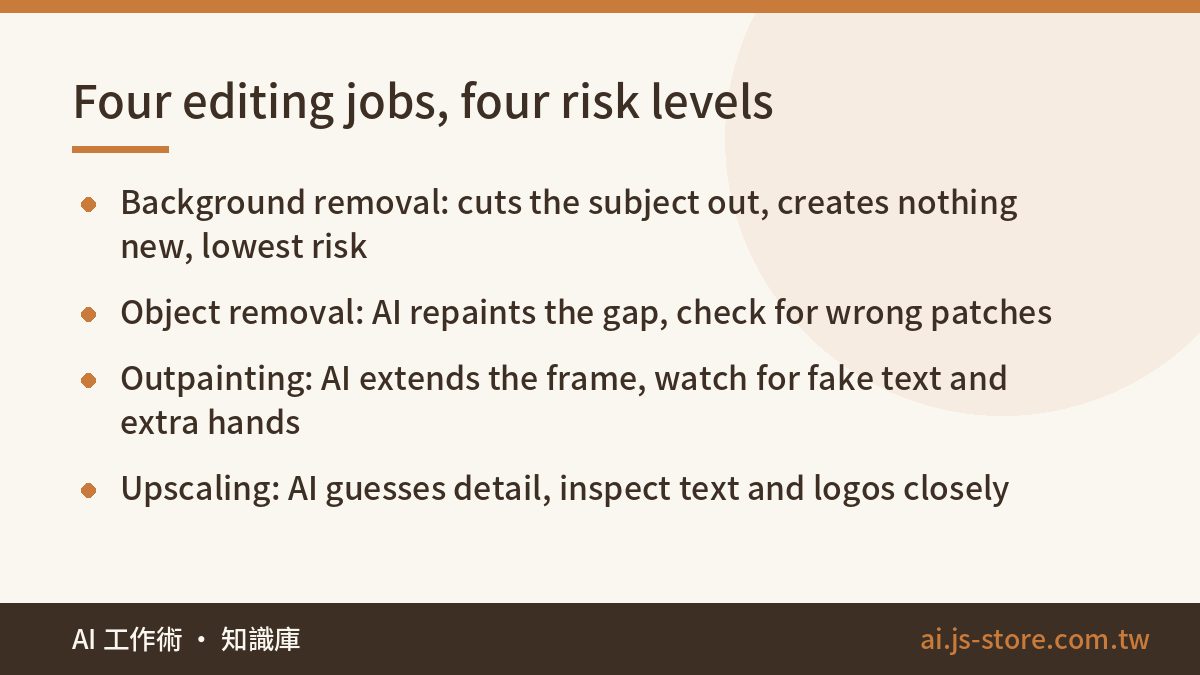
People say “AI photo editing” like it's a single task, then pick the wrong tool or underestimate the risk. There are really four jobs, and the dividing line is one question: does the AI draw anything that wasn't in the original photo?
| Job | What it does | Under the hood | Commercial risk |
|---|---|---|---|
| Background removal | Cuts the subject out onto white or transparent | Segmentation, nothing new is created | Low |
| Object removal | Erases bystanders, cables, clutter | Generative fill | Medium: the patch can be wrong |
| Outpainting | Turns vertical into horizontal, adds space for copy | Generative extension | Medium-high: can invent things that don't exist |
| Upscaling | Low resolution to high resolution | Super-resolution model | Low to medium: fine detail gets guessed |
Background removal only decides which pixels to keep. It never changes the product, which makes it the safest of the four. Object removal and outpainting generate new pixels, and upscaling invents detail. Those three are where image hallucination lives, the same failure mode we break down in our AI hallucination explainer, just in pixels instead of sentences. Once you see the split, you know which steps a free tool can handle unattended and which outputs need your eyes every time.
The free-tier map: what's actually free and what's just a preview
These are the tools we use or get asked about most. Free allowances and plan contents change constantly, so treat this table as directional and check each vendor's official pricing page before you commit.
| Tool | Good at | Free gets you | You pay for |
|---|---|---|---|
| Built-in on iPhone, iPad, Mac | Quick cutouts | Long-press the subject to lift it, fully free | Nothing, but no manual edge cleanup |
| Windows 11 Paint | Background removal | Built-in Remove Background | Nothing, edge accuracy is average |
| Adobe Express | Cutouts, simple layouts | Background removal quick action | Advanced generative features need credits or a plan |
| remove.bg | Background removal | Low-resolution preview download | Full-resolution downloads need credits or a plan |
| Canva | Removal, Magic Eraser, Magic Expand | Templates and layout | Background removal and most AI editing are Pro |
| Photoroom | Ecommerce product shots, auto shadows | Basic features to try | High resolution, no watermark, batch: usually a subscription |
| Photoshop | Everything, including Generative Fill and Generative Expand | Trial period | Subscription, generative features capped by credits |
| Phone gallery erasers | Removing people and clutter | Google Photos, Galaxy AI, Apple Clean Up | Some features limited to certain devices or plans |
| rembg, Upscayl (open source) | Local removal and upscaling | Completely free, no image limit | You install it, and it runs on your hardware |
Free tiers usually catch you in one of four ways: low-resolution output, a watermark, a monthly cap, or commercial terms that differ from the paid plan. So decide where the image is going before you pick a tool. For a slide deck or a social post, your phone's built-in cutout is plenty. For a marketplace main image or ad creative, check the platform's resolution requirements first. A free preview almost never clears them.
Don't subscribe to three editing tools “just in case.” Most people need one, if any. If you're weighing your overall AI spend, our guide on whether an AI subscription is worth it shows how to combine plans without paying twice for the same feature.
Commercial quality: only four kinds of hard images show the gap
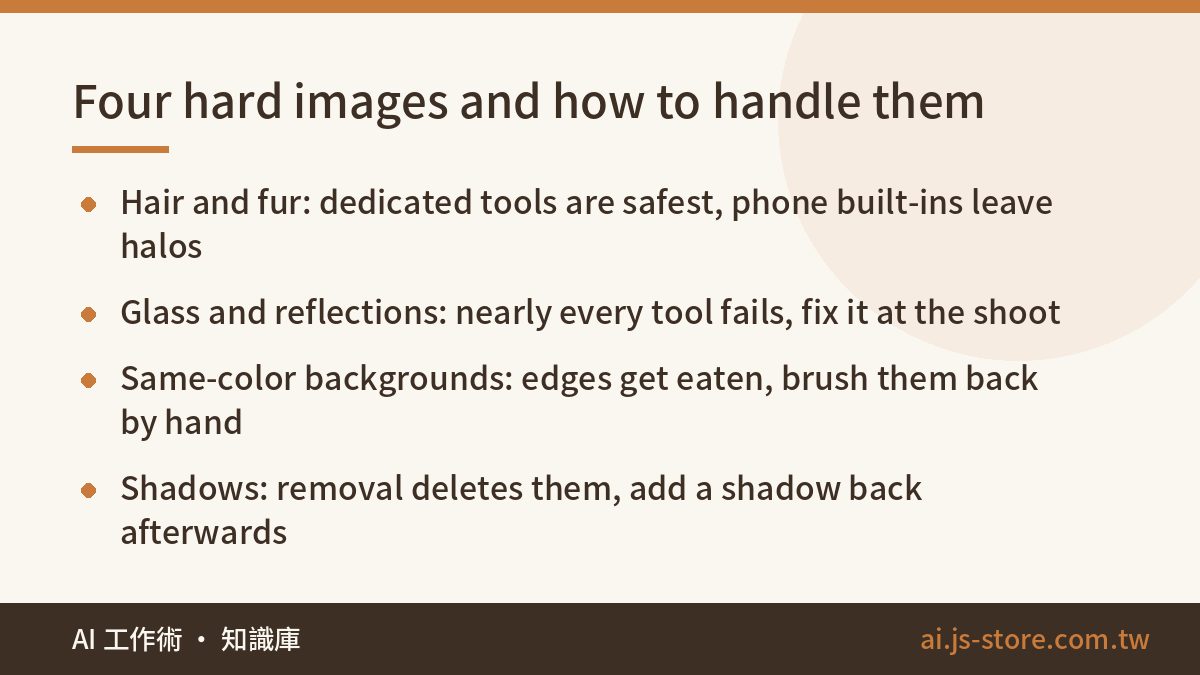
Shoot a product against a plain white wall and free and paid tools produce cutouts you honestly can't tell apart. The gap only opens up on four kinds of images, and they're exactly where client files get stuck in our pipeline.
- Hair and fuzzy edges (portraits, pets, knitwear): dedicated cutout tools and Photoshop give the most natural edges. Phone built-ins sometimes chop off a whole tuft of flyaway hair or leave a halo of the old background color, which jumps out the moment you drop the subject onto a dark background.
- Transparent and reflective items (glass bottles, plastic packaging, jewelry): almost every tool fails. Either it keeps the background showing through the bottle as part of the product, or it hollows out the transparent area entirely. Solve this at the shoot: photograph the item in front of the background you actually want. Don't count on a cutout to rescue it.
- Same-color backgrounds (white mug on a white table, black bag on a black sofa): part of the edge gets eaten. Paid tools let you brush it back in. With free tools, you either live with it or reshoot.
- Shadows: removal deletes the shadow along with the background, so the product looks like it's floating. Photoroom and Canva can add a shadow automatically, Photoshop lets you build one by hand, and phone built-ins can't do it at all.
Our rule is simple: run the free tool first, zoom to 200%, and check the edges. If they hold up, ship it. If not, move to a paid tool or fix it by hand. Don't pay upfront. Most of your images will never need it.
Outpainting and object removal: the most useful, and the easiest to get wrong
For ads, outpainting is gold. You can turn a vertical product shot into a landscape banner, open up room for headline copy, or spin one photo into every social aspect ratio. Photoshop's Generative Expand, Canva's Magic Expand and Adobe Firefly all paint around the original, leaving the original area essentially untouched.
Be careful with chat assistants. Drop a photo into ChatGPT or something similar, ask it to “make this horizontal,” and it often redraws the entire image. The logo, the package text and the small details drift. At a glance it looks right. Up close, the lettering is gibberish. That's fine for a mood shot. Don't use it for a product image.
When ShooWork Ads generates multi-size creatives, it follows one hard rule: the product is locked, the AI only extends the background, and a human reviews every output before it goes live. Before you use any edited image commercially, hold these lines:
- The fill never touches the product. If the color, proportions or accessories change, even for the better, you may be advertising something that doesn't match what the customer receives.
- Check every expanded area, image by image. Typical failures: extra fingers, fake text, and logos that look suspiciously like another brand's.
- Read the tool's terms once. Free and paid plans can carry different commercial rights. Adobe says its generative models are trained on licensed content, which is reassuring for commercial work, but what's actually covered is whatever the official terms say.
- Rights to the photo matter more than the tool. A model's likeness or an image pulled off the web still belongs to someone else, no matter how much you cut out or rebuild. Copyright in AI-generated portions is still unsettled in many countries. If you're unsure, ask a lawyer.
A production workflow for ecommerce and ad images
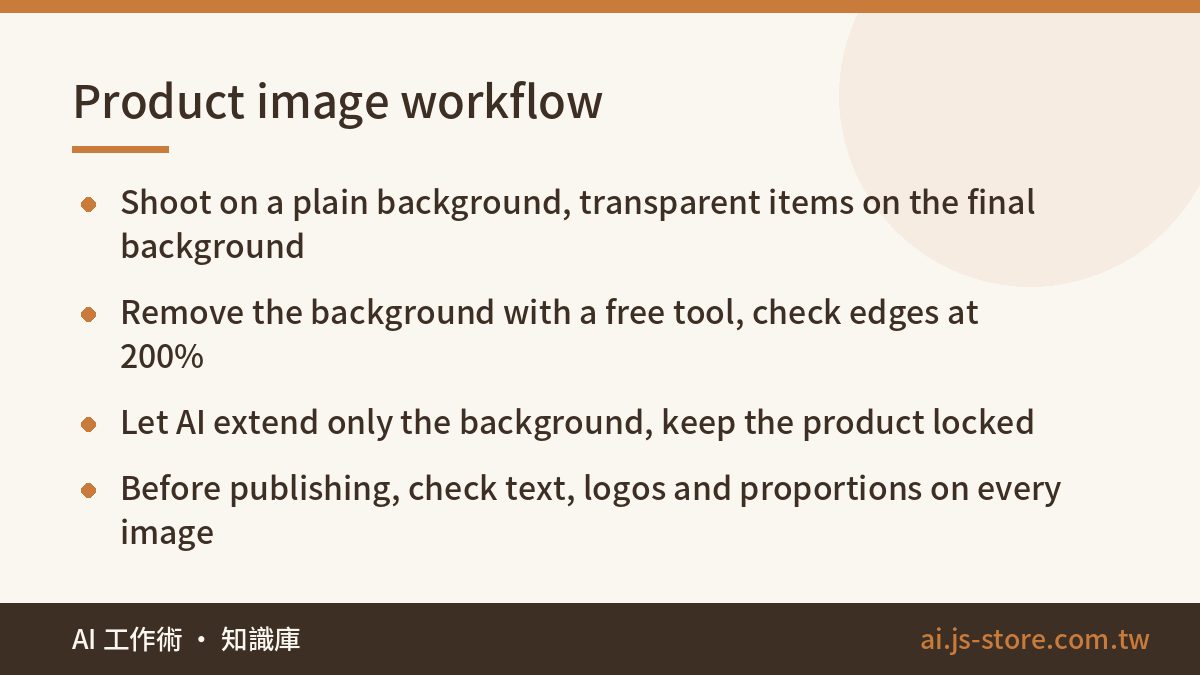
Put all of the above into one pipeline and most ordinary product photos take a few minutes each:
- Shoot: plain background, light from the side. Transparent or reflective products go straight in front of the final background.
- Remove the background: start with your phone or Adobe Express, zoom to 200%, check the edges.
- Clean the edges: if they fail, move to remove.bg, Photoroom or Photoshop.
- Swap the background and add a shadow: on a white main image, a soft shadow keeps the product from looking pasted on.
- Outpaint: only when you need a different aspect ratio. Afterwards, look for weird text, weird hands and odd logos.
- Upscale: only if the resolution falls short. The higher the multiplier, the more invented detail, so scrutinize any text on the product.
- Export: confirm each platform's size and background rules. They differ by marketplace, so follow the official guidelines.
For dozens or hundreds of images, stop dragging them in one at a time. If you know a little Python, a short rembg script runs locally with no image limit. If you'd rather not touch code, subscribe to a tool with batch processing for one month, finish the job, then decide whether to renew. To see what else fits into this pipeline, browse our AI toolbox.
FAQ
Q: Can I use images from free AI background removers commercially?
Most tools allow commercial use of outputs, but free and paid terms can differ, and some free tiers only give you low resolution or add a watermark. The bigger issue is usually the rights to the photo itself, such as a model's likeness or an image taken from the web. Check the tool's terms of service once before you publish.
Q: What's the difference between my phone's built-in cutout and remove.bg?
On ordinary product shots the results are close. The difference is hair handling and edge control: built-ins don't let you touch up edges, while dedicated tools handle edges more finely and let you fix them. Try your phone first and switch only if you're not happy.
Q: Can AI outpainting make a product image misleading?
Extending the background alone is usually fine. The risk is when the fill alters the product, changing its color, accessories or proportions. Keep the product off-limits to the AI and check every expanded image. For specific legal questions, consult a professional.
Q: My photo is too small. Can I upscale it with AI and use it as a main image?
Yes. Open-source tools like Upscayl are free with no limit. But upscaling works by guessing detail, so small text and logos on the product can turn into garbled shapes. Zoom in on every text area after upscaling, and if it's off, reshoot or find the original file.