CapCut Auto Captions Alternatives: How 4 Types of Creators Should Choose
Published 2026-10-30 · Updated 2026-10-30 · 8 min read · ShooWork (FREECO CO., LTD.)
CapCut auto captions work for occasional short clips. If you post weekly, have an accent, or need SRT files, here's which alternative fits you.
The short answer: if you make a few short videos a month and don't mind fixing captions by hand, CapCut's auto captions are good enough. If you publish talking-head videos every week, speak with an accent, mix languages, or need a clean caption file to upload somewhere else, CapCut is no longer the easy option it used to be. The free tier still transcribes. The catch is that you'll spend real time correcting names and jargon, and features like SRT export, some fonts and some effects have been moving behind the paywall.
The right alternative depends on what you need. If you only want accurate captions on a video you've already edited, a dedicated caption tool or a text-based editor will do it. If you like editing in CapCut and only the captions are weak, keep CapCut and replace just the caption step. But if you film talking-head content and most of your time goes into cutting flubs, pauses and retakes before you even get to captions, the problem is your editing workflow, not your caption tool. In that case, a tool that cuts and captions in one pass saves the most time.
We checked everything in this article in October 2026 against CapCut's help center, each tool's official plan page and several third-party software comparison sites. These products change quickly, so always confirm prices and quotas on the official pricing page. What follows will help you decide. It is not a price list.
Who CapCut Auto Captions Are Good For, and the Limits You'll Hit in 2026
CapCut is ByteDance's video editor, and it runs on your phone, on desktop and in the browser. You'll find auto captions under Text → Auto captions: pick the spoken language and it transcribes. Its biggest strength is that captions, templates, effects and music all live in one app, which makes it the easiest place for a beginner to start making Reels or Shorts.
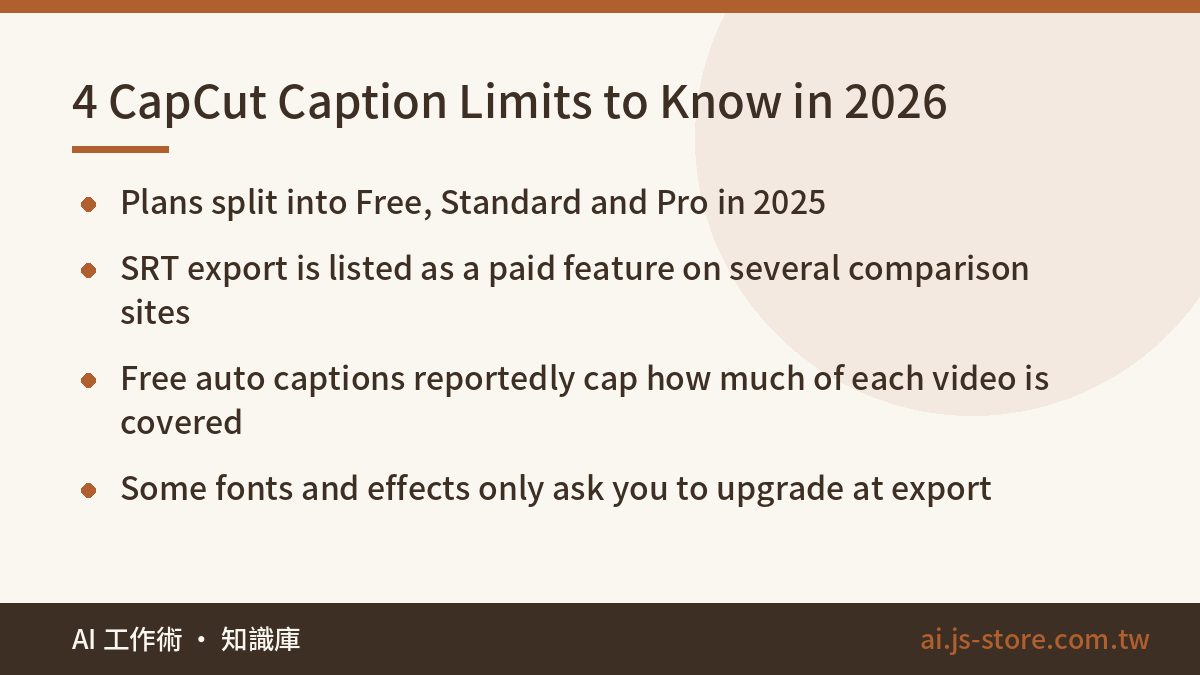
In 2025, though, CapCut reorganized its plans and split the paid tier into Standard and Pro. In 2026 these are the limits you're most likely to hit:
| Limit | Status (checked October 2026) | What it means for you |
|---|---|---|
| Plan tiers | Three tiers: Free, Standard and Pro. Check the official pricing page for current rates | Paying for a full editing suite just to get better captions is poor value |
| Caption file export | The help center says only text created by auto captions can be exported, as SRT or TXT. Several comparison sites list SRT export as a paid feature | On the free plan you can get stuck moving captions to YouTube or another editor |
| Length and quota | Comparison sites report a cap on how much of each video the free plan will auto-caption | Long interviews and podcast clips don't fit well |
| Premium assets | Some templates, fonts and effects are marked Pro, and you're asked to upgrade when you export | You find out you need to pay at the very last step |
CapCut is the right fit if your videos run under about three minutes, you make only a few a week, you burn captions into the video and you never need a separate caption file. Above that volume, the time you spend proofreading and working around limits will cost you more than switching tools.
Where Auto Captions Go Wrong: 5 Errors We See Every Day
We run our own video-editing engine and process a large amount of talking-head footage every day. General-purpose speech models fail in very predictable ways. This isn't only a CapCut problem. Most tools trained mainly on standard speech make the same five mistakes:
- Accents and regional speech: accuracy drops noticeably with strong regional accents, and words get swapped for similar-sounding ones that change the meaning.
- Filler words handled inconsistently: "um", "uh", "like" and "you know" are sometimes removed, sometimes kept and sometimes turned into random words. Then the captions stop matching what viewers see you say.
- Mixed-language speech: if you switch languages mid-sentence, the second language often comes out as sound-alike nonsense in the first. Script variants cause trouble too. Chinese captions can come out in Simplified characters when you wanted Traditional, and changing the font only changes how they look. The caption file still has the wrong characters, and you'll notice the moment you export it.
- Names, brands and jargon: your brand name, product names and guest names are almost always wrong on the first pass. If the tool has no custom vocabulary, it makes the same mistake again in your next video.
- Bad line breaks: a dozen words crammed into one line is unreadable on a vertical phone screen, and a phrase split in the wrong place makes viewers stumble.
In our experience, a three-minute talking-head video run through a general-purpose tool usually needs another 5–15 minutes of proofreading, and longer if you have a heavy accent or mix languages a lot. When you compare tools, that proofreading time is the cost to count, not just the monthly subscription.
Four Alternatives Compared
| Option | What it is | Control over accuracy | Cuts flubs? | Best for |
|---|---|---|---|---|
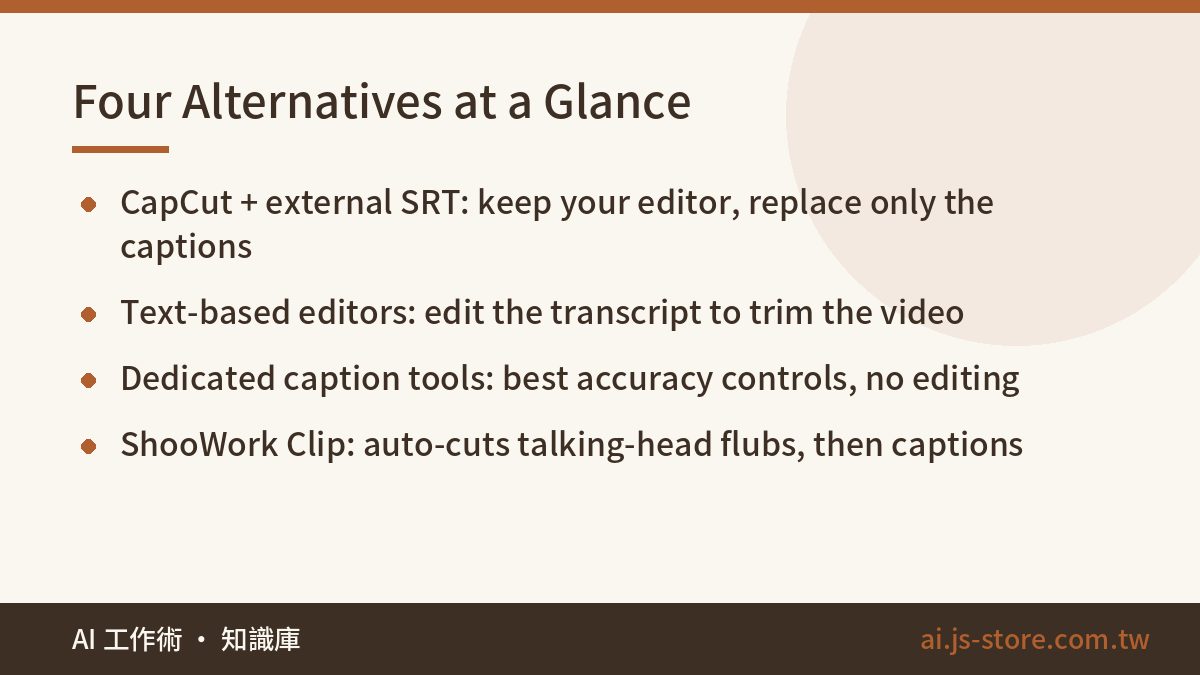
| CapCut + external caption file | Keep editing in CapCut, generate captions somewhere else, import the SRT | As good as the caption tool you pair it with | No | People happy with CapCut who only find the captions weak |
| Text-based editors (e.g. Vrew) | Edit the transcript and the video changes with it | Decent, but check language and export settings | Removes silences and deleted lines, but you pick the bad takes yourself | Beginners who want captions plus a simple rough cut |
| Dedicated caption tools | Focused on transcription quality and caption formatting | Usually the strongest: custom vocabulary, line-length control | No, they don't edit | Finished edits that only need clean captions |
| ShooWork Clip | Automatically cuts talking-head footage, then captions it | Built for real-world talking-head speech | Yes: retakes, stumbles and long pauses | Creators who post talking-head videos every week |
CapCut + an external caption file: people forget this one. According to CapCut's help center, it can import SRT and TXT files. So you can keep your templates and effects, generate captions with a stronger tool and import them into your existing project. You only replace the weakest part of the workflow.
Text-based editors: the appeal is that captions and the rough cut happen in one place, so deleting a sentence also deletes the clip. Beginners pick this up fast. Free tiers usually cap transcription hours per month, so check the official page for the current quota. We wrote up our hands-on test separately in our Vrew review.
Dedicated caption tools: when you compare them, ignore the marketing claims about accuracy and look for four things. Does it remember your corrections or let you load a custom vocabulary? Can you control line length and break points? Does it export SRT and VTT? And does it upload your whole video, or only the audio? That last question matters more than people expect. If you work under a company or brand account, check your company's data policy before you check features. A great tool that fails your internal review is time wasted.
ShooWork Clip: we build this one, so here's who it's not for. It isn't a full editor. Animated text, transitions and effects still happen somewhere else. What it does is handle the most time-consuming part of talking-head editing: picking the usable takes out of the retakes and pauses, then syncing captions to what's left. If that's where your hours go, ShooWork Clip is built for that job.
How to Choose: Start From Where You're Stuck
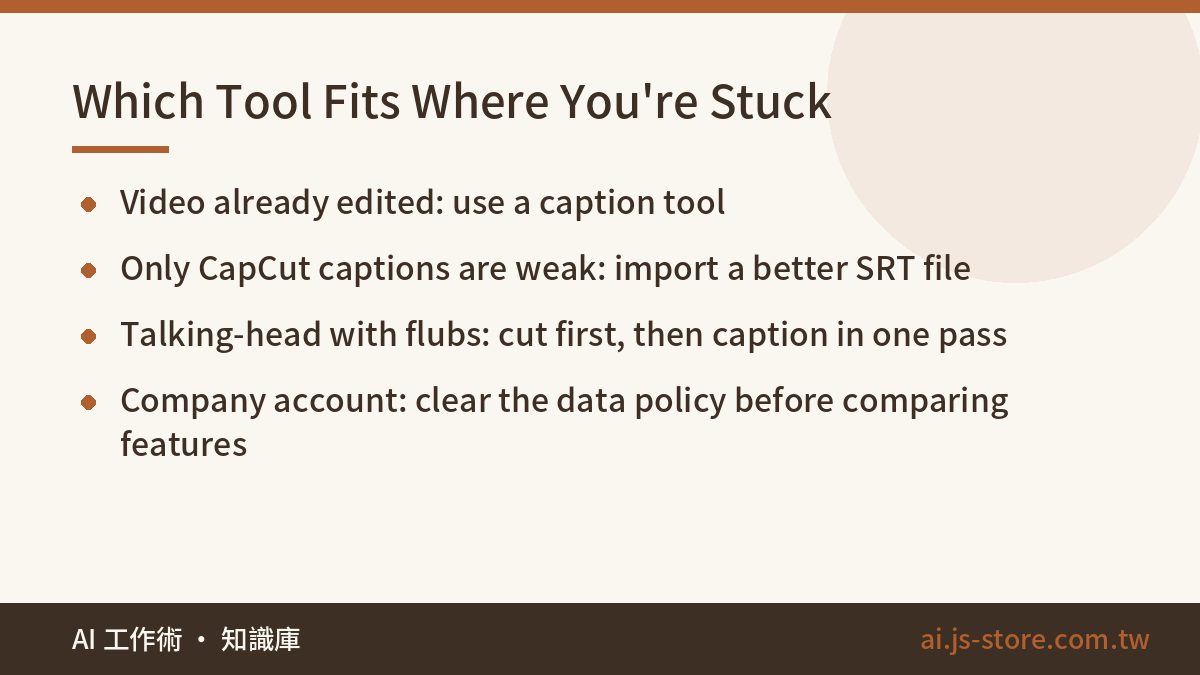
- The video is already edited and only needs captions: use a dedicated caption tool. If you also want light text-based trimming, use a text-based editor. Keep CapCut's free tier as a backup.
- You already edit in CapCut and only the captions are inaccurate: don't switch editors. Make the caption file in a better tool and import it into CapCut.
- You film talking-head videos and every one has flubs to cut: use a tool that cuts and captions in one pass, like ShooWork Clip.
- It's a brand account, a company channel or client work: read the data policy and license terms first, then compare features.
For talking-head content, order matters more than anything: cut first, caption second. Do it the other way round and you'll proofread a pile of sentences that end up cut, then fix the timeline again. Building our editing engine, this is the most common waste we've seen.
On a tight budget, don't commit to a caption tool for a year. Pay monthly for one month and measure how much proofreading time it actually saves before you decide. If you already pay for several AI tools, read whether your AI subscriptions are worth it to sort out your monthly budget first.
The 4-Step Caption Check Before You Publish
Whatever tool you use, do these four checks before you publish. Together they take a few minutes and catch most of the errors viewers would notice.
- Keep your own vocabulary list: write down 10–30 terms: your brand, people's names, product names and jargon you use a lot. If your tool has a vocabulary feature, load them in. If not, keep the list for the next step.
- Find-and-replace first, then read line by line: fix every proper noun across the whole video in one pass, then proofread sentence by sentence. Doing it the other way round roughly doubles the time.
- Preview once on a phone in vertical mode: check that no line is too long and that captions aren't hidden behind the platform's buttons or comment area.
- Watch it once with the sound off: pretend you're scrolling on mute. If the captions alone make the video make sense, you're done.
FAQ
Q: Are CapCut auto captions free?
Transcription works on the free plan, but there are limits on length or quota. SRT export and some fonts and effects need a paid plan. In 2025 CapCut split its paid tier into Standard and Pro, so check the official pricing page for current quotas and prices.
Q: Why does CapCut get my words, accent or brand names wrong?
General speech models are trained mainly on standard speech, so accents, mixed languages and uncommon names trip them up. Without a custom vocabulary the same mistakes come back in every video. Keep a term list and do a find-and-replace pass before you read line by line.
Q: Can I keep editing in CapCut and use better captions?
Yes. According to CapCut's help center it can import SRT and TXT files, so you can generate captions in a stronger tool and bring them into your existing project.
Q: Should I pick a dedicated caption tool or a text-based editor like Vrew?
If caption quality, line breaks and remembering your corrections matter most, choose a dedicated caption tool. If you want to trim the video by editing text, choose a text-based editor. Try both free tiers on one of your own videos. That tells you more than any review.
Q: What's the fastest way to cut flubs and add captions to talking-head videos?
Cut first, caption second, never the other way round. A tool that does both in one pass saves the most time, such as ShooWork Clip. Then add effects in CapCut if you need them.