Organize ChatGPT Chats: The Wrap-Up Habit That Makes Them Findable
Published 2026-10-27 · Updated 2026-10-27 · 8 min read · ShooWork (FREECO CO., LTD.)
Can't find an old ChatGPT chat? Your search words don't match what you typed. A copy-paste wrap-up prompt, renaming rules and project setup that fix it.
If you can't find an old ChatGPT conversation, the problem usually isn't that you have too many chats. It's that the words you remember today don't match the words you typed back then. You remember asking how to bring up a raise with your boss, so you search “raise.” Nothing. That day you typed “salary review” and “comp conversation,” and search has no idea those mean the same thing to you.
So organizing ChatGPT chats doesn't mean losing a weekend to cleaning up the sidebar. It means spending about a minute when a chat worth keeping ends. Ask ChatGPT for a summary card, have it list five words your future self will actually search for, rename the chat so the title makes sense, and drop it into the right project. All of it happens inside ChatGPT. You don't write code and you don't install an extension.
One warning first: ChatGPT changes its interface constantly. Where “Search chats,” “Projects” and “Archive” live, and what they're called, may not match what you see. Go by your current screen. If you can't find a button, the fastest fix is to ask ChatGPT itself: “Where do I archive a chat?”
Why You Can't Find It: Your Words Changed
At ShooWork we run our own AI tool platform. Product copy, help articles, ad variations for ShooWork Ads and subtitle tweaks for ShooWork Clip all go through several rounds with ChatGPT and Claude. The sidebar gets long fast. When we looked at which chats we actually lost, nearly all of them were the same kind: the “quick” ones we never wrapped up. The auto-generated title said nothing useful, the wording inside was whatever we typed in the moment, and three months later nobody could remember any of it.
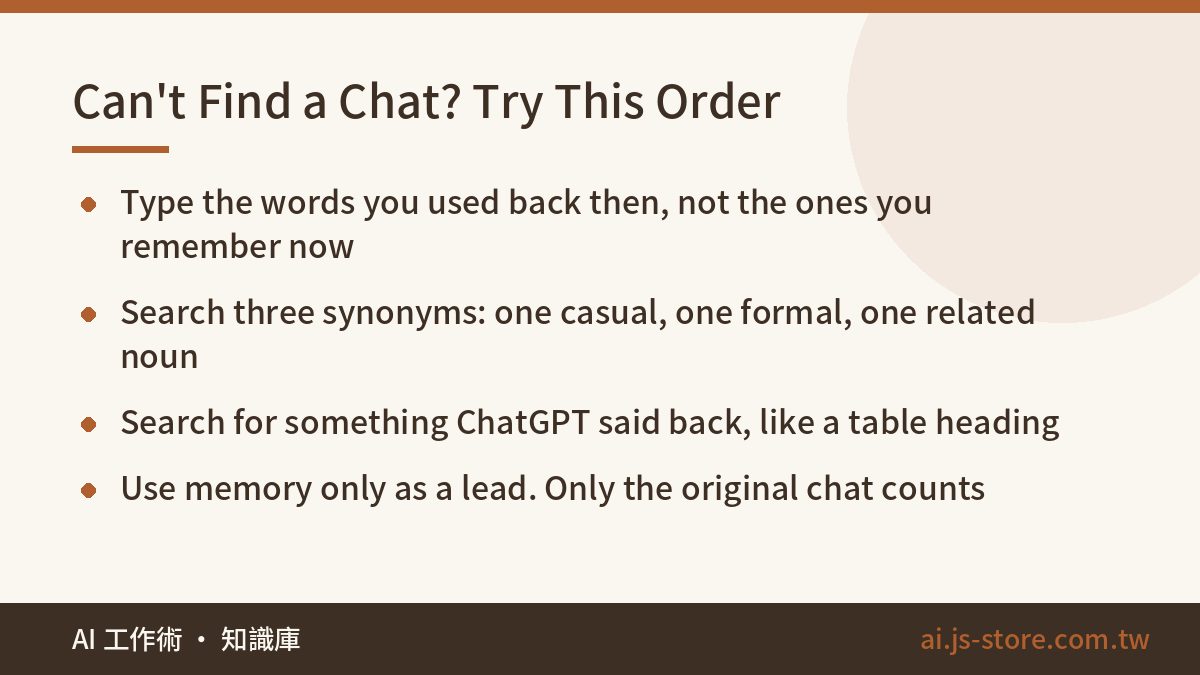
Most versions have a magnifying glass or “Search chats” at the top of the sidebar. The trick is to type the words you would have used when you asked the question, not the words that come to mind now. These are the mismatches we see most often:
| What you remember | What you probably typed |
|---|---|
| raise | salary, pay review, compensation, negotiate |
| landlord | lease, renewal, rent increase |
| report | deck, proposal, outline |
| trip | itinerary, flights, hotel booking |
| kids | son, daughter, their name or nickname |
Still nothing? Try these in order:
- Search three synonyms. Follow the table: one casual word, one formal word and one related noun.
- Search for its words, not yours. Think of something ChatGPT said back, like the heading of a table it gave you or an unusual phrase it used.
- Ask memory, but don't trust it. If memory is on, you can ask: “I once asked you how to approach my manager about a pay review. What did we conclude?” It may not find it, and it may get the answer wrong. It only counts once you've found the original chat.
The Wrap-Up Prompt: Ask for a Summary Card
Searching is the fallback. Wrapping up is what actually solves the problem. Paste this as the last message in any chat worth keeping. The examples are already filled in. Just change the project names in part five to match yours:
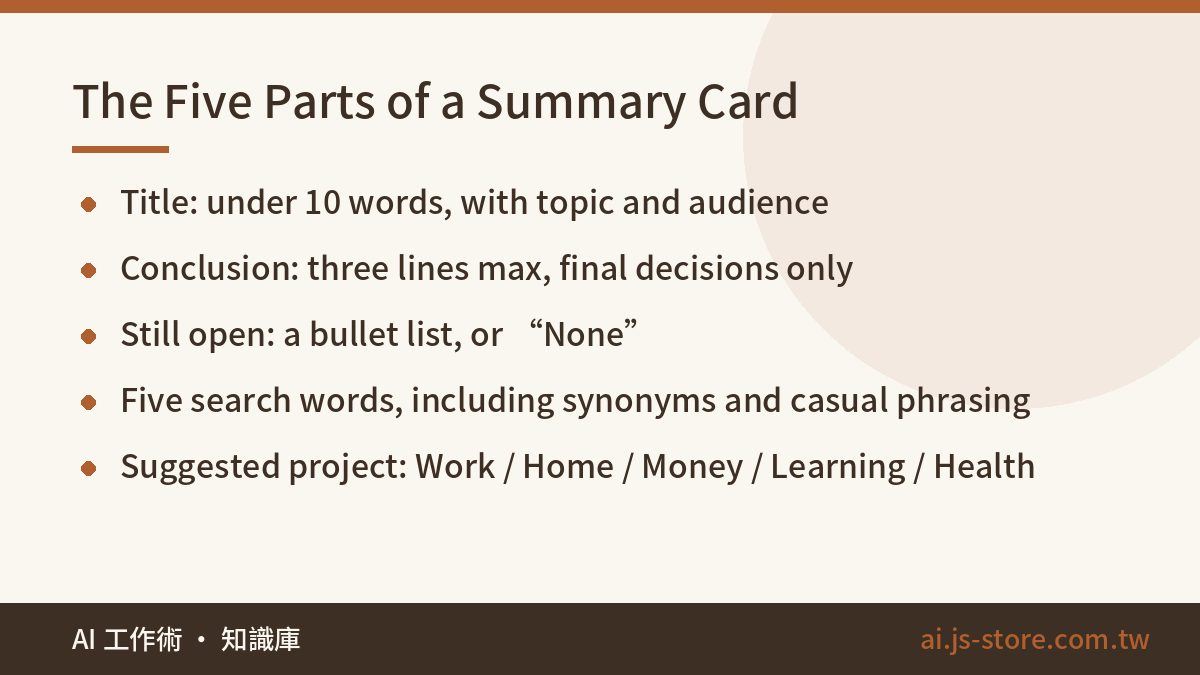
Let's stop here. Please wrap up this conversation with a “summary card.”
Use the five sections below, each with a heading. No pleasantries.
1. Title
One line, under 10 words, saying what this chat solved. Include the topic and who or what it's for.
(e.g. Asking my manager for a raise: talking points)
2. Conclusion
Three lines max. Only the final decision. Leave out anything we rejected along the way.
3. Still open
Bullet list. If nothing, write “None.”
4. Five words I might search later
Imagine me three months from now. I've forgotten the exact words used here.
What would I type into the search box? List 5, including synonyms and casual phrasing.
(e.g. raise, salary, pay review, manager, performance review)
5. Suggested project
Pick one: Work / Home / Money / Learning / Health.
If none fit, write “Not worth keeping, archive it.”
Each part is there for a reason:
- Why the last message: Conclusions tend to be buried in the middle of a chat, so finding them means scrolling from the top. When the card is the last message, you open the chat, jump to the bottom, and there it is.
- Why only final decisions: Long chats wander. If the card includes versions you dropped, three months from now you won't know which one you actually went with.
- Part four does the heavy lifting: The card becomes part of the conversation, so searching any of those five words gives search a much better shot at finding the chat. You're closing the vocabulary gap ahead of time. What search actually indexes is up to OpenAI, so the next step, renaming, is your insurance.
People often ask how this differs from a handoff note. A handoff note helps you keep going: when a chat gets so long the AI starts forgetting things, you summarize it and paste the summary into a fresh chat (our guide to context windows explains why that happens). A summary card helps you find the chat later, and it stays in the original chat. One carries the work forward, the other files it away. Don't mix them up.
Rename and File: Five Projects, Archive vs. Delete
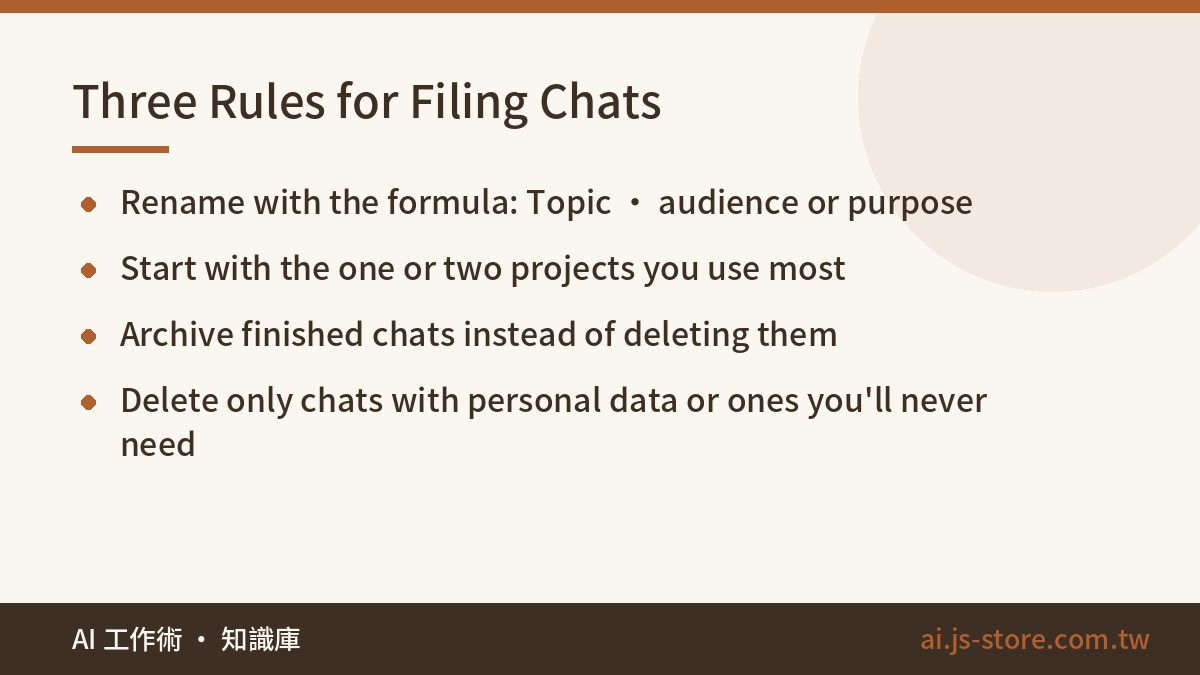
Rename it first. In the sidebar, click the “⋯” next to the chat, choose “Rename” (or whatever your interface calls it), and paste in the title from part one of the card. Use this formula: Topic · audience or purpose.
| Before (typical auto-title) | After |
|---|---|
| New chat | Raise request · manager version |
| Can you take a look | Lease renewal · reply to landlord |
| Question | Q4 deck · outline |
Then file it into a project. Look for “Projects” or “New project” in the sidebar. You can usually drag old chats in or move them from the chat's “⋯” menu. A project keeps all the chats about one thing together. In most versions you can also give a project instructions and a few files, so every new chat you start inside it already has that context (how much you can add depends on your plan). We run our product team the same way: write the background once, put it in the project, and stop re-explaining it in every new chat.
Here's a five-project setup with example instructions you can adapt:
| Project | What goes in | One-line instruction |
|---|---|---|
| Work | Emails, decks, meeting notes | I'm a project coordinator at a marketing agency. Lead with the answer. If it fits in three lines, don't write a page. |
| Home | Chores, kids, aging parents | Two adults and a 5-year-old. Suggestions must be realistic on a busy weeknight. |
| Money | Bills, insurance, subscriptions, budgeting | Always show the math. Mark any number you're unsure of as “needs checking.” |
| Learning | Languages, certifications, course notes | I'm a beginner. Explain in plain English and end with one short quiz question. |
| Health | Exercise, sleep, questions for the doctor | Only organize information and question lists. No diagnoses. For anything physical, remind me to ask a doctor. |
Don't create all five at once. Start with the one or two you use most and add the rest when you need them. Empty projects only add clutter to the sidebar.
Last, decide whether to archive or delete:
| Archive | Delete | |
|---|---|---|
| Sidebar | Gone, sidebar stays clean | Gone |
| Can you get it back? | Yes, under archived chats in settings (location varies) | No |
| When to use | Done with it, but you might need to look it up later | Contains personal data, or you're certain you won't need it |
The rule is simple: when you're done with a chat, archive it. Don't delete it. Only delete chats that contain personal data or that you're 100% sure you won't need.
Already Have Hundreds of Chats? Don't Go Back
Let's be honest: nobody spends a weekend opening hundreds of old chats one by one to rename them. Even if you did, you wouldn't keep it up past the second week. So skip the big cleanup and organize chats as you use them:
- Starting today: When a new chat worth keeping ends, paste the wrap-up prompt.
- Old chats: Next time you search for one or open it, wrap it up, rename it and file it right then.
- Anything you know you'll never open again: Archive it on sight.
This works because the chats you go back to most get organized first, and the ones you never reopen weren't worth the time anyway. The sidebar cleans itself up gradually.
Add one more habit. Before you start a chat, ask yourself: “Do I want to keep this?”
- Yes: Chat as usual and wrap up at the end.
- No (how to spell a word, a quick calculation): Archive it as soon as you're done.
- Private stuff you don't want on record: Use Temporary Chat (or whatever your version calls it). Before pasting anything personal, run through our 3-second personal data check.
If you use Claude, it also has chat search and Projects, and the whole method carries over.
What This Method Won't Do
This method makes old chats much easier to find, but it has limits. Know them before you start:
- Names and locations change. Search chats, Projects, Rename, Archive and archived chats are described here as they commonly appear. Yours may look different, so go by what's on your screen.
- Free and paid plans can differ. For example, how many files a project can hold. Check what your own account shows.
- The AI won't tidy your sidebar. You do the renaming, moving and archiving yourself. ChatGPT only writes the card and the title.
- Search isn't guaranteed. What gets indexed is up to OpenAI. Wrapping up and renaming improve your odds a lot, but not to 100%.
- “What did I ask you before?” is unreliable. Memory can miss things or misremember them. Only the original chat counts.
On the plus side, it costs nothing. No code, no add-ons, no extra subscription. If you're trying to cut down how many AI tools you pay for, see how we built our solopreneur AI stack.
FAQ
Q: Can I search my ChatGPT history by keyword?
Yes. Most versions have a magnifying glass or “Search chats” at the top of the sidebar, though the exact spot varies. If a search turns up nothing, try three synonyms, then search for something ChatGPT said back to you. What search actually covers is up to OpenAI, so it won't find everything every time.
Q: What's the difference between archiving and deleting a chat?
Both remove the chat from your sidebar. Archived chats can still be recovered from the archived chats section in settings. Deleted chats are gone for good. Archive anything you're done with but might look up later. Delete only chats that contain personal data or that you're sure you'll never need.
Q: Why not just ask ChatGPT what I asked it before?
Don't rely on it. Even with memory turned on, it may not find the chat or may misremember what you concluded. Use its answer as a lead, and trust only the original conversation.
Q: Can free users use Projects?
Features differ between free and paid plans, and limits like files per project can change, so check what your account shows. Even without Projects, the summary card and renaming alone make a big difference.
Q: Does this work in Claude too?
Yes. Claude also has chat search and Projects, and you can paste the wrap-up prompt as is. Renaming, filing and archiving may sit in different places, so go by the interface you see.