Cursor vs Claude Code: Which AI Coding Tool Should You Pick?
Published 2026-10-26 · Updated 2026-10-26 · 7 min read · ShooWork (FREECO CO., LTD.)
Cursor vs Claude Code, from a team that uses both daily: when the IDE wins, when the terminal agent wins, what it costs, and how to pick in 5 minutes.
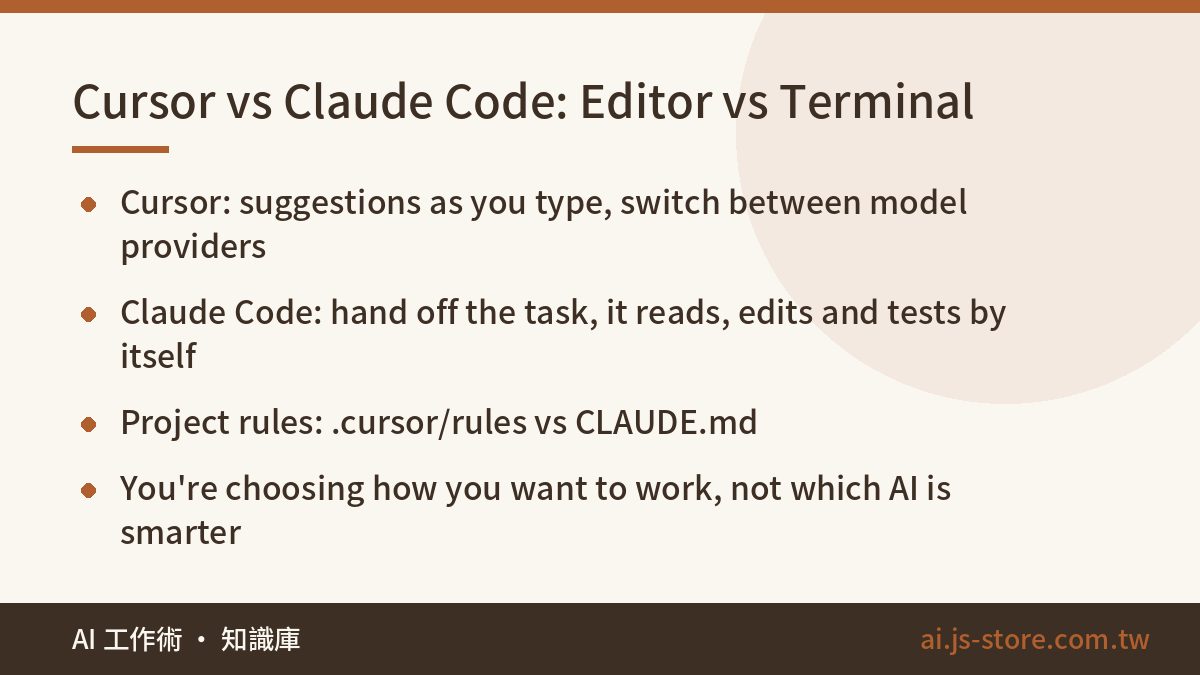
Here's the short answer. If you still write most of your code yourself and want suggestions as you type, pick Cursor. If you'd rather hand off a whole task and let the AI read files, edit them and run the tests by itself, pick Claude Code. Both can run Claude models, so this isn't about which one is smarter. It's about how you want to work. Cursor is an editor where you drive and the AI rides shotgun. Claude Code is a terminal agent where you assign the job and approve the result, and the AI does the driving.
At ShooWork we maintain our own AI tool platform and the video-editing engine behind ShooWork Clip, and we use both tools every day. Once you've lived with both, the split is obvious. For changing a button or fixing a one-line bug, Cursor is fastest. For a refactor across a dozen files, a data-processing script or a wall of failing tests, Claude Code saves us far more time. Plenty of engineers end up keeping both.
If you can only pay for one, this guide should get you to a decision in about five minutes. Both companies change their plans often, so read anything we say about pricing as a rough guide and check each official pricing page before you buy.
Cursor vs Claude Code at a glance
| What you care about | Cursor | Claude Code |
|---|---|---|
| What it is | An AI code editor built on VS Code | An AI agent that runs in your terminal, plus VS Code and JetBrains extensions and a desktop app |
| How you use it | Tab completion, highlight code and give an instruction, chat with the agent in a sidebar | Describe a task in plain language, and it finds files, edits them and runs commands |
| Models | Switch between providers (Claude, GPT, Gemini and others) | Anthropic's Claude models only |
| Reviewing changes | Diff by diff inside the editor, accept or reject each one | Diffs in the terminal, which are easier to read with the IDE extension |
| Project rules file | Rules (.cursor/rules) | CLAUDE.md |
| Extensibility | MCP | MCP, hooks, subagents, custom slash commands |
| Billing | Free tier plus monthly plans, with extra charges for overage | Included in Claude Pro/Max subscriptions, or pay-as-you-go via the API |
| Learning curve | Low. If you know VS Code, you know Cursor | Medium. You need to get comfortable with the terminal and with delegating |
The line between the two keeps blurring. Cursor now ships a command-line agent and background agents, and Claude Code has editor extensions so you can review diffs where you're used to seeing them. But the defaults are different, and you work with the defaults every day. Cursor assumes you're watching every change as it lands. Claude Code assumes you explain the job and step back. When you choose a tool, you're really choosing how you want your day to run.
Cursor: the best feel while you type, but keep an eye on big jobs
Cursor is at its best while you're actually writing code. Type two characters and it guesses the rest of the block. Rename a function and it predicts the next place you'll need to touch. Hit Tab and you jump straight there. A terminal tool can't give you that kind of instant feedback.
- Tab completion that looks ahead: it doesn't just finish the line, it guesses your next edit. Repetitive changes go much faster.
- Highlight and instruct: select code, press Cmd/Ctrl+K, describe the change in plain language and review the diff right there.
- Agent mode: chat in the sidebar and let it edit across files. Good for medium-sized features.
- Almost free to switch: coming from VS Code, most of your settings, shortcuts and extensions import. You can be productive the next day.
- Model choice: swap providers without leaving the interface. If one model gets stuck, try another.
Large tasks are where it struggles. Cursor's agent decides by itself which files to read. In a big codebase it sometimes misses a key file and produces edits that contradict each other. In long conversations it also starts forgetting rules you set earlier. We explain why in What Is a Context Window? Cursor has also changed how it bills more than once. Heavy agent use on top-tier models can leave you with a much bigger monthly bill than you expected, so check your usage in settings regularly.
Best for: front-end developers, anyone who needs to watch the UI change as they edit, and people learning to code who want to see every line.
Claude Code: hand off big changes and automation
Here's how it works. Open a terminal in your project folder, type claude, and describe the task the way you'd brief a colleague. It searches the codebase, reads the relevant files, makes the edits and runs the tests. When it sees an error, it keeps fixing until the job is done. Your role shifts from writing code to checking it.
Here's a real example. Our video engine needed its old subtitle-processing pipeline replaced. The job touched more than ten files and a batch of tests. In Cursor we had to keep watching, keep feeding it context and keep clicking continue. In Claude Code we first asked for a plan in Plan mode and agreed on the direction. Then we let it run. We stepped in only to approve commands, and at the end we read the full diff once. What we saved wasn't typing time. It was attention.
- CLAUDE.md as project memory: put your conventions, test commands and hard rules in it, and it gets read at the start of every session. Write rules as concrete actions. "Run the test suite before every commit" works better than "don't break things."
- External tools: through MCP it can connect to databases, project trackers and browsers to look things up, open tickets or take screenshots for review.
- Automation: a non-interactive mode lets you put it in scripts or CI. For example, it can summarize yesterday's error logs every morning and suggest fixes.
- Subagents: a big job can be split across several subagents searching in parallel, so the main conversation's context doesn't fill up.
The downsides are just as clear. There's no Tab completion, so small edits are actually slower. Diffs are harder to read in a terminal than in an editor. When it changes many files at once, reviewing everything is tiring. So commit after every small step. That's how you get back to a working version when an edit goes wrong. It also only runs Claude models, and subscription plans cap how much you can use in a given time window. Use it heavily and you'll hit the cap and have to wait for it to reset.
One safety warning. Claude Code can run commands directly, so don't set every permission to auto-approve on day one. Anything that touches a production database, deletes files or pushes code should still need a person to click approve.
Five everyday tasks: which tool wins
| Task | Cursor | Claude Code | Our pick |
|---|---|---|---|
| Change a button style, fix a one-line bug | Highlight, give one sentence of instruction, done in seconds | You have to describe where it is and wait while it searches. Overkill | Cursor |
| Tweak front-end layout | Edit while watching the preview, quick feedback | Works, but you keep switching windows to check | Cursor |
| Understand an unfamiliar codebase | Open files and ask questions, easy to jump around | Ask "how does data flow through this?" and it reads the files and summarizes | A tie, depends on your habits |
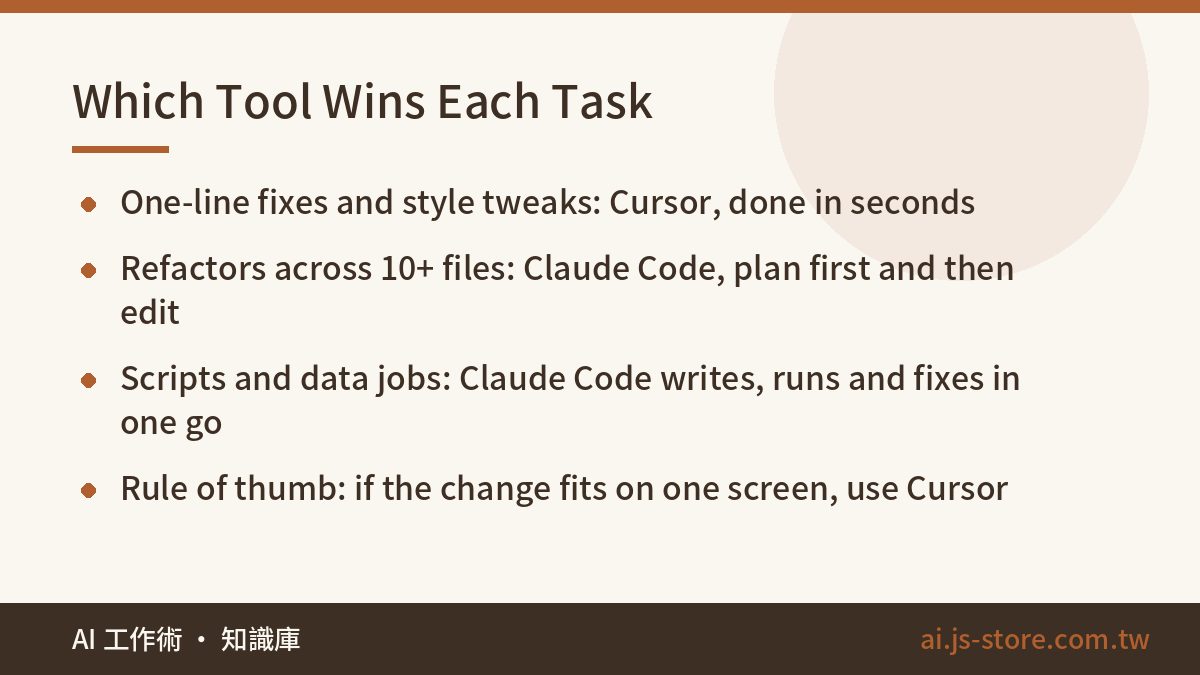
| Refactor across 10+ files | Possible, but you watch constantly and keep feeding it context | Plans first, then edits, then runs tests until they pass | Claude Code |
| One-off scripts and data processing | Can write it, but you switch to a terminal to run it | Writes it, runs it, checks the output and fixes it in one go | Claude Code |
If you remember only one rule, ask yourself: does this change fit on one screen? If it does, use Cursor. If it spans many files or needs repeated rounds of running and checking, give it to Claude Code.
One difference people often overlook is what happens when you get pulled away. Cursor's agent runs inside your editor by default, so when it gets stuck you have to come back and deal with it. A Claude Code task can run in another terminal tab while you're in a meeting, and you check the result afterward. For a small team handling operations, support and marketing at once, that makes a real difference.
What it costs, and which one to pick
Cursor has a free tier you can try, paid monthly plans above it and more expensive tiers for heavier usage. Claude Code comes with Claude's paid subscriptions (Pro and Max), or you can run it on the API and pay per token. The entry-level paid plans of the two cost about the same, but prices move, so check each official pricing page for current numbers. Our AI tools cost comparison shows how they fit into a wider stack.
Two practical points. First, if you already pay for Claude Pro to chat, you already have Claude Code. It shares the same usage allowance as chat. Second, don't run Claude Code on API billing for personal use. Heavy sessions can cost several times what a subscription does, and a flat monthly plan is much easier to budget.
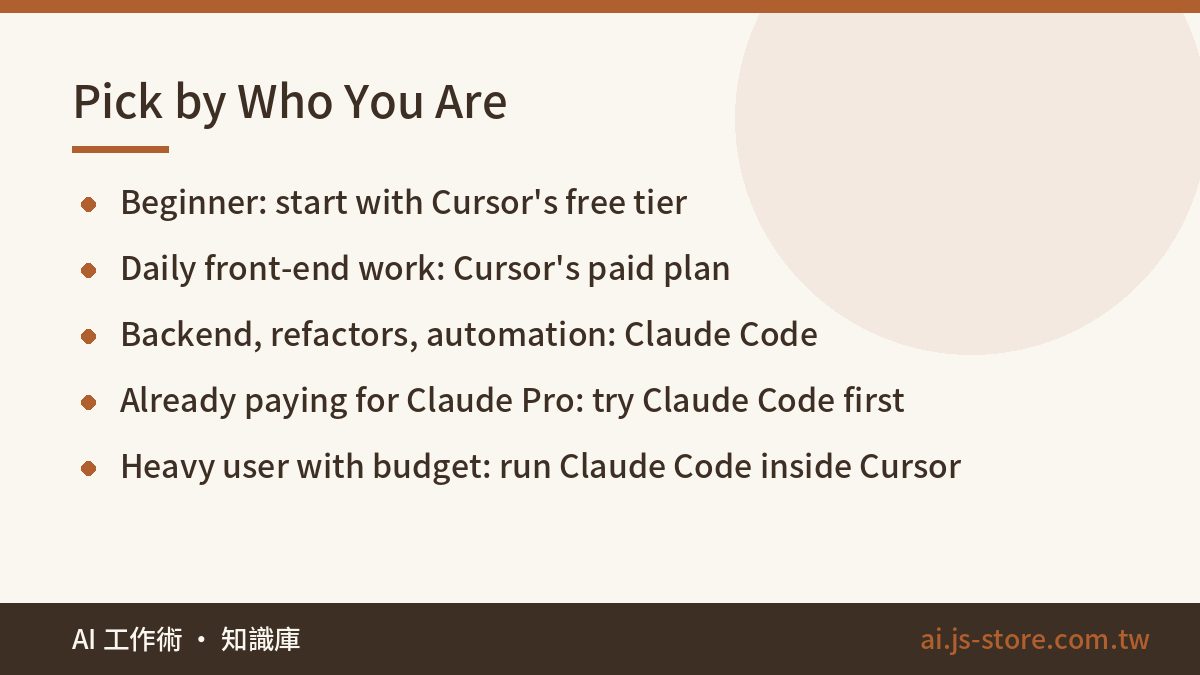
- Learning to code or coding occasionally: start with Cursor's free tier. You see every change line by line, so you learn faster.
- Writing front-end or full-stack code every day: go with Cursor's paid plan. You'll feel the speed of Tab completion most here.
- Backend, ops, big refactors or automation: go with Claude Code. Set up CLAUDE.md and MCP early to get the most from it.
- Founders who can't really code but want internal tools: Claude Code may actually suit you better, because your job is describing what you need and checking the result. But learn basic git first, and have someone who can code review the critical parts before anything goes live.
- Heavy users with the budget: run both. Use Cursor as your editor and run Claude Code in its built-in terminal. Use Tab for small edits and hand big ones to Claude Code.
Whichever you choose, one rule applies to both: never paste API keys, customer personal data or .env files into the chat, and list the files the AI must never read in your rules file. AI makes coding much faster, but a single data leak costs more than all the hours you'll save. Our guide to AI security for business shows how to set this up for a team.
FAQ
Q: Do Cursor and Claude Code use the same AI model?
Not exactly. Cursor lets you switch between several providers, Claude included. Claude Code only runs Anthropic's Claude models. Even when both run Claude, they feed it context and carry out tasks differently, so the results can differ noticeably.
Q: Can I use Claude Code if I've never used a terminal?
Yes. If you can open a terminal, go to your project folder and type claude, you can do the rest in plain language. There's also a VS Code extension and a desktop app if you'd rather avoid the terminal. Learn git's commit and revert first so you can always undo a bad change.
Q: I already pay for Claude Pro. Do I still need Cursor?
Not necessarily. Claude Pro already includes Claude Code, and it shares your chat allowance. If most of your work is big tasks or automation, start there. Add Cursor later only if you miss getting suggestions as you type.
Q: Will using Cursor and Claude Code together cause conflicts?
No. Many people run Claude Code inside Cursor's built-in terminal. Just watch two things. Don't let both edit the same file at the same time, and keep .cursor/rules and CLAUDE.md consistent. Otherwise the AI gets instructions that contradict each other.