Kaipai Alternatives: What to Use for Auto Captions Instead
Published 2026-11-02 · Updated 2026-11-02 · 8 min read · ShooWork (FREECO CO., LTD.)
Kaipai is great for phone-shot talking-head clips. Here's when to switch to CapCut, Vrew or AI auto-editing, and how to pick in 30 seconds.
Short answer: Kaipai is excellent at one specific job: scripted talking-head clips you shoot, edit and post from your phone on the same day. One-tap filler removal, bilingual captions and trendy caption templates make that workflow fast. It stops being the right tool when you move to a desktop, when you need accurate captions for your accent and local vocabulary, or when you start delivering videos to clients.
For those cases you have three practical alternatives. You can use CapCut on desktop or Vrew, or you can skip editing entirely with an AI auto-editor like ShooWork Clip. Below we cover what Kaipai does well, where it breaks down, and which replacement fits which kind of creator.
Everything here comes from Kaipai's App Store listing and each tool's official site, as checked in October 2026. Features and pricing change by version and region, so check the in-app purchase screen or the official pricing page before you subscribe.
What Kaipai Actually Does Well
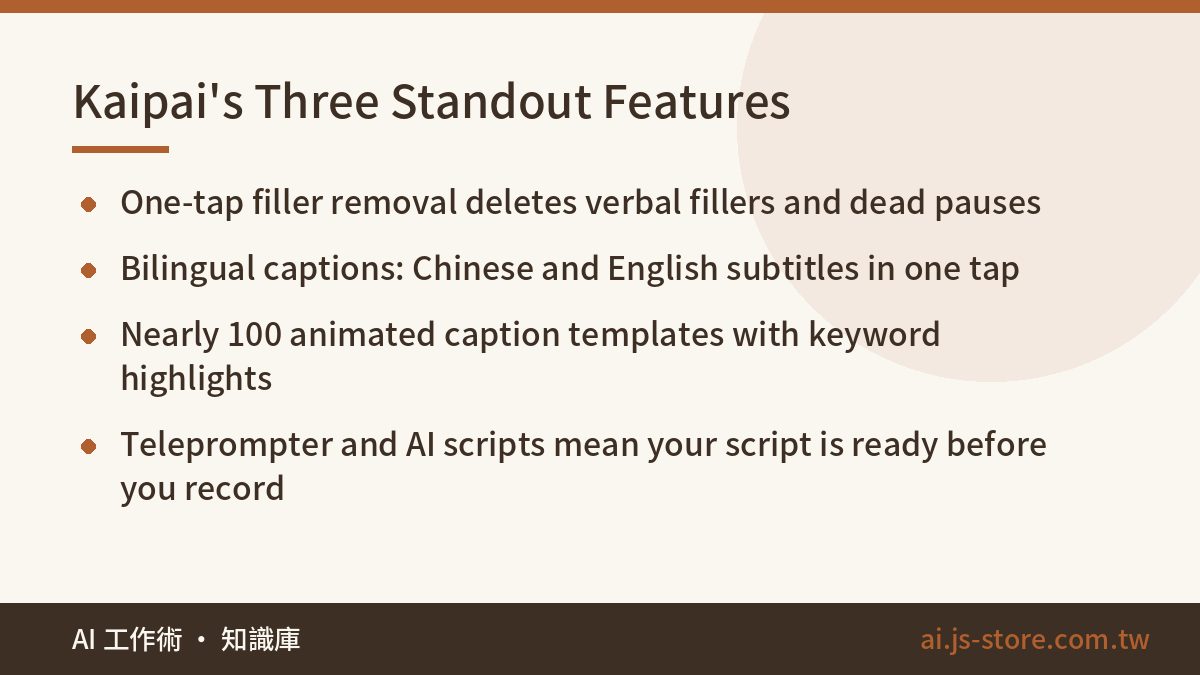
Kaipai is a script-to-video app that Meitu released in 2023. The pitch is simple: someone who has never edited a video can make a polished, social-ready talking-head clip on their phone in about a minute. According to its App Store listing, three features carry the product:
- One-tap filler removal: it finds verbal fillers and dead pauses and deletes them in one pass. Your delivery instantly sounds tighter.
- Bilingual captions: after transcribing your speech, it generates side-by-side Chinese and English subtitles with one tap. That's handy for bilingual channels and language-learning accounts.
- Trendy caption templates: close to a hundred animated caption styles with keyword pop-ups and color highlights already designed, so you never touch a keyframe.
Around those sit the tools you use before you hit record: a teleprompter, AI script writing and a high-quality camera mode. The listing also mentions support for several dialects. In other words, Kaipai squeezes the whole pipeline (write, record, caption, cut fillers, apply a template) into one phone app. That's the real difference from a normal editor. If your content is you talking to the camera for 30 seconds to 2 minutes, it's genuinely good. Don't switch just because someone told you a “pro” tool is better.
Who Kaipai Fits, and Who Should Look Elsewhere
| Situation | Fit | Why |
|---|---|---|
| Solo talking-head and explainer shorts | Great fit | Teleprompter, filler removal and templates in one flow |
| Shop owners and sales reps filming themselves | Good fit | No editing skills needed: apply a template and post |
| Bilingual or language-learning channels | Good fit | Bilingual captions in one tap |
| Long videos edited on desktop, YouTube channels | Not recommended | Built for phones, so long timelines and multi-track editing get clumsy |
| Captions that must be error-free for your accent and local terms | Budget extra proofreading time | Recognition leans on mainland Mandarin training data, so regional words slip through |
| Client deliverables and company brand accounts | Check the terms first | Account ownership, commercial licensing and asset storage all need to be clear |
We run our own video-editing product, so we see a lot of real creator workflows. Generating captions rarely slows people down. Proofreading them afterward does. Fixing a 10-minute video line by line on a six-inch screen is how you end up with sore eyes and a missed posting slot. So the decision to switch comes down to two questions: how long are your videos, and where do you fix them?
Three Signs You've Outgrown Kaipai
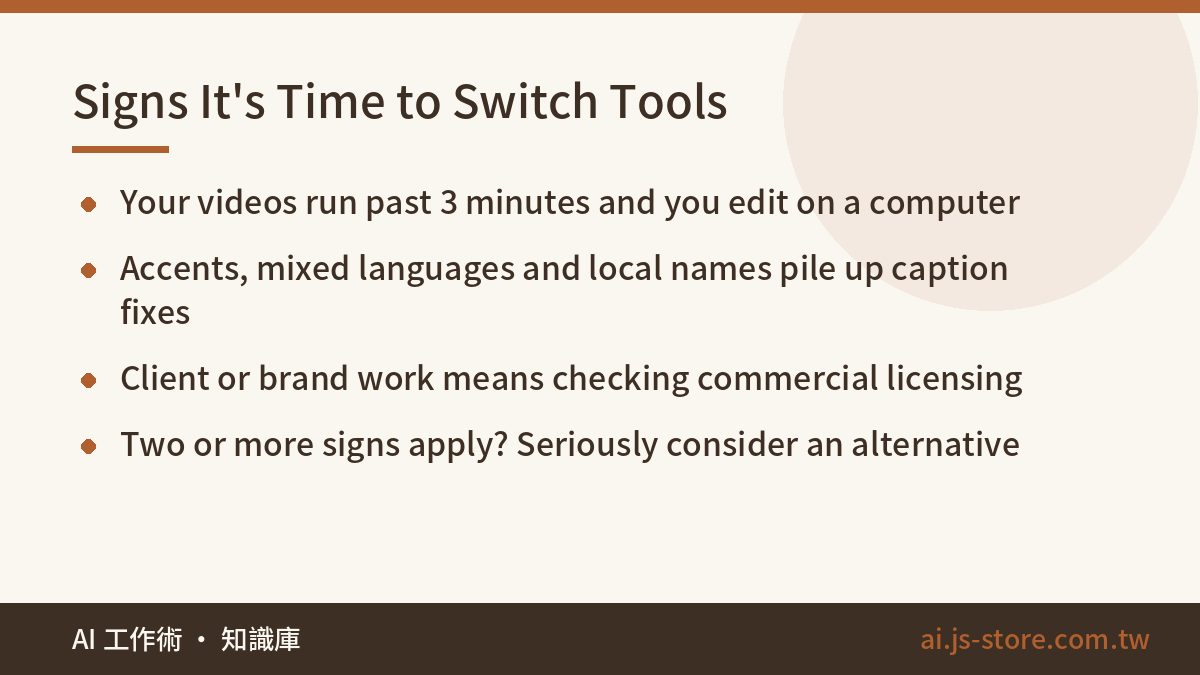
- You've started editing on a computer. Once videos run past 3 minutes or need multiple camera angles and B-roll cutaways, phone editing slows to a crawl. Kaipai is built around its mobile app. Check the official announcements to see whether a desktop version exists and whether it has the same features. Don't assume it does.
- Your transcripts need too many fixes. Speech recognition from a mainland Chinese team is trained mostly on mainland accents and vocabulary. Your correction load jumps if you have a different accent, switch between Mandarin and English mid-sentence, name local shops or people, or use regional word choices. This isn't unique to Kaipai. The whole Jianying and CapCut family has the same problem, which we cover in our Jianying alternatives comparison.
- You're delivering to clients or running a brand account. Before you hand anything over, find out how far the commercial license goes for caption templates, fonts and music, and where your uploaded footage is stored. Every vendor's terms are different. Read the actual terms of service, not your memory of them or a forum post.
Only one applies? Keep Kaipai and add one extra step to your workflow to cover the gap. Two or more, and it's time to look seriously at alternatives.
Kaipai vs CapCut vs Vrew vs AI Auto-Editing
Here's where each tool stood when we checked in October 2026. Plans change often, so read this as a rough guide, not a price list, and confirm costs on each official pricing page.
| Tool | Main platform | Filler and silence removal | Caption strength | Best for |
|---|---|---|---|---|
| Kaipai | Phone | One-tap filler removal | Trendy templates, bilingual captions | Scripted talking heads on a phone |
| CapCut | Phone, desktop, web | Yes, some advanced features are paid | Huge template and effects library | Desktop editing with the same template feel |
| Vrew | Desktop (Windows, Mac) | Removes silences and filler words | Edit captions like a text document | Long talks, lectures, tutorials |
| ShooWork Clip (AI auto-editing) | Web | Handled automatically | Auto captions plus vertical crops, ready for review | Steady weekly output without editing yourself |
CapCut is the easiest move if you love Kaipai's template feel but need to work on a desktop. It works in a very similar way, so you're productive on day one. The catch is that some AI features and export options require CapCut Pro, and you'll still have to proofread captions for accents and local terms. We compare the options in CapCut auto captions alternatives.
Vrew treats your video like a text document. Delete a line of transcript and the matching footage disappears with it, which makes long talking-head content much faster to edit. Its templates and effects are thinner than CapCut's, but for a 20-minute lecture or a course module it saves more time than anything else we've tested. The free tier has a monthly usage cap, so check the current limits before you plan a big batch.
AI auto-editing is for when your goal is publishing videos every week, not learning to edit. You never open a timeline. With ShooWork Clip, you upload raw footage, and the engine cuts the fillers, adds captions and crops the video to vertical short-form. All you do is the final review. It suits shop owners, brand social managers and any account that needs volume more than flair. Skip it if you want frame-by-frame creative control. CapCut and a real timeline are better for that.
How to Choose in 30 Seconds: 4 Questions
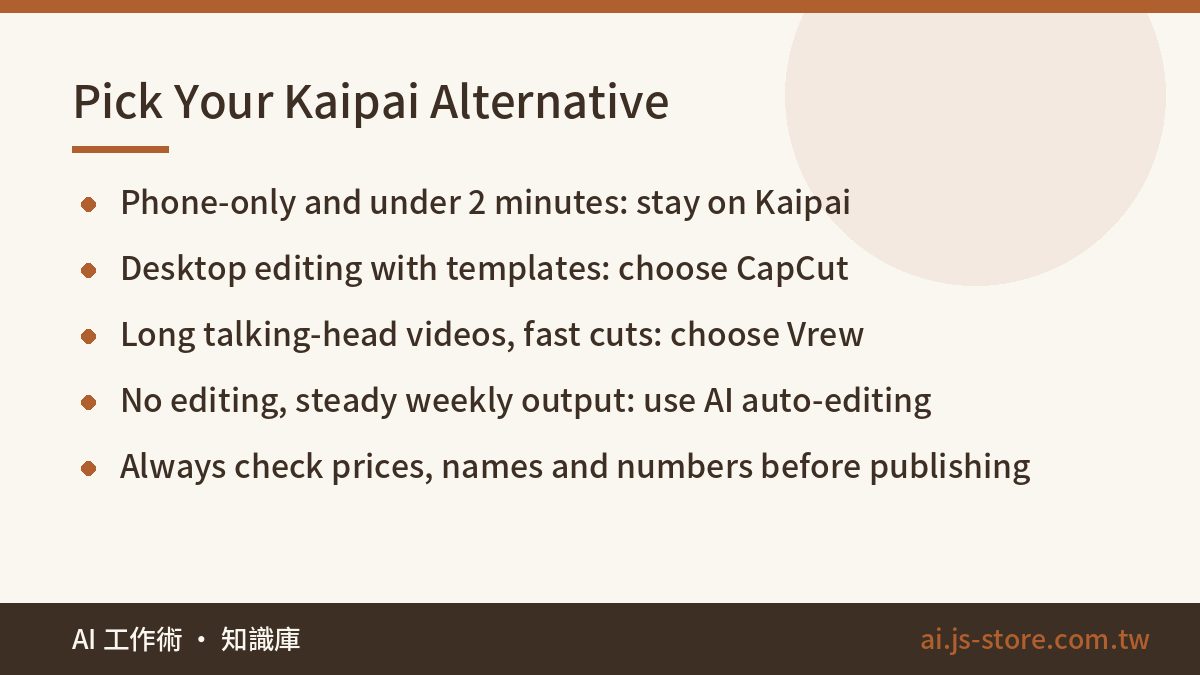
- Everything happens on your phone and your videos are under 2 minutes? Stay on Kaipai. Don't switch.
- You need desktop editing plus templates and effects? Pick CapCut.
- Long videos with lots of talking, and cutting the rambling quickly is what matters most? Pick Vrew.
- You don't want to edit at all, just post on a fixed schedule? Use an AI auto-editor.
Whichever you pick, one rule stays the same: a person checks the auto captions before anything goes live. AI captions tend to fail where it hurts most: brand names, prices, people's names and numbers. Running our own editing engine taught us that one wrong price does more damage than ten mangled filler words. So before you publish, spend two minutes checking only the numbers and proper nouns. It's faster than proofreading every word, and it catches most of the errors that cause real trouble.
The other trap is subscription creep: a Kaipai membership, CapCut Pro and a paid Vrew plan all quietly charging you every month. Pick one main tool and keep the others on free tiers as backup. Upgrade only once your workflow has settled and you know which tool you use every day.
FAQ
Q: Is Kaipai free?
Kaipai is free to download, and basic auto captions are free to use. Some templates and advanced features need a paid membership. Membership prices vary by region and plan, so check what the in-app purchase screen shows you.
Q: Is there a desktop version of Kaipai?
Kaipai is mainly a phone app. Check the official announcements for current desktop support. If you mostly edit on a computer, don't wait for Kaipai to catch up. CapCut and Vrew already have desktop apps, and your workflow will be much smoother.
Q: How accurate is Kaipai's speech recognition with different accents?
For standard Mandarin it's mostly usable. Error rates rise with other accents, mixed Mandarin and English, and local proper nouns, and the word choices may lean toward mainland usage. Proofread line by line before publishing, or switch to a tool that handles your language and region better.
Q: Can I use Kaipai, CapCut and Vrew together?
Yes. A common setup is to record with Kaipai's teleprompter on your phone, then move the footage to a computer and polish it in Vrew or CapCut. If a tool can export an SRT subtitle file, you can pass captions between tools, but supported formats differ. Test the handoff on a short clip before relying on it.
Q: I can't edit at all. What's the easiest option?
If you only make talking-head clips under 2 minutes, Kaipai is already easy. If you don't want to edit even on your phone and need a steady posting schedule, try an AI auto-editing service. You upload footage, it handles filler removal, captions and cropping automatically, and you do the final check.