Taption Alternatives: 5 Auto-Subtitle Tools and How to Choose
Published 2026-10-22 · Updated 2026-10-22 · 8 min read · ShooWork (FREECO CO., LTD.)
Taption vs CapCut, Vrew and Descript: who each auto-subtitle tool suits, how per-minute billing bites, and when subtitles aren't your real bottleneck.
Here's the short answer. If all you need is subtitles on one video and an SRT file to download, Taption usually isn't the cheapest way to get them. CapCut's built-in auto captions will do the job, and so will most free tiers. Taption earns its money on a different job: transcripts, translation into other languages and proofreading together online. It's built for people who have to hand over a written record. It isn't built for people who just want to skip 20 minutes of typing.
The other mistake we see all the time is thinking your problem is subtitles when it's really editing. Captions take three minutes to generate. Then you lose three hours picking clips, cutting sections and fixing the pacing. A new subtitle tool won't fix that. You need a different way of producing video. We run our own AI video-editing engine at ShooWork, and we've watched a lot of creators get stuck in exactly that spot. So this guide ends with a simple split. If you only need subtitles, pick a subtitle tool. If you don't want to edit at all, stop shopping for subtitle tools.
We checked everything below in September 2026. Prices and free allowances in this category change almost every month. So wherever money comes up, we explain how the billing works and leave out specific numbers and plan names. Before you pay for anything, check the official pricing page yourself.
Start Here: Figure Out What You Actually Need
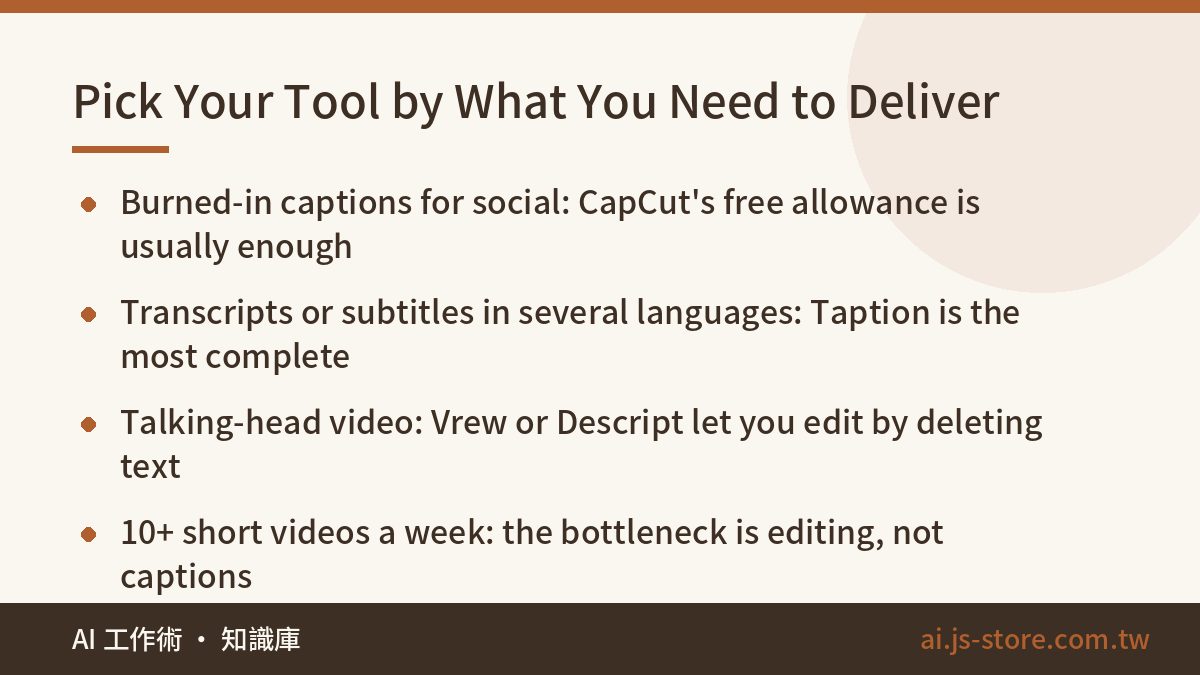
Don't start with feature lists. Start with the thing you need to end up with. Most people buy the wrong tool because they treat subtitles and transcripts as the same thing, and they aren't. Subtitles are timed text that sits on top of a video. A transcript is a document that people read, search, quote or file.
| Your situation | Where to look | Why |
|---|---|---|
| One video with burned-in captions for social | CapCut | The free allowance is usually enough, and you caption right inside your edit |
| Meetings, interviews or podcasts that need a written record | Taption | The screen is built around the transcript, splits text by speaker and lets others proofread through a link |
| Subtitles in several languages for a client | Taption | The most complete translation and export options |
| Talking-head videos you'd rather edit from the transcript | Vrew or Descript | Delete a sentence and the clip goes with it |
| 10 or more short videos a week | ShooWork Clip | Your bottleneck is editing, not captions |
If the table already answered your question, skip to the five-step workflow near the end. It works with whichever tool you pick.
Who Taption Is For, and How the Billing Actually Works
Taption calls itself a speech-to-text platform for audio and video. Subtitles are just one of the things it produces, and the layout makes that clear. The transcript sits on one side and the video on the other. When you fix a word, the timing updates with it. It translates, exports to several formats and lets you send a colleague a link so two people can proofread the same file. It's designed for people whose finished product is text.
This next part is where most people get burned. Almost every tool in this category charges by the minute of video you process. None of them are all-you-can-eat. Know three things before you upload:
- Minutes are counted by video length, not by how many times you use the tool. One upload of a 60-minute meeting uses up about 60 minutes of your allowance.
- Translation is usually charged separately. If you transcribe once and then translate into a second language, you pay twice. That's how budgets quietly double.
- Uploading again means paying again. If you cut the video wrong and need to run it again, you don't get those minutes back. Finish your edit first, then caption. Doing it in the wrong order gets expensive fast.
So the choice is simple. If your videos are long, you don't make many of them and you need a written record at the end, Taption is good value. If they're short, you make lots of them and you just need words on screen, it'll be the most pointless charge on your monthly bill. If you're adding up what all your AI subscriptions cost together, our AI tools cost comparison shows how per-minute and per-user fees add up.
One more thing before you upload a board meeting or a client interview. That audio is going to a third-party server. Check what the tool's data policy says about how long it keeps files and whether it trains on them. If your team handles anything confidential, read our guide to AI security for business first.
Three Things That Will Actually Trip You Up
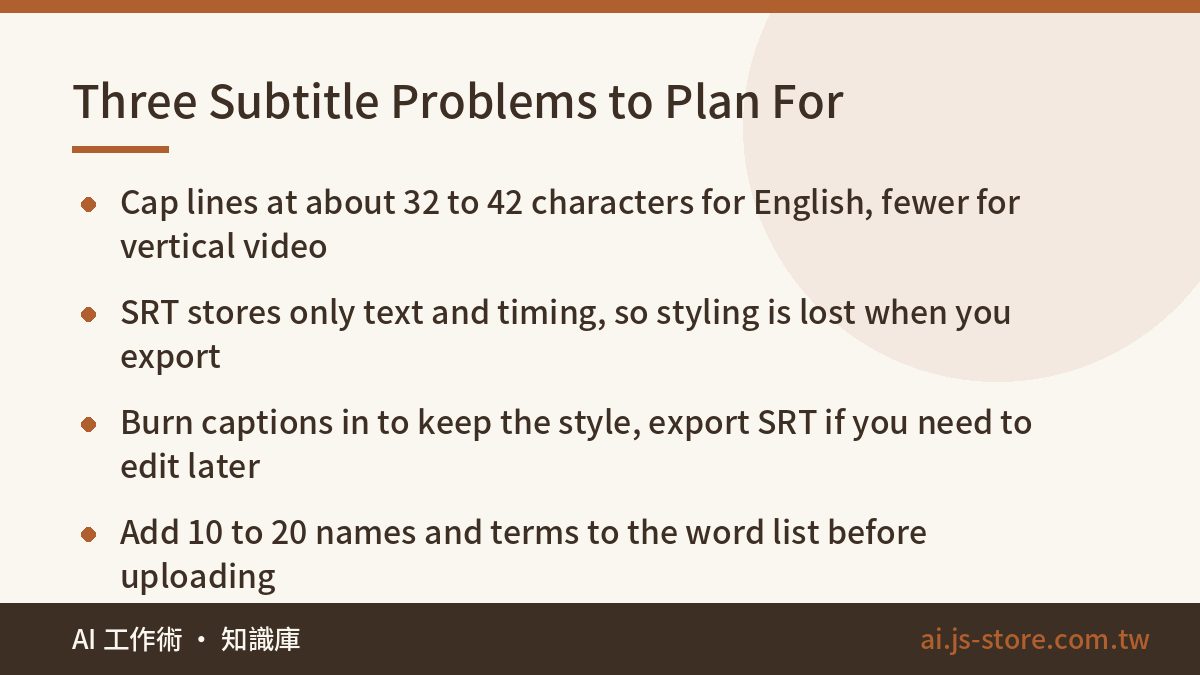
Whichever tool you pick, the problems are almost the same. Knowing them up front saves a lot of back-and-forth.
1. Lines break in odd places. Speech recognition decides where to split lines based on punctuation and pauses, and it often gets it wrong. One sentence gets crammed into a line that runs past the edge of a phone screen. Or a line breaks right after the word the or and, leaving it hanging. Languages without spaces between words, like Chinese and Japanese, have it worse, but English has this problem too. Here's the fix. Set a maximum number of characters per line: about 32 to 42 for English on widescreen video, and fewer for vertical shorts. Allow no more than two lines. Then read through the long sentences yourself.
2. Export formats differ more than you'd expect. This is the step people skip:
- SRT: the format nearly every program accepts. It only stores text and timestamps, not font, color or position. Every style you set in the subtitle tool is lost when you export.
- VTT: common in web video players, and it can keep some styling.
- TXT or DOCX: a transcript for people to read, with no timestamps.
- Burned-in captions: they look exactly the way you designed them. But you can't edit them later, and viewers can't turn them off.
Here's the classic disaster. You style your captions perfectly in one tool, export an SRT and import it into another app. The line spacing, font and position all reset, and you have to restyle everything from scratch. The rule: if you want to keep the style, burn the captions in. If you want to keep them editable, export SRT and don't spend a minute on styling.
3. Names and mixed languages wreck accuracy. Brand names, people's names, product model numbers and sentences that switch languages halfway through get the most mistakes. With a strong accent or a quick comment in another language, the AI is basically guessing. Many tools let you add a custom word list. Add 10 to 20 key terms before you upload and you'll see a clear jump in accuracy. You're giving the AI clues it has no other way to get.
Four Alternatives and Who Each One Suits
CapCut: for people who need captions and a quick edit. Auto captions are built into the editor, and recognition is solid for a free tool. It has lots of caption templates you can burn straight into the video. The downside is that it's an editor first, so working with the transcript is clumsy. SRT export and the size of the free allowance change with the version and the country you're in, so test it once before you rely on it. Best for: solo creators who post one to three videos a week.
Vrew: for videos built around someone talking. Its main idea isn't subtitles. It's editing through the transcript. After it recognizes the speech, your video shows up as a block of text. Delete a sentence and the matching clip disappears with it. You can also strip out filler words and silences in one go. For talking heads, tutorials and interviews, that's several times faster than dragging clips around a timeline. The free allowance is counted in minutes, and you upgrade when you run out. Best for: talking-head creators and online course instructors.
Descript: for people who want transcript editing plus a full production toolkit. It works on the same idea as Vrew: edit the words and the video follows. But it comes in a bigger package with multitrack editing, screen recording and audio cleanup. That's great if you'll use all of it and overkill if you only want captions. Check the pricing page to see how transcription time is counted. Best for: podcasters and creators who want to record, edit and caption in one app. If you work mostly in Chinese, Japanese or Korean, a captioning tool built for that language usually breaks lines more naturally than a global tool. Test it with your own footage before you decide.
ShooWork Clip: for people who don't want to edit at all. To be upfront, this is our product, so here's exactly where it fits. It isn't a subtitle tool. It handles the whole process, from raw footage to finished videos. Maybe your reality is that you need 10 or more short videos a week, and captions aren't the problem but editing and publishing are. Then spending money on a subtitle platform is aiming at the wrong thing, and ShooWork Clip is built for exactly that. If you're still comparing options and want to see everything side by side first, we keep an up-to-date list in our AI tools directory.
A 5-Step Workflow for Subtitles That Are Good Enough
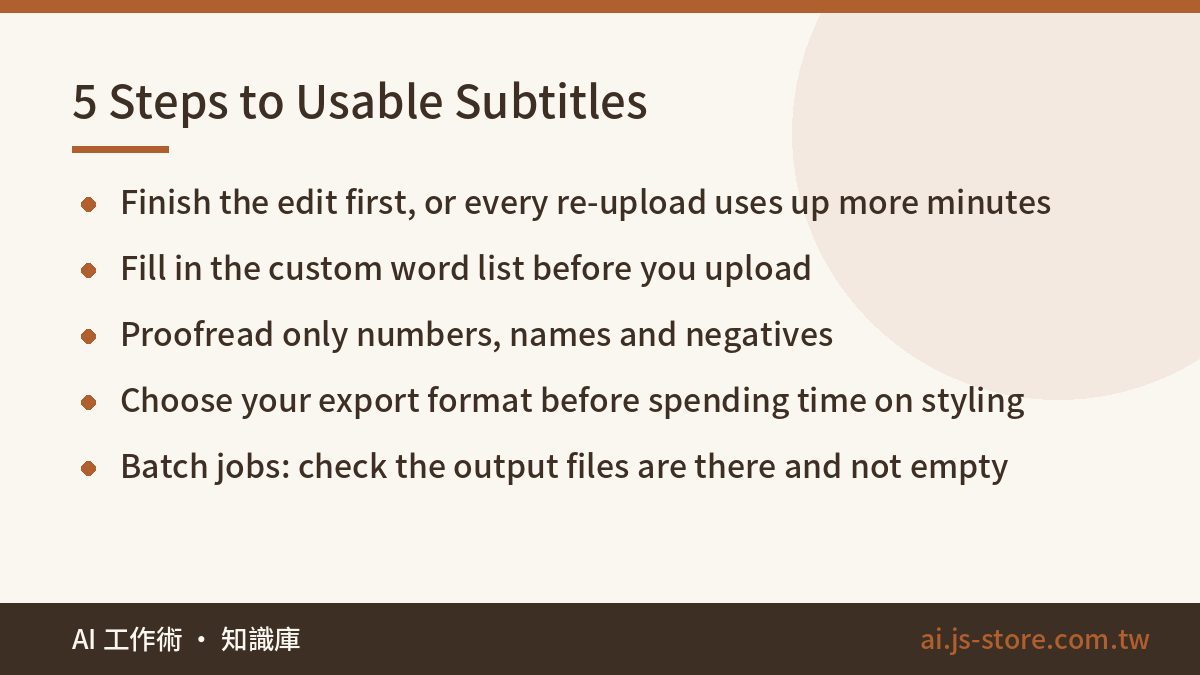
The difference between tools is smaller than you'd think. The difference between workflows is huge. This is the order we follow ourselves:
- Finish the edit, then add captions. If you do it the other way around, every change to the video means running recognition again, which wastes both minutes and time.
- Fill in the word list before you upload. Add 10 to 20 brand names, people's names and technical terms. No other step gives you more for less effort.
- Set a characters-per-line limit. Use about 32 to 42 for English and fewer for vertical video, so nothing runs off the edge of a phone screen.
- Proofread only three things: numbers, names and negatives. When can't turns into can, or a not goes missing, the sentence means the opposite. Wrong numbers hurt your credibility more than anything else. Viewers won't notice most other small mistakes, so checking every word is a waste of time.
- Choose your export format before you style anything. Styling is only worth it if you're burning the captions in. If you're exporting SRT, skip it, because the styling gets lost anyway.
You might want to automate all this, for example with scheduled batch transcription that drops files into a cloud folder. First, protect yourself from one trap: the batch job says it's done, but nothing was actually created. The subtitle file is 0 KB, the folder is empty, and the script still reports success. Teams usually find out weeks later. Make the job check that every output file exists and isn't empty, and make it fail with a clear error when one doesn't. Don't automate anything in batches without that check.
FAQ
Q: Does Taption have a free plan I can keep using long-term?
Tools like this usually give you a trial allowance so you can test accuracy. It isn't a free plan you can rely on, and once it's used up, you pay. Spend the trial on your hardest video, the one with background noise, jargon and more than one speaker. That result tells you something useful, and a clean studio recording won't. Check the official page for the current allowance.
Q: How accurate are auto subtitles? Can I publish without proofreading?
With clean audio, one speaker and a standard accent, today's tools are good enough that one quick read-through is all you need. Add background music, people talking over each other or switching between languages, and the mistakes jump. Always proofread, but focus on numbers, names and negatives and let the small stuff go.
Q: Why does all my styling disappear when I import an SRT into my video editor?
SRT only stores the text and the timestamps. It doesn't store font, size, color or position. There are two ways to keep your styling: burn the captions in using the original tool, or apply a caption template again in your editor. It isn't a bug. The format just works that way.
Q: I just want to save time. Should I switch subtitle tools or change how I work?
Do the math first. For one week, keep track of how long captioning takes compared with editing and publishing. If captions take less than about 30 percent of your time, even the best subtitle tool will only save you a little. The real fix is in editing, so look at an AI editing tool instead of comparing yet another subtitle platform.
Q: Can I set up line breaks once and never fix them again?
You can get close, but you'll never be completely hands-off. Lock in three settings: the maximum characters per line, the maximum time each caption stays on screen, and whether lines can break anywhere other than at punctuation. Save them as your default. Still check the long sentences yourself, because AI still isn't reliable at spotting where a pause makes sense.