AI Excel Automation: Get Formulas, Pivots and Clean Data Faster
Published 2026-10-13 · Updated 2026-10-13 · 8 min read · ShooWork (FREECO CO., LTD.)
Stop asking AI to do your math. Use it as an Excel consultant: describe your sheet, get formulas, pivot layouts and cleanup steps you can verify.
Short answer: the most useful way to use AI with Excel isn't asking it to do the math. Treat it like an Excel consultant sitting next to you. You tell it what your sheet looks like and what result you need. It gives you the formula, the pivot table layout or the cleanup steps, and you paste them into your own workbook and run them there. Your raw data stays on your machine, Excel does the calculating so you can check the result, and every question teaches you something you'll use again.
We run our own AI tool platform and ShooWork Ads, our Google Ads tooling. That means every week someone on our team is cleaning ad-platform CSV exports, reconciling spend and splitting client reports. A lookup that wouldn't match used to cost us 30 minutes. Now we paste the column names and the error message into a chat, and it's usually fixed in two or three rounds.
This is the playbook we've built up over more than a year. It covers formulas, pivot tables, messy data, and the jobs we won't hand to AI at all. One rule runs through all of it: roughly 80% of answer quality depends on how well you describe your table. The AI can't see your screen. If you don't tell it what's in column A, where the data starts and whether there's a header row, it has to guess.
Describe Your Sheet First: The Four-Part Template
Most bad answers come from one-line prompts like “Why doesn't my VLOOKUP work?” They give no columns, no ranges and no version. Here's the opener we use internally. Fill it in, then add your question:
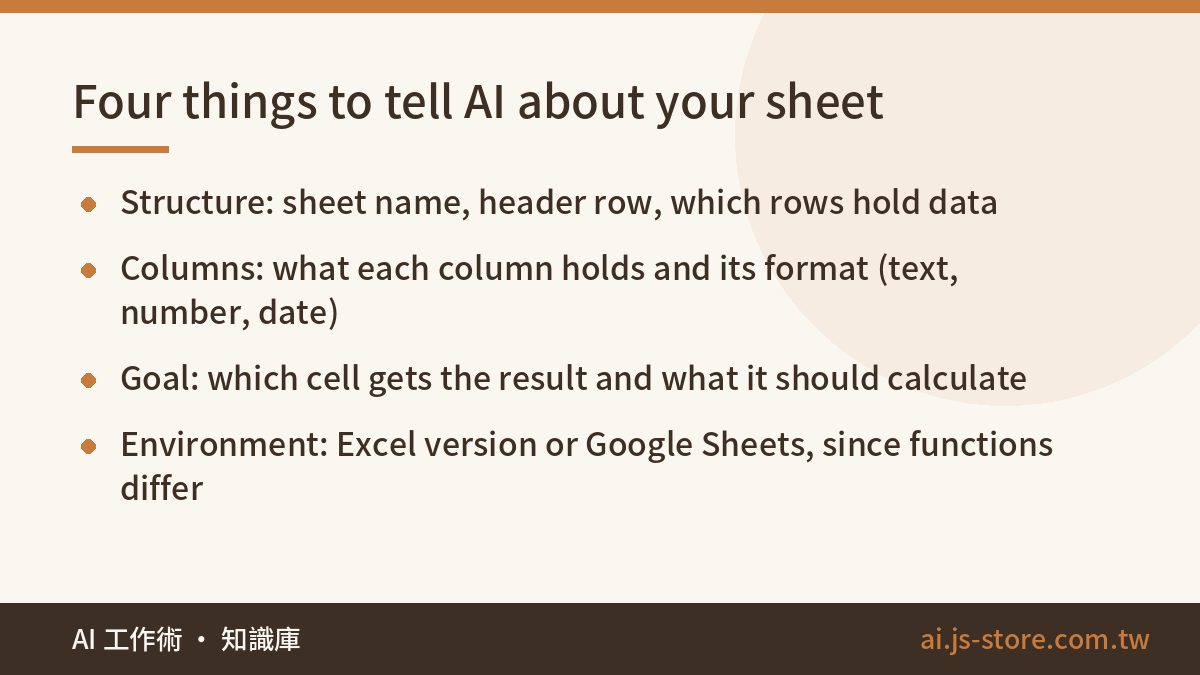
- Structure: “My sheet is called Orders. Row 1 is headers, data runs from row 2 to row 500.”
- Columns: “A is order ID, B is order date (2026-09-01 format), C is customer name, D is amount (a number), E is status (text: Paid, Unpaid or Refunded).”
- Goal: “In G2 I want the total of Paid orders from September 2026.”
- Environment: “Microsoft 365 Excel” or “Google Sheets.”
Most people skip the fourth line, and that's the one that causes trouble. Excel 2016, Microsoft 365 and Google Sheets don't support the same functions. Older desktop Excel doesn't have XLOOKUP, FILTER, LET or TEXTSPLIT. If the AI doesn't know your version, it may give you a formula that returns #NAME? as soon as you paste it.
A second trick: don't describe your data in words. Copy the first five rows and paste them into the chat. Excel copies them as tab-separated text, which AI reads well, and it shows the exact formats. Replace real names, emails and phone numbers with fake ones first. For ready-made openers in other situations, see our copy-paste prompt templates for work.
Formula Prompts: Go Beyond “Write Me a Formula”
Getting a new formula is the obvious use. You save more time by having AI explain formulas someone else left behind and fix formulas that throw errors.
1. Ask for the formula and what each argument does
After the template, add: “Give me the formula and explain each argument in one sentence.” Don't skip the explanation. If you don't understand a formula, you'll be asking again the next time someone inserts a column. For the September example, you'll usually get a SUMIFS with three conditions: status is Paid, the date is on or after September 1, and the date is before October 1.
2. Decode an inherited formula
Say you've taken over a colleague's report and found a 200-character nested IF wrapped around INDEX and MATCH. Don't try to work it out yourself. Paste it and ask: “Break this down step by step in plain English, then tell me when it would return the wrong result.” The second half is where the value is. AI often points out traps like “if a lookup value has a trailing space, this quietly finds nothing.”
3. Fix errors by asking for causes, not a single answer
Paste the formula and the error together: “This returns #N/A. Lookup values are in column A, and the lookup table is in the Products sheet, columns A to C. Give me the three most likely causes and how to check each one.” The AI can't see your data, so a short list you can check yourself works better than one confident guess that turns out to be wrong.
| Error | Usual cause | What to ask |
|---|---|---|
| #N/A | Extra spaces, or text vs number mismatch | “Trim the lookup value and convert it to a number before matching.” |
| #VALUE! | Math on text, or dates stored as text | “Column B dates are text. How do I convert them all to real dates?” |
| #REF! | A referenced column or sheet was deleted | “List every range this formula references.” |
| #NAME? | Function not in your version, or a typo | “Which functions here won't work in Excel 2016, and what replaces them?” |
| #DIV/0! | Dividing by zero or a blank | “Wrap this so it shows blank when the divisor is zero.” |
Pivot Tables: Let AI Decide What Goes in Rows and Values
Dragging fields into a pivot table is easy. The hard part is looking at a 30-column export and working out which layout answers your boss's question. AI is good at this. It turns “what does the boss want to know” into a plan: these fields go in rows, these in columns, these in values, and here's how to summarize each one.
Here's a prompt we've actually used: “I have ad performance data with columns: date, platform (Meta or Google), campaign, spend, impressions, clicks, conversions. My manager wants cost per conversion by platform by month, and which campaign spends the most. How many pivot tables should I build, what goes in rows, columns and values, and should each value be a sum or an average?”
A good answer will warn you that you can't sum or average cost per conversion directly. You need total spend divided by total conversions, using a calculated field or a helper column. If you average the per-row ratios, you get a number that looks reasonable but is wrong. Beginners make this mistake more than any other in reporting, and AI catches it reliably.
Then ask follow-ups: how to group dates by month (right-click a date in the row labels and choose Group), how to write the calculated field, and how to make the pivot include new rows automatically. The usual answer to that last one is to turn the source range into a Table with Ctrl+T. It's one of the most useful Excel habits, and few people learn it.
Our ad reports work exactly this way. The raw export sits in a Table, and we built the pivots once. Every week we paste in fresh data and click Refresh. The setup took two afternoons of back-and-forth with an AI, and it has saved us about an hour a week since then.
Data Cleanup: The Messiest Job, and Where AI Helps Most
Exported data almost always arrives dirty: extra spaces, three date formats in one column, numbers stored as text, and the same customer spelled five ways. Cleanup is where AI saves the most time in Excel. These problems have standard fixes, and the AI knows them well.
The rule: ask about one problem at a time. If you paste “my data is a mess, clean it up,” you'll get generic advice. Split it up instead:
| Problem | Ask | Typical fix |
|---|---|---|
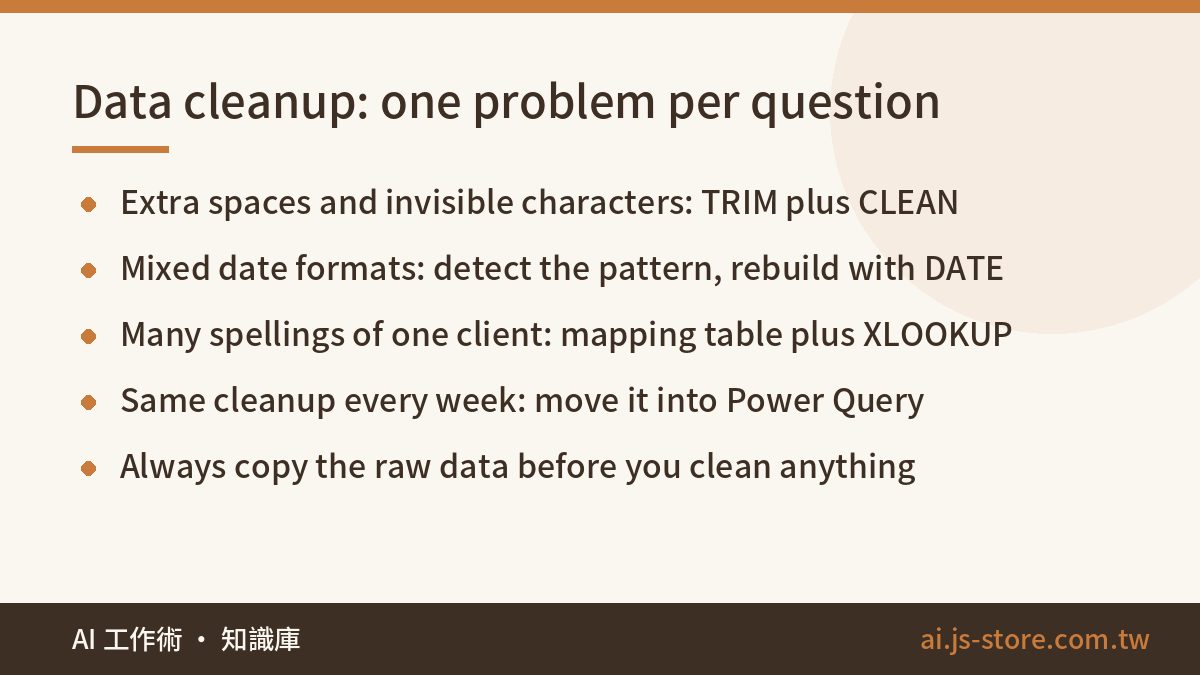
| Extra spaces, invisible characters | “Names in column A have extra spaces and line breaks. Remove them.” | TRIM plus CLEAN, or SUBSTITUTE for non-breaking spaces pasted from the web |
| Numbers stored as text | “Amounts in column D won't add up. How do I convert them?” | VALUE, multiply by 1, or Text to Columns |
| Mixed date formats | “Column B has 2026/9/1, 2026-09-01 and 20260901. Make them consistent.” | Detect the pattern and rebuild with DATE, or Text to Columns |
| One client, many spellings | “Acme Inc., ACME Corporation and Acme are the same client. Merge them.” | A mapping table plus XLOOKUP, not a giant nested formula |
| Several values in one cell | “Column C has comma-separated emails. Split them into rows.” | TEXTSPLIT (newer Excel), Text to Columns, or Power Query |
| Duplicate rows | “Flag rows where the order ID repeats.” | COUNTIF to flag them, or Remove Duplicates |
Once you reach tens of thousands of rows, or you run the same cleanup every week, a good AI will suggest Power Query. Ask: “How do I do these steps in Power Query? Tell me exactly what to click.” Power Query records the steps once and repeats them every time you click Refresh. That cut our reconciliation from about 40 minutes to 5.
Build one habit: copy the raw data before you clean anything. If a step goes wrong after you've overwritten the original, you can't get it back.
What We Don't Hand to AI
We've made each of these mistakes ourselves or watched a client make them.
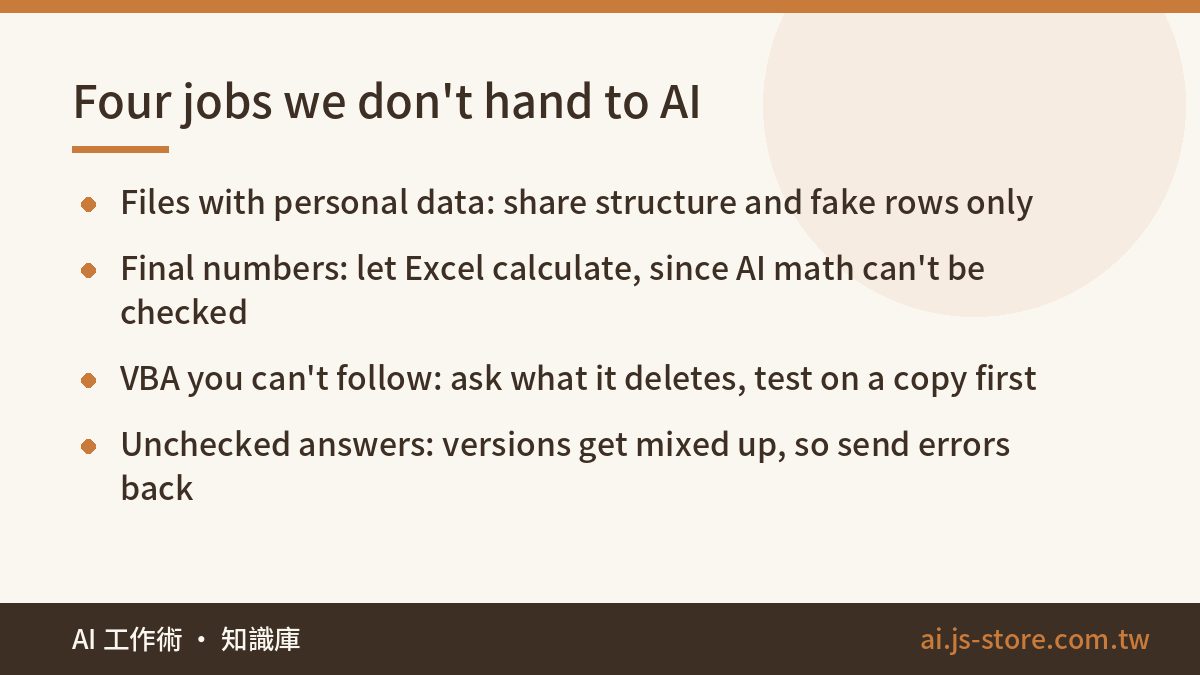
1. Don't upload files containing personal data. Once you paste customer names, phone numbers, ID numbers or salaries into a chat, you no longer control them. Share the headers and a few rows of fake data, get the formula, and run it locally. If your company has a data policy, check whether you can share even the structure.
2. Don't let AI calculate final numbers. Ask it to total a pasted table and it might get it right, or it might skip two rows. AI is reliable at writing formulas but unreliable at adding up lots of values, and you can't check how it reached a number. Anything someone has to sign off on, like finance, reconciliation or payroll, should be calculated by Excel.
3. Be careful with VBA macros. AI writes VBA quickly, but VBA can delete data, overwrite files and change other workbooks. If you can't follow what the code does, don't run it. At the very least, ask “Does this delete or overwrite anything?” and test it on a copy.
4. Check AI's answers before relying on them. AI sometimes suggests functions your version doesn't have, or mixes Google Sheets syntax into Excel. Getting an error after pasting is normal. Just send the error back. The bigger risk is a report that refreshes without errors but reads the wrong range. Our automation silent-failure checklist shows how to catch a report that looks successful but isn't.
Finally, save the prompts and formulas that worked. You'll build the same report again, and looking it up in your notes is faster than asking again. Our team keeps a shared library of about 40 Excel prompts, so new hires can run a report they've inherited on day one.
FAQ
Q: Is ChatGPT or Claude better for Excel questions?
Both handle formulas, pivots and cleanup well, and the difference is small. How well you describe your table and whether you name your Excel version matter much more than which model you use. For most spreadsheet work a free tier is enough. See our ChatGPT free vs paid breakdown.
Q: Should I use Copilot inside Excel or a separate AI chat?
Copilot can see your sheet, so you don't have to describe it. But it needs a paid subscription and isn't always better at complex logic. We use both. Copilot handles quick formatting and totals. A chat window handles complex formulas and workflow design, because we can push back and ask why. Check Microsoft's official pricing page for current plans.
Q: The formula AI gave me shows #NAME?. What now?
Usually your version doesn't support the function, or some Google Sheets syntax got mixed in. Tell the AI your exact version and ask it to rewrite the formula for that version. XLOOKUP can become INDEX plus MATCH, and FILTER can become a helper column plus a filter.
Q: Can AI build me a fully automated report?
Yes, if you build it in stages. Have AI help you turn the cleanup into Power Query, the summaries into pivots and the layout into a template. Check each part before you connect them. If you ask for the whole thing at once, you'll get something you can't read, and you won't know how to fix it when it breaks.