Shopping Cart Declutter With AI: How 87 Items Shrank to 6
Published 2026-10-21 · Updated 2026-10-21 · 8 min read · ShooWork (FREECO CO., LTD.)
Stop judging cart items one by one. Screenshot your whole cart, let AI group it by the problem you're trying to solve, and watch 87 items shrink to 6.
Open your shopping cart, scroll to the bottom and count. If you're like most people, there are dozens of items. Some have been sitting there for over a year, and you can't remember adding others at all. You don't want to clear it in case you miss something, and you don't want to check out because something feels off. Here's my advice: don't go through it item by item. Screenshot the whole cart, give the screenshots to an AI chatbot, and have it regroup everything by the problem you were trying to solve.
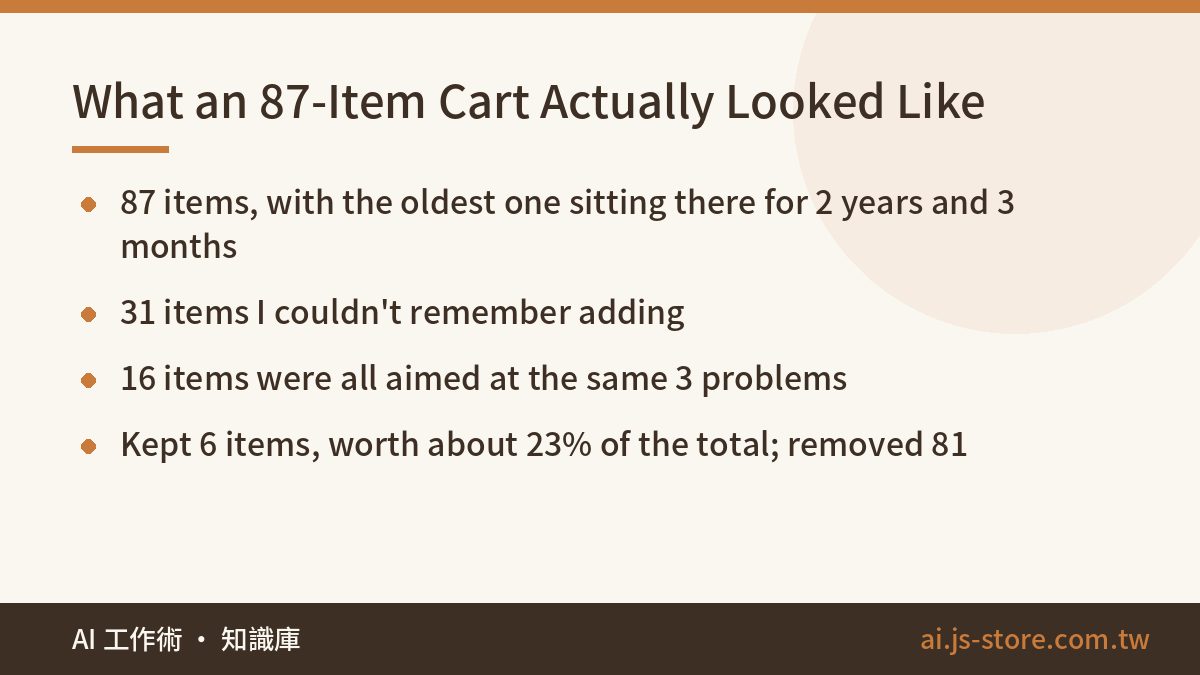
I did this with my own cart. It had 87 items worth roughly US$1,300. The oldest one had been there for 2 years and 3 months, and I couldn't remember why I'd added 31 of them. I expected the AI to help me pick what to buy. It didn't tell me to buy anything, and it didn't tell me to empty the cart. It sorted the 87 items by what I was trying to do, and the result was embarrassing: 7 storage boxes, 5 pieces of workout gear and 4 desk accessories. Those 16 items were all aimed at the same 3 problems. Once I saw that, the cleanup took minutes. I kept one item from each repeat group, asked “do I still need this?” about everything else, and ended up with 6 items worth about 23% of the original total. I removed 81 items, about 77% of the cart's value. And 2 of those 3 problems didn't need money at all.
One limit to know first: an AI chatbot can't log into your shopping accounts. It can't see your prices, stock levels or coupons, so you take the screenshots and upload them yourself. Black out your address, phone number, card digits and account email before you do. You don't need to write code or install anything, and the first pass takes about 10 minutes.
Why Your Cart Never Shrinks: It Isn't a To-Buy List
Most people clean out a cart by opening the app, starting at item one and asking “do I still want this?” With 87 items, that's 87 separate decisions, and each one means remembering what you were thinking months or years ago. You'll quit around item 20 and close the app. The next time the problem bugs you, you'll add one more thing. That's why carts only ever grow.
Look at the whole cart at once, though, and the pattern is obvious: your cart isn't a list of things to buy. It's the same few problems, added over and over. I didn't want 7 storage boxes. I had a “there's nowhere to put stuff at home” problem that went unsolved for two years. Every time it annoyed me, I added a box and closed the app, and the problem stayed exactly where it was. The 5 workout items came from “I want to start exercising.” The 4 desk items came from “I want a desk I can actually sit at for hours.” It feels like shopping, but you're really keeping a record of things you haven't fixed.
So grouping isn't busywork. It turns 87 decisions into 3 to 5. And once you write a problem down as one sentence, you'll often notice that the first step costs nothing. For storage, the first step was clearing one empty shelf. For exercise, it was using the gear I already owned four times. Two of my three groups were like that.
If this sounds familiar, it's because online courses you bought and never finished follow the same pattern. We covered that version in the course-hoarding audit. The method is different, but the rule is the same: find the problem first, then delete.
Turn Your Cart Into a Readable List in 10 Minutes
It takes four steps and no code:
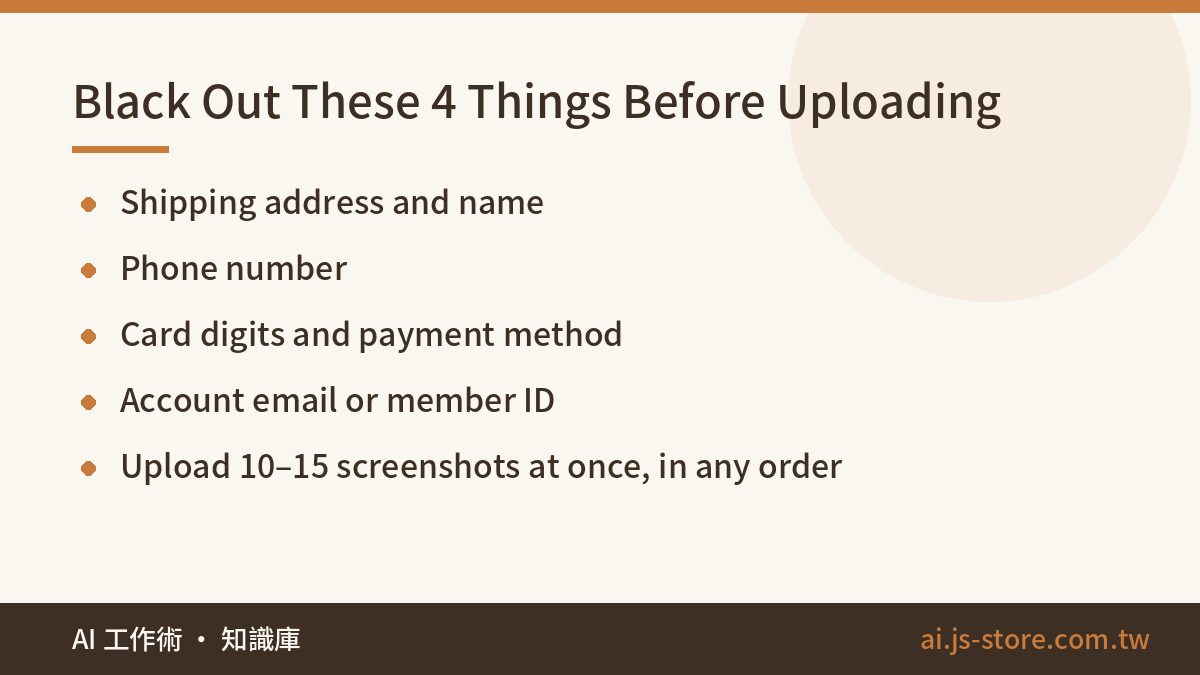
- Open your cart on your phone and screenshot every screen from top to bottom. A few dozen items usually fit in 10 to 15 screenshots. Don't sort or rename them.
- Before uploading, black out four things: your shipping address and name, phone number, card digits and payment method, and account email or member ID. Cart and checkout pages often show all of these together, and this is the only risky step in the process. To make this a habit, see our 3-second check before you paste personal data.
- Upload all the screenshots at once along with the prompt below. You can mix screenshots from several stores, and the AI will keep them separate.
- When the four sections come back, read section four first: the total, the amount kept and the amount cleared. Sections one to three show the work. Section four is the result you need.
Here's the full prompt. Replace the screenshot count, the number of stores and the example problems with your own:
These are screenshots of my shopping cart: 12 images from 2 different stores.
Do the following four things in order, under four separate headings.
No encouragement or filler between sections.

1. Rebuild the list
Make a table with each item's short name / price / date added (if visible).
End with the total item count and total price.
If anything in a screenshot is unreadable, write UNREADABLE in that cell.
Do not guess. Do not fill in a plausible-looking price.

2. Group by the problem I was trying to solve
Do NOT group by product category (no home / fitness / stationery).
Group by the problem I was trying to solve when I added it, for example:
- Nowhere to put things at home
- I want to start exercising
- I want a desk I can sit at for hours
For each group, list how many items I added for that problem and which ones.
Items that appear only once go in a Single Items section. Don't force groups.

3. Keep only one per group
Pick one item per group to keep, with a one-line reason
(cheapest? usable soonest? solves the most?).
Mark the rest of that group DUPLICATE.
Anything added more than six months ago that fits no group: mark NO LONGER NEEDED.

4. Give me just three numbers
Total / amount kept / amount cleared.
At no point suggest what to buy, recommend alternatives, or compare prices.
This time I only want to see what I keep adding.
Two parts of this prompt are there on purpose. The first is “write unreadable, don't guess.” At ShooWork we run our own AI tool platform and the video-editing engine behind ShooWork Clip, and we see models misread small on-screen text every day. Cart thumbnails are tiny and crowded, so misreads are normal. An empty cell is much better than a confident number that looks right and isn't. The second is the last instruction: no buying suggestions, no alternatives and no price comparisons. Leave it out and the chatbot starts acting like a shopping assistant, which puts you right back to asking “which one should I buy?”
If the chatbot still adds pep talk or extra suggestions, fix that at the settings level. These 7 custom-instruction checks show you how.
Three Piles, Three Different Next Steps
| Pile | What it really means | Next step (do this before checkout) |
|---|---|---|
| Repeat groups (3+ items for one problem) | You're not missing a product. The problem never got solved. | Ask: “Is there a free first step?” Two of my three groups had one: clear one shelf, and use the gear I already own four times. |
| No longer needed (6+ months old, can't remember why) | You were buying a mood, not the item. | Remove it from the cart. The product is still on the site if you want it later. You can undo this step. |
| Actually buying (the one item kept per group) | This is your real list. | Write down when you'll use it. If you can't name a time, move it to the second pile. |
The step people skip is also the one that matters most: asking whether the problem has a free first step. As long as the problem is still there, the cart will fill back up. Removing items treats the symptom, not the cause.
Be strict with the “actually buying” pile too. One item per problem is the cap, not the target. If clearing the shelf fixes your storage problem, you don't need the box at all. In my case, the 6 items I kept were the ones I could put on a calendar. Everything else was a someday item, and I'd already been waiting two years for someday.
Three Questions Before You Tap “Add to Cart”
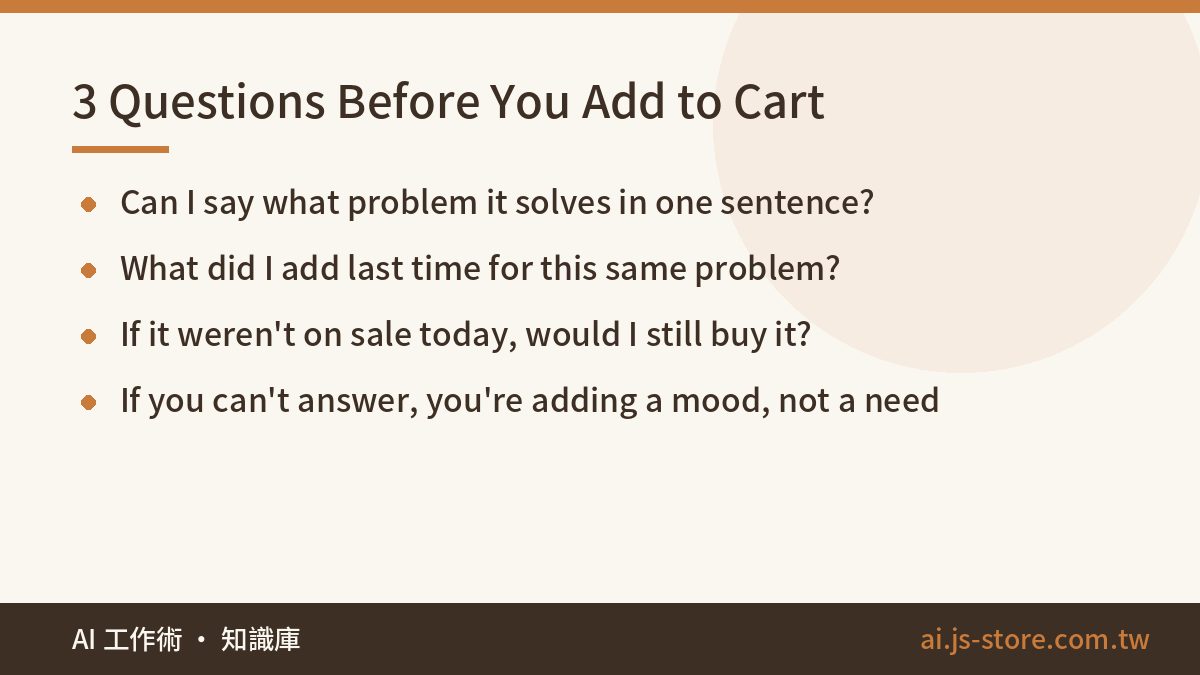
Screenshot this table and read it the next time your thumb is over that button:
| # | Ask yourself | If you can't answer |
|---|---|---|
| 1 | Can I say what problem this solves in one sentence? | You're adding a mood, not a need. |
| 2 | What did I add last time for this same problem? | If you added something, use it or remove it before you consider this one. |
| 3 | If it weren't on sale today, would I still buy it? | If not, you want the discount, not the item. |
Question 2 is the only one that needs the cleanup done first, and it's the only one that stops your cart from filling back up. Without the grouped list, you don't know what you added last time. Question 3 is for big sales. It's common for a cart to gain 20 items in one sale week, and you probably know how many of those were added only because of the discount.
Don't do the cleanup once and call it done. Paste last round's grouped list into the next conversation and ask the AI to flag any new item that belongs to an old problem. That's what turns this from a one-off cleanup into a habit.
Mistakes to Avoid, and Five Honest Limits
Here are the four most common mistakes:
- Don't review items one at a time. Going through 87 items one by one means 87 decisions, and you won't get past 20. Grouping leaves you 3 to 5.
- Don't let the AI decide what to buy. It can't see stock levels, your bank balance this month or when a sale ends. Its job is to show you your own pattern.
- Treat the prices it reads as estimates. The store's checkout total is the real number. Don't use the AI's total for budgeting or expense reports.
- Removing an item isn't missing out. The product is still on the site. If you're worried you'll forget it, save the removed list in a note. If six months pass and you never think about it, you have your answer.
Read these five limits before you start:
- The numbers in this article (87 items, 2 years 3 months, 31 forgotten items, 6 kept) come from my own cart. They're not an average or a prediction of your result. You can get your own numbers in 10 minutes: scroll to the bottom, take the screenshots, and have the AI rebuild the list and add it up. You can check this yourself instead of taking my word for it.
- AI can't log into any store account. It can't see your cart, prices, stock or coupons. It only reads the screenshots you upload. You don't need code or any installed software.
- Always black out your address, phone number, card digits and account email before uploading. Cart and checkout pages often show them together, and this is the only risky part of the process.
- The AI can misread prices. That's why the prompt tells it to write “unreadable” instead of guessing.
- You can undo removing an item, but you can't undo a purchase. All this process produces is a list of what to keep. Whether and when you check out is your decision. The AI won't press the button for you, and it shouldn't.
FAQ
Q: Can AI read my shopping cart directly from the store?
No. AI chatbots can't log into store accounts, so they can't see your cart, prices or stock. They only read the screenshots you upload, so the first step is always scrolling to the bottom and taking a screenshot of each screen yourself. Because you're sharing screenshots, black out your address, phone number, card digits and account email first.
Q: Can it handle dozens of screenshots in one go?
Upload limits for number of images and file size differ between AI tools and change over time, so check the official help page for the one you use. In practice, upload 10 to 15 at a time. If you hit the limit, split them into two batches and start the second with: “Continuing from the previous batch, recalculate the total item count and total price at the end.” Splitting doesn't change the grouping as long as the AI recounts everything at the end.
Q: Can I trust the total it calculates?
Only as an estimate. Cart thumbnails have tiny text, and models often misread numbers, which is why the prompt says “write unreadable, don't guess.” The total is there to show you how big the pile really is. It isn't for budgeting or reconciling. The store's checkout amount is the real number.
Q: What if I regret removing something?
You can undo it. The product is still on the site and a quick search brings it back. All you lose is the feeling that it's waiting in your cart. If you're still unsure, copy the AI's removed list into a note and set a reminder for six months from now. If you never thought about those items in that time, you have your answer.
Q: How is this different from asking AI “should I buy this?”
It works at a different level. Asking “should I buy this?” gives the AI all 87 decisions as they are, and you get back analysis that sounds reasonable and is forgotten by tomorrow. This prompt tells the AI not to answer whether to buy, only which problems you keep adding items for. Once you can see the problems, the list gets shorter, and you'll often find one or two problems you can solve without spending anything.